

Create New Workspace
Click the blue Add button in the top right corner of the workspace page, enter a name, and specify the email of a team member to create a new workspace within the team. Each workspace needs to be assigned an Owner. For details on member permissions within a workspace, please refer to Member Management.Manage Workspace
To rename a workspace or change its status, click the menu button on the right side of the workspace and select Edit. To hand a workspace to a different owner, select Transfer Owner instead and pick the new owner. The previous owner keeps their other roles, or becomes a Restricted Member if they have none. The new owner’s existing roles are replaced by Owner.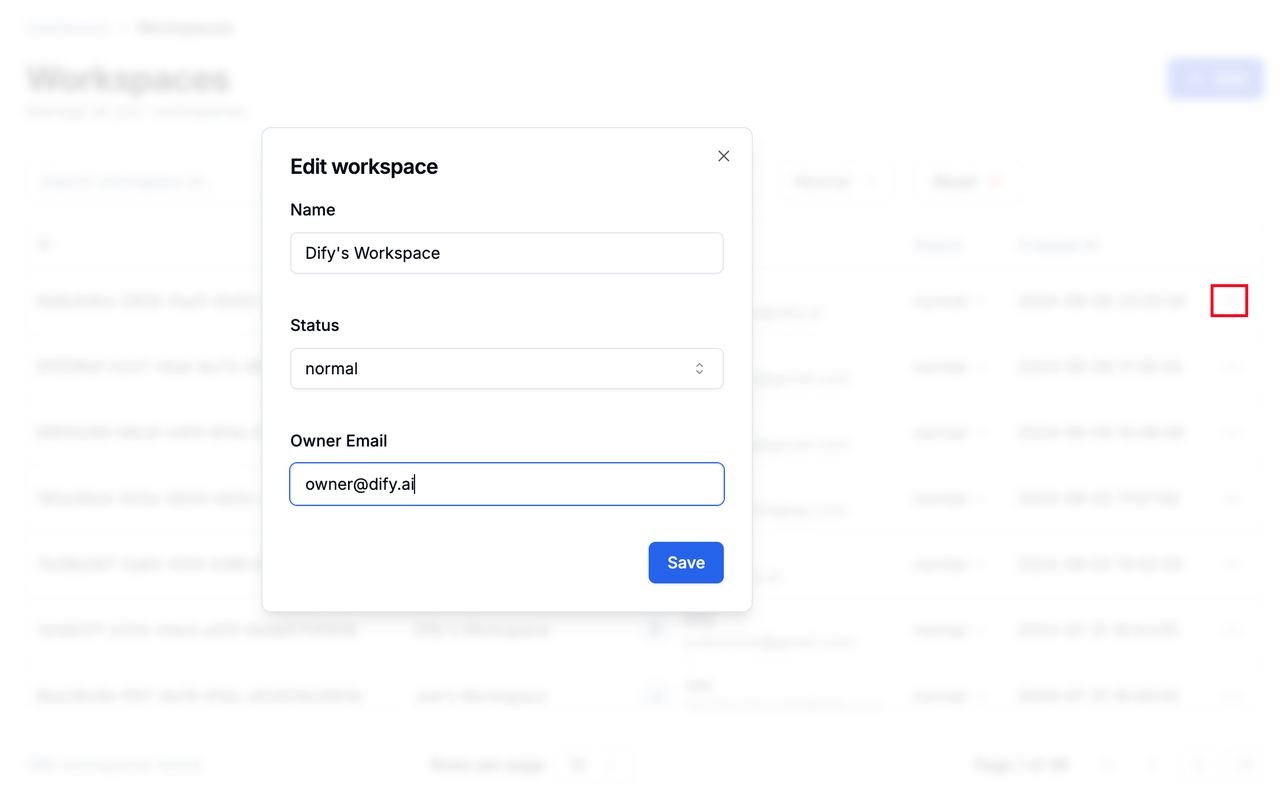
View Members in Workspace
Administrators can view the Owner and members of any workspace. Select any workspace, click the menu button on the right, and select Show Member.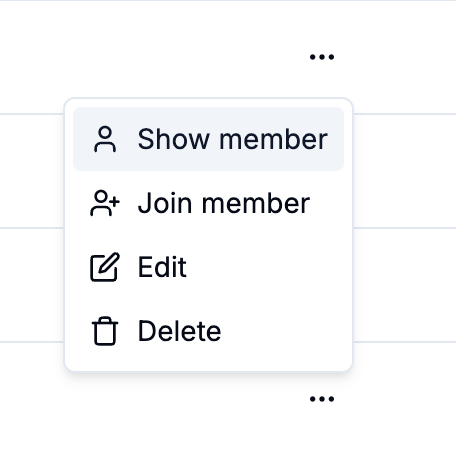
Add Members to Workspace
To add a member to a workspace, click the menu button on the right side of the workspace, select Join Member, choose a role for the new member, and enter the member’s email. See Roles and Permissions for what each role allows. Once members are added to a workspace, they can only be removed through the workspace’s Members settings.Adjust Workspace Status
Workspaces contain the following two states:- Normal The current workspace is running normally, and members can use or create applications in the workspace normally.
- Archive The current workspace has been archived, and members can no longer use or create applications in the workspace.
Delete Workspace
⚠️ This operation is dangerous, please proceed with caution. Click the menu button on the right side of the workspace and click “Delete” to complete the deletion. After deleting a workspace, the AI applications within it will no longer be available.Search Workspace
Administrators can query all workspaces in the Enterprise Edition through the workspace ID and name in the search box. Clicking “Reset” will reset all search conditions.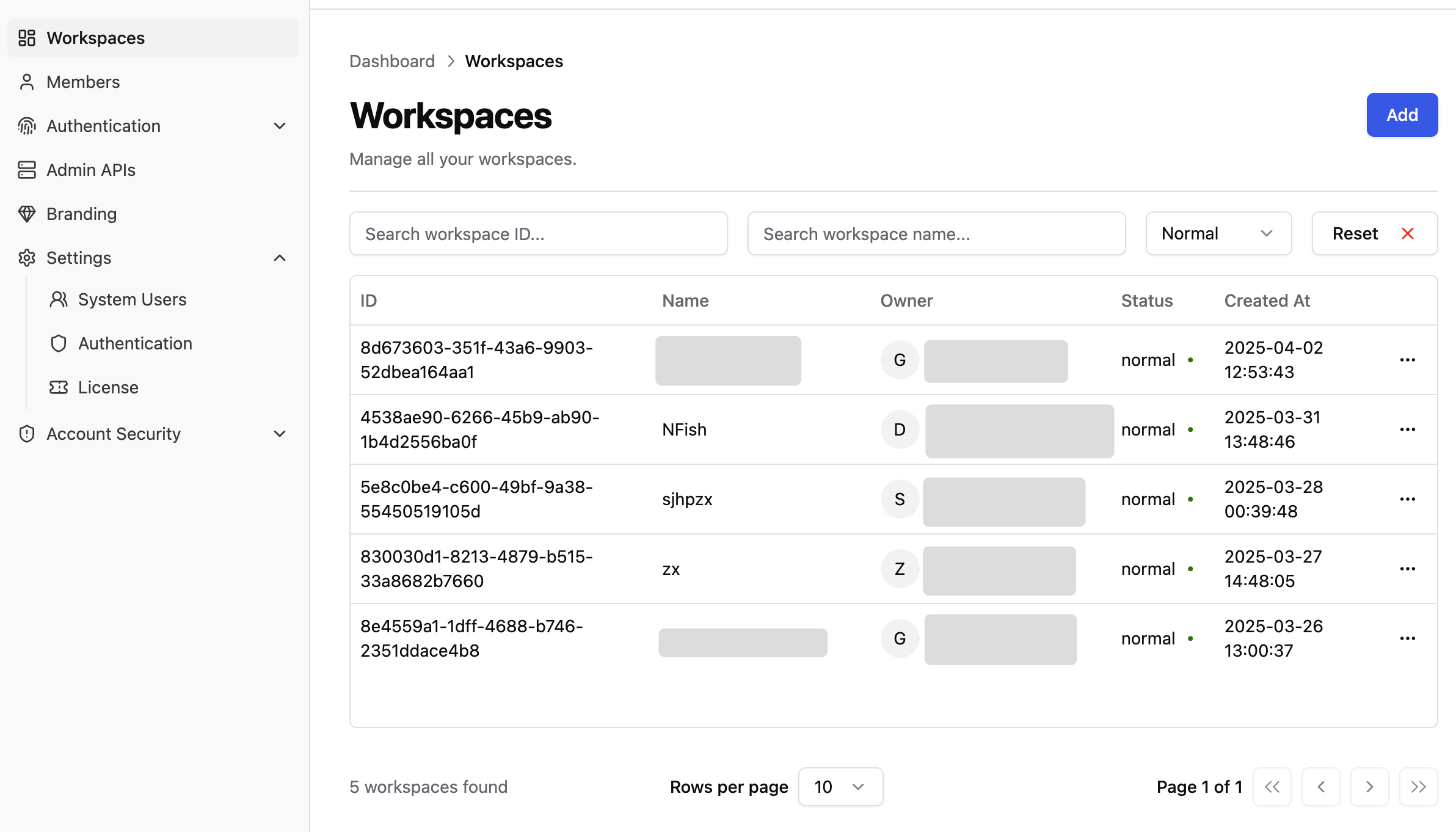
Workspace Permission Configuration
Administrators can select a specific workspace and click Permission Settings to configure:- Whether to allow workspace administrators to invite and add new members to the workspace.
- Whether to allow the workspace owner to transfer workspace ownership to others.