

Managing Plugin Installation
In the Enterprise Edition management backend, click Plugins in the left-hand menu to enter the plugin management page, and find Plugin Installation Policy. On this page, you can:- View current plugin policy configurations
- Control allowed plugin types for installation
- Restrict plugin installation sources
- Keep one plugin version installed in every workspace, including workspaces created later
Install a Plugin in Every Workspace
- In Plugins, find the row for the plugin version you want and click Install Manage. If the version isn’t listed yet, install it first with Install Plugin, from the Marketplace or a local package.
- In the Install Management dialog, check Install in every workspace and click Confirm.
Turning the option off leaves the plugin in every workspace that already has it. To remove it from those workspaces, remove them from the Installed Workspace List in the same dialog.
Allow Specific Plugin Types
Administrators can select allowed plugin types for installation through the “Allowed Plugins” dropdown menu:
Plugin Source Description:
In the plugin marketplace, you can identify different types of plugins through tags and author names:
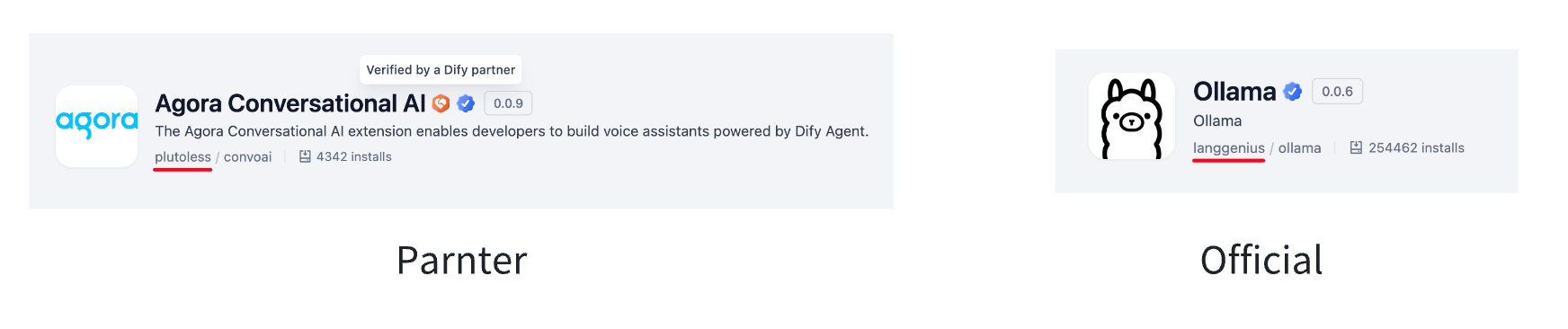
Control Plugin Installation Sources
Marketplace Installation Restrictions
The “Restrict to Marketplace Installations” toggle controls plugin installation sources, helping administrators balance functional requirements and security risks:
Plugin Installation Source Channels Overview:
Signature Installation Restrictions
In addition to restricting plugins to marketplace-only installation in the management console, you can also control plugin installation by modifying environment file variable values in the deployment. Plugin signatures can be considered as trusted source verification for plugins, and verification will be performed during plugin installation. When deploying the enterprise edition, theFORCE_VERIFYING_SIGNATURE in the environment variable file controls plugin signature verification. If plugin signature restrictions are enabled in environment variables, it will affect plugin installation.
- For information on how to control signature installation restrictions through environment variables during deployment, please refer to the deployment manual.
Enable Marketplace Installation Restrictions
Disable Marketplace Installation Restrictions
Note: All plugins provided on Dify Marketplace include Dify signatures.