You have to init Dify Console http://console.dify.local first before login to Dify Enterprise Dashboard http://enterprise.dify.local.
1. Init Dify Console
- Visit
http://console.dify.local.
- Init Email and Password.
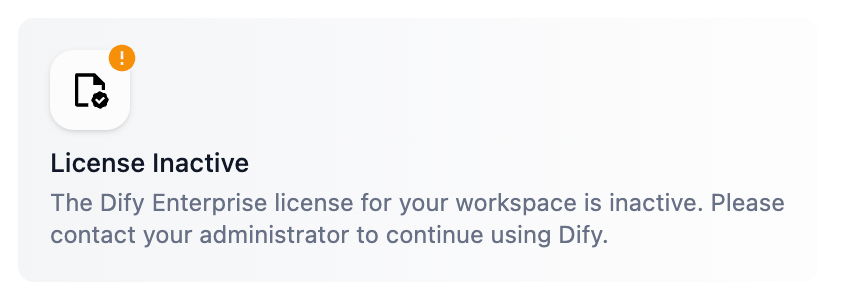
- After initialization, you will be redirected to the login page and wait for license activation.
2. Init Dify Enterprise Dashboard to Activate License
- Visit
http://enterprise.dify.local.
- Login with the default email and password. You can change the password after login.
- email:
dashboard@dify.ai
- password:
difyai123456
- License Activation: After login, a dialog will pop up to activate the license.
For more information, please refer to the License Activation.
- After license activation, visit
http://enterprise.dify.local/dashboard/workspaces and create a workspace.
3. Install Models plugin from Marketplace
-
3.1 Access the Marketplace.
-
3.2 Install the Models plugin.
- Select a model plugin from the Marketplace.
- Wait for the installation to complete. (May take a few minutes if it’s the first time installing the plugin.)
- Fullfill the secret token of the model plugin.
- Verify successful installation.
3. Verify Dify Console
- Visit
http://console.dify.local.
- Create a
Knowledge and upload a file.
- Create a
Basic Chatbot, and select the Context that you created at the Knowledge.
- Select the model plugin that you installed from the Marketplace.
- Ask the chatbot question and verify the response.

