

Active Type
- Online (Default)
- Offline
Online Activation
- Click on the License tab in the left menu of the Dify Enterprise dashboard, then click the activation button in the upper right corner.
- Select
Onlineas the activation type, enter theLicense ID, and complete the activation process. - After activating the license, you need to restart the
enterpriseservice for the new license to take effect.
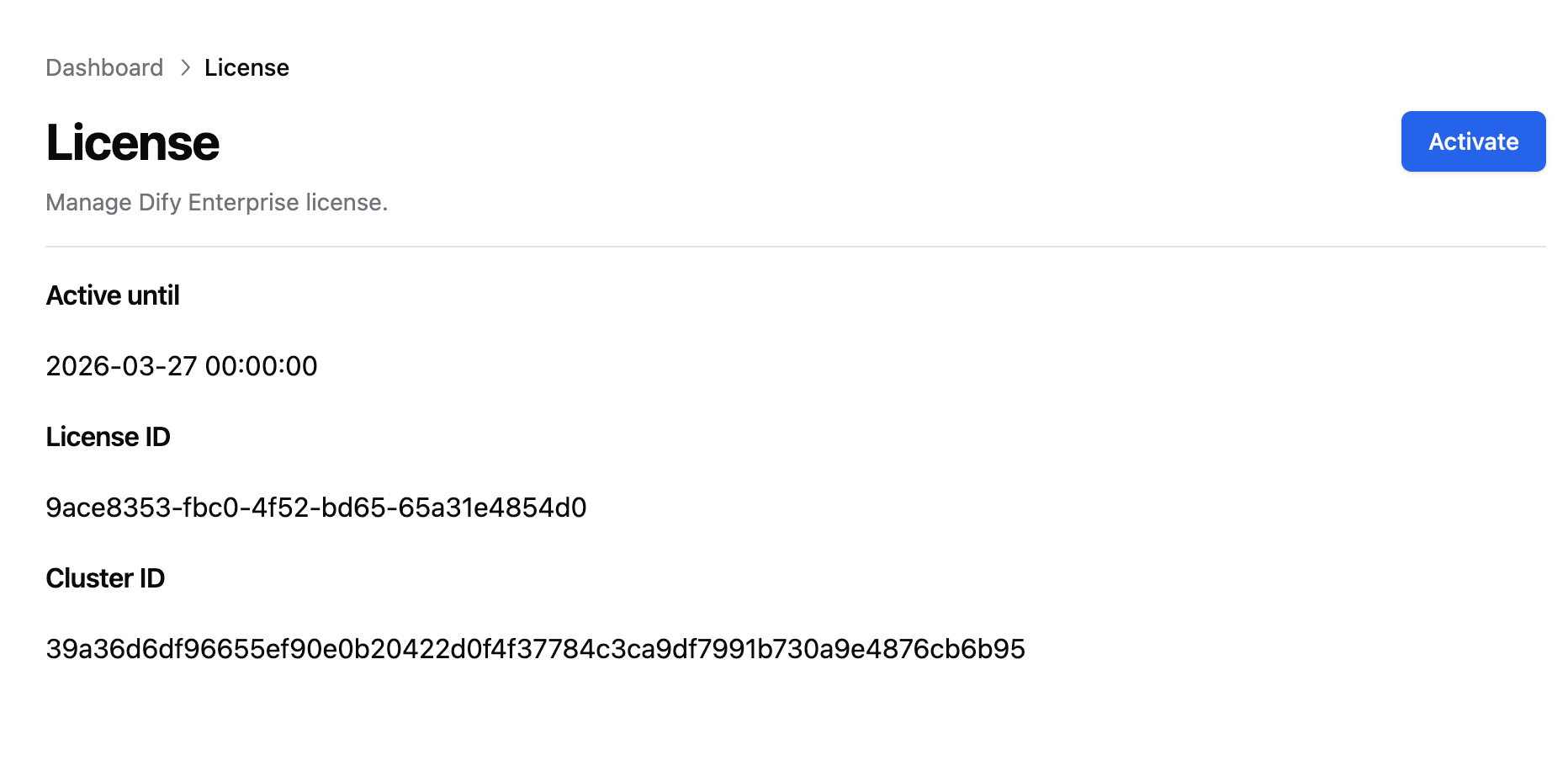
Offline Activation
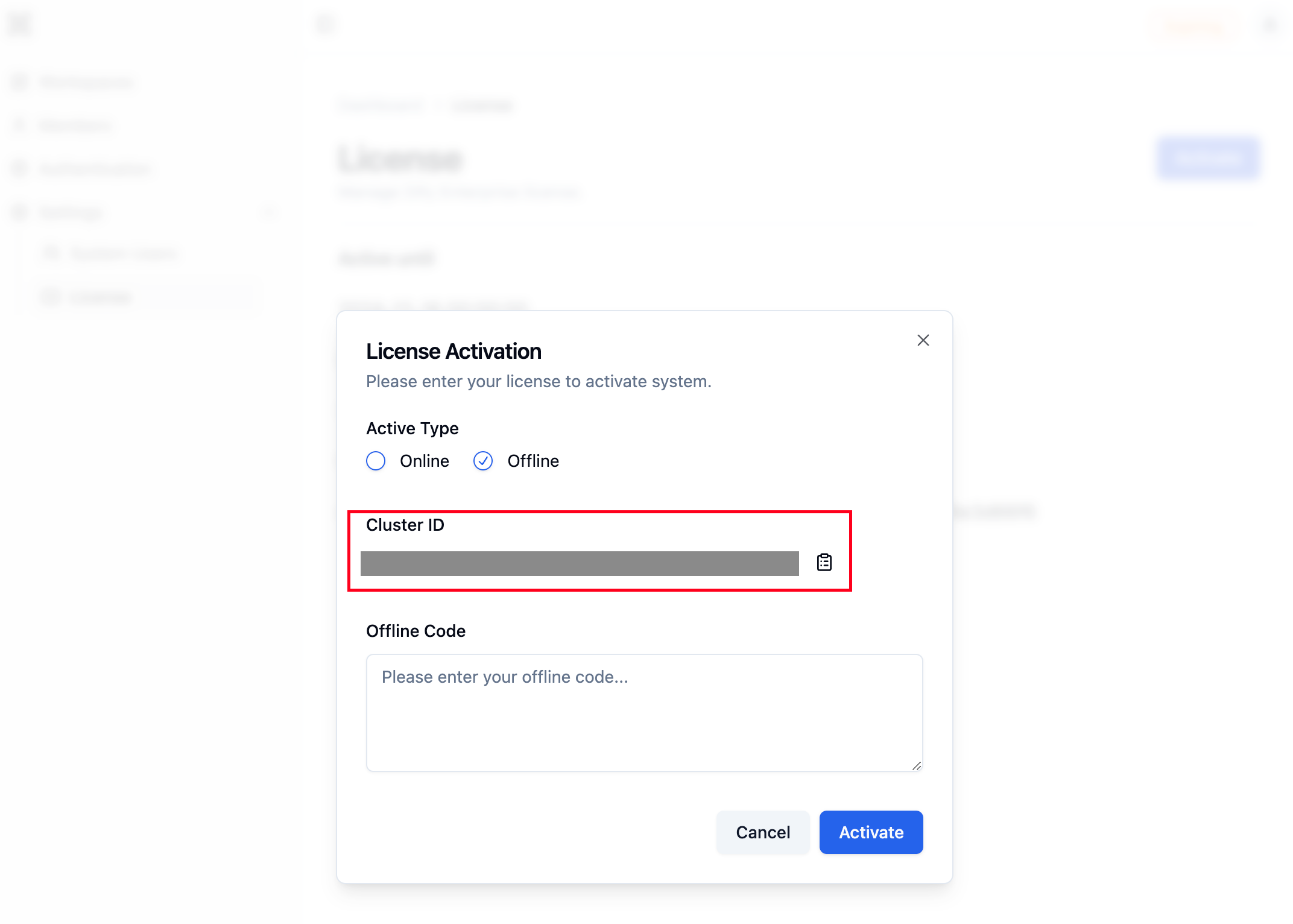
- Click on the License tab in the left menu of the Dify Enterprise dashboard, then click the activation button in the upper right corner. Select
Offlineas the activation type. - Copy the
Cluster IDand send it to your Dify business team to obtain theOffline Code.
-
Before activating the license, you need to change the
licenseModevalue in thevalues.yamlfile tooffline.-
Display Helm Chart Values
-
Set License Mode to
offline -
Apply the change (redeploy for it to take effect)
-
Display Helm Chart Values
-
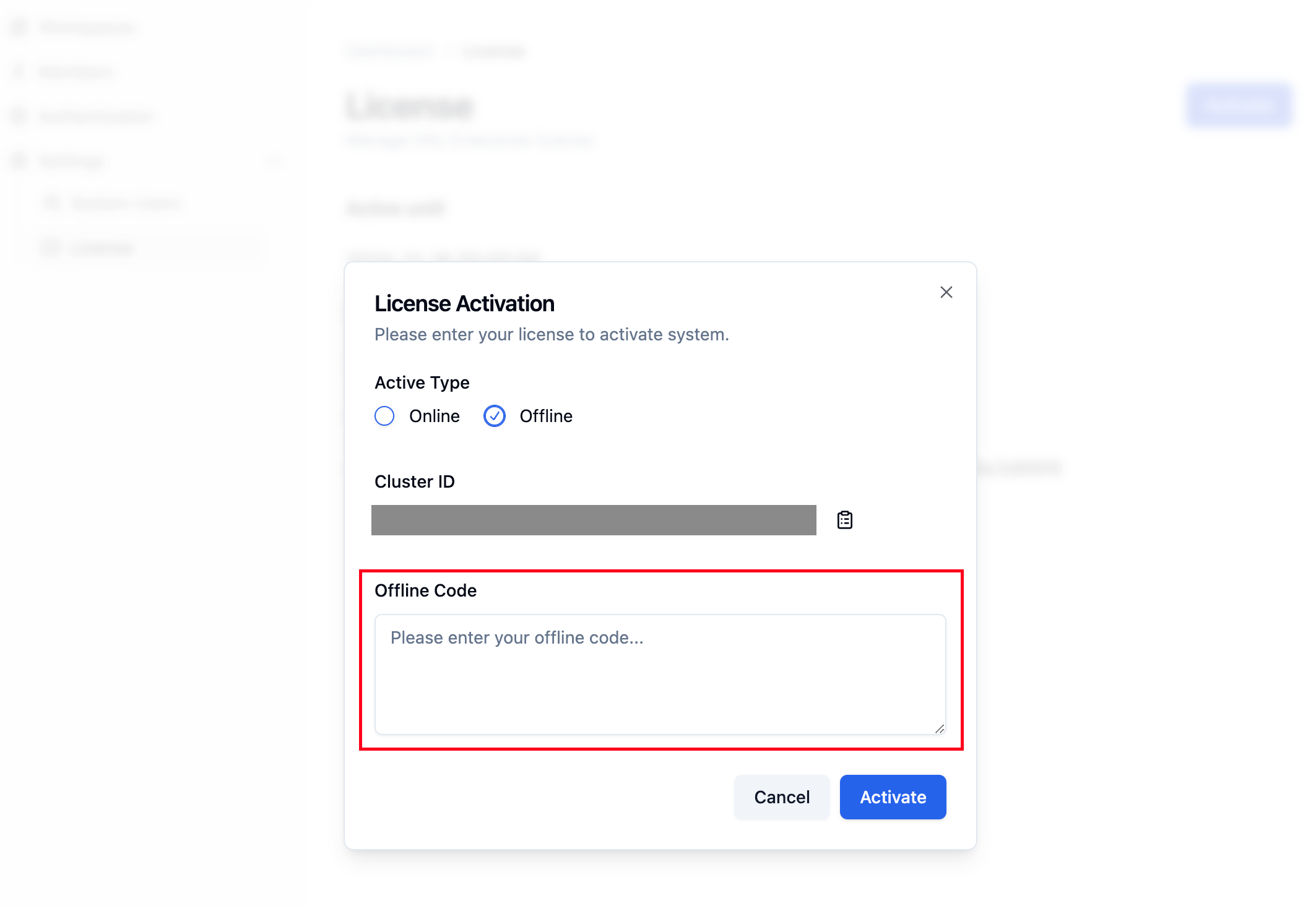
After making the changes, return to the License activation tab, enter the
Offline Code, and complete the activation process. -
After activating the license, you need to restart the
enterpriseservice for the new license to take effect.
Refresh License
- The flow for refreshing the license is the same as the activation process.
- After refreshing the license, you need to restart the
enterpriseservice for the new license to take effect.