

Changing who can access a web app requires the Manage access points permission.The Owner, Admins, and the app’s creator hold it by default; other members can hold it through a custom role or per-app exception. See Roles and Permissions for details.
Access Permission Types
To change the access level, open the app’s Access Point page and click the current level shown on the Web App card. This opens Web App Access Control. Four access levels are available: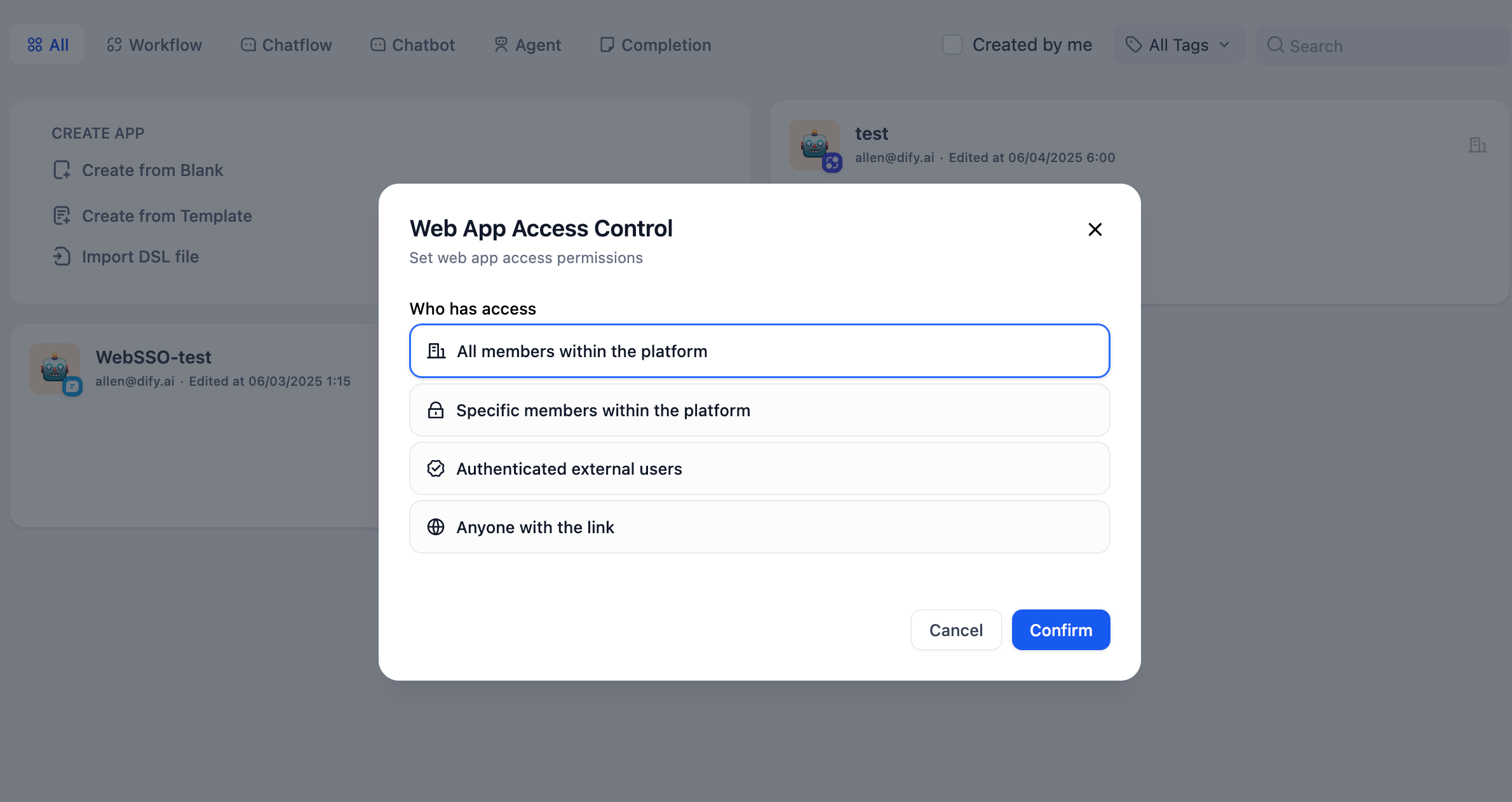
All Members Within the Platform
Any member of your Dify Enterprise platform can access the app, regardless of workspace membership. Users must authenticate with their platform account: password, verification code, or SSO. Platform members can access the app through the direct URL. Workspace members can also find it in the WEB APPS section of the sidebar.Specific Members Within the Platform
Default setting for new apps. Restricts access to chosen groups or individual members within the platform. Ideal for department-specific tools or sensitive data applications. Configure access by groups or individuals:- By Groups
- By Individuals
Add entire groups for automatic permission management. When someone joins the group, they get app access. When they leave, access is revoked.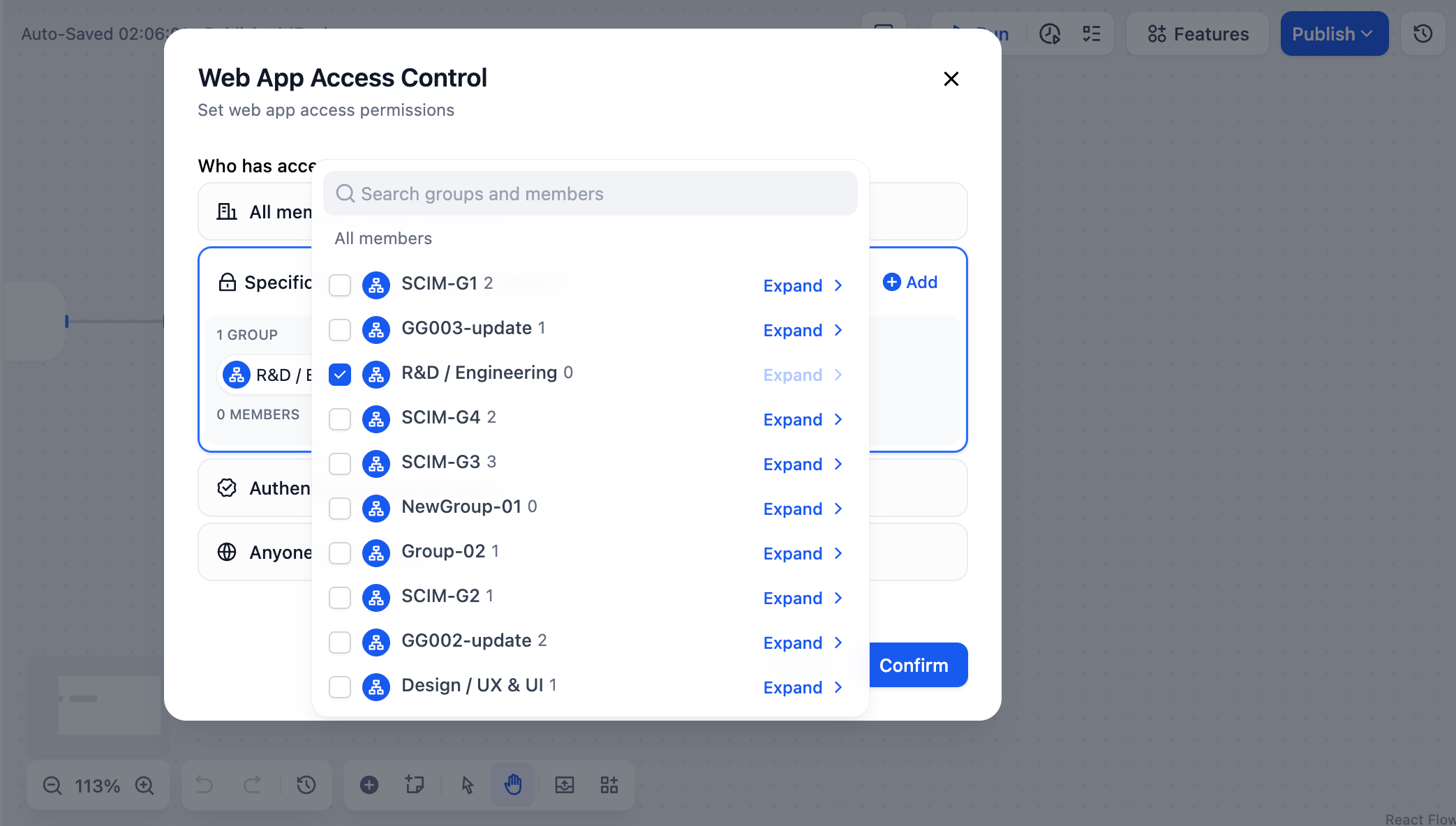
Editing an app doesn’t grant access to its published web app. Members who can edit the app still need to be added to the access list to use it.
Authenticated External Users
Users outside the platform can access the app through SSO authentication. Admins manage external users through third-party identity providers, keeping them separate from internal workspace data.Large Enterprises
IT builds apps, other departments use them without joining Dify
External Partners
Provide AI services to suppliers, contractors, or clients
Customer Support
Public-facing tools for product help and consultation
If this option is disabled, ask the Enterprise Dashboard administrator to configure Web App External User Authentication.
Anyone with the Link
No authentication required. Anyone with the URL can access your app immediately. Use for public demos, customer tools, or open resources.If this option is disabled with “Public access has been disabled by your administrator”, public web apps are turned off deployment-wide (
enterprise.webappPublicAccessEnabled: false in the Helm values) by the Enterprise Dashboard administrator.Find Your Apps
Workspace members see the web apps they can access in the WEB APPS section of the sidebar.Common Questions
Do permission changes require republishing?
Do permission changes require republishing?
No. Changes apply immediately. However, users with active sessions may need to wait for their session to expire before new restrictions take effect.
How do I check who has access?
How do I check who has access?
On the app’s Access Point page, click the current level on the Web App card. Who has access shows the level and, for specific members, the selected groups and members.
Which permission level should I choose?
Which permission level should I choose?
- All members within the platform: Internal collaboration tools
- Specific members within the platform: Department-specific or sensitive apps
- Authenticated external users: Customer service and partner tools
- Anyone with the link: Public demos (use carefully)
Do web app permissions affect API access?
Do web app permissions affect API access?
No. API access is controlled separately by API keys. Changing web app permissions doesn’t affect existing API functionality.