

1. Feature Overview
Credential Management addresses the following common issues:- Duplicate configuration: Multiple workspaces need the same credential. If each maintains it separately, it leads to redundancy and inconsistency.
- Security risks: Decentralized credential management increases the risk of leakage and misuse, not meeting enterprise security requirements.
- Governance challenges: Without unified policy control, it is hard to clarify which workspaces can use credentials and which plugins are allowed to use self-managed credentials.
1.1 Value
- Centralized management: System administrators configure and maintain credentials in the Admin Dashboard and assign them to specific workspaces.
- Reduced security risk: Sensitive information is centrally governed to avoid credentials being scattered across workspaces.
- Flexible and controllable: Support allowing or forbidding workspaces to create their own credentials, with exception mechanisms to balance security and flexibility.
- Unified updates: When credentials are updated or rotated, modify them once in the Admin Dashboard to take effect globally.
1.2 Use Cases
- The enterprise IT department centrally manages model vendor API Keys and assigns them to business teams’ workspaces as needed.
- Production environment plugins (such as databases) require global unified configuration, while test plugins allow workspace-managed credentials.
- Different credentials are required for predefined models and custom models, with flexible selection in Application Orchestration or Model Provider pages.
1.3 Core Concepts
Plugin types- Model plugins: e.g., OpenAI, Claude, Gemini
- Tool plugins: e.g., database, HTTP caller, Google Maps
- Tool Plugin Credential: Authentication information required by tool plugins
- Model Plugin Credential (Predefined Model, Custom Model): Authentication information required by model plugins
- Global credential: Created by system administrators in the Admin Dashboard, assigned to multiple workspaces; referenceable in workspaces but not editable
- Workspace credential: Created within a workspace by workspace administrators or application orchestrators; visible only to that workspace; whether it is allowed is determined by credential policies
2. Instructions
2.0 Quick Start
A typical Credential Management workflow includes three steps: Create global credential > Assign to workspace > Reference in workspace. The following example uses the OpenAI plugin:- Create a credential in the Admin Dashboard Admin Dashboard > Credential Management > Model Plugin Credential > 【Add Credential】 Select the OpenAI plugin and version, enter the credential name and API Key, then save.
- Assign the credential to the target workspace Find the newly created credential in the list, click 【Assign Credential】, select the target workspace, and click 【Assign】.
- Reference the credential in the workspace Go to the target Workspace > Settings > Model Provider > OpenAI > Configure In the credential dropdown on the configuration page, select the assigned global credential.
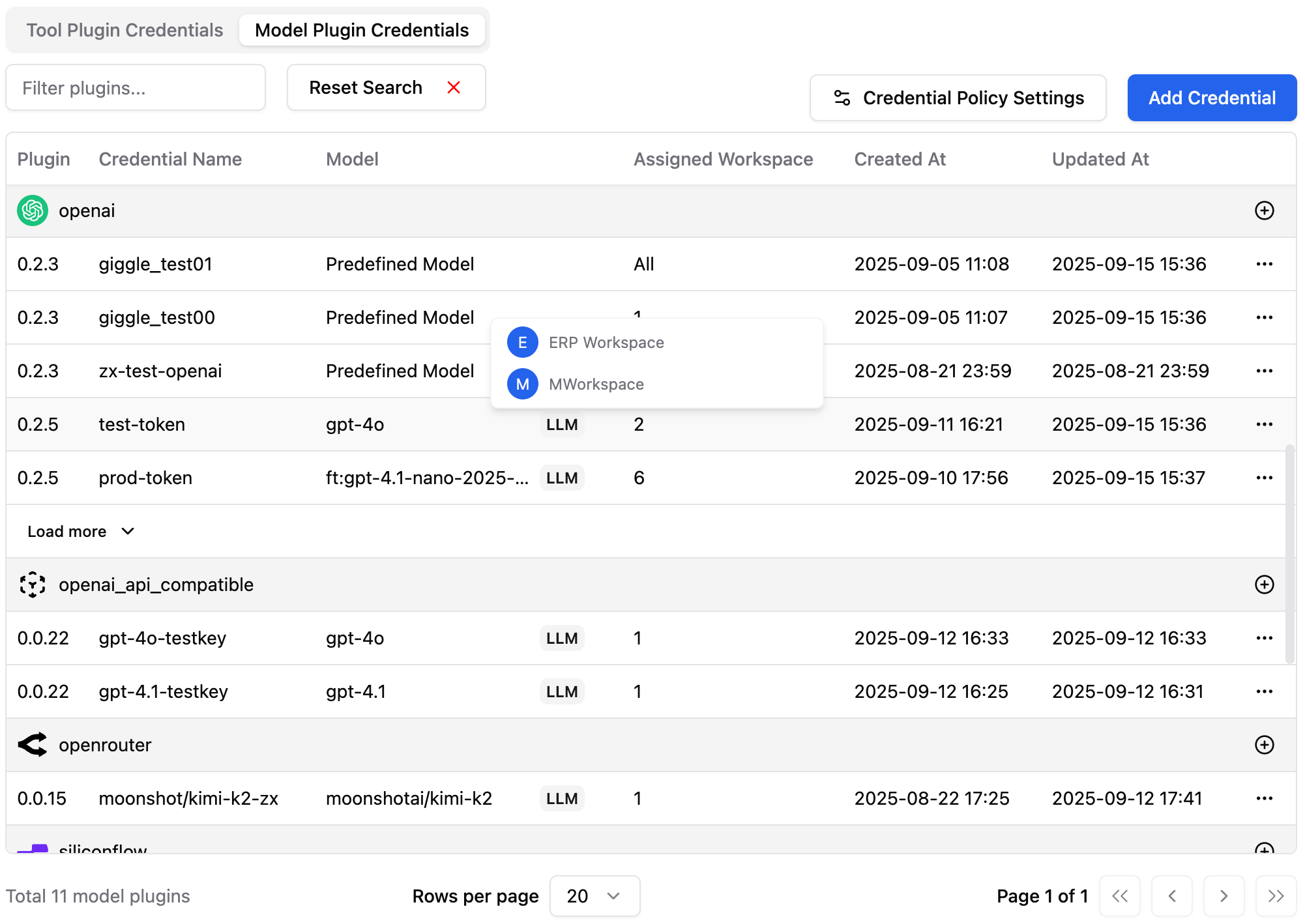
2.1 Access Paths
- Admin Dashboard: Admin Dashboard > Credentials You can add credentials, edit, assign credentials, delete, and configure credential policy settings.
- Workspace: Tools, Workspace > specific application > Orchestration, Settings > Model Provider You can view assigned global credentials, create workspace credentials when policies allow, and choose credentials in Tools, Model Provider, or Orchestration.
2.2 Credential List
On the Credential Management page of the Admin Dashboard, the list displays all created global credentials grouped by plugin, including:- Plugin version
- Credential name
- Model (applies to model plugins): indicates whether the credential applies to a predefined model or a custom model
- Number of assigned workspaces (hover to view the detailed list)
- Created time, updated time
- Actions: Details, Assign Credential, Delete Credential
2.3 Add Tool Plugin Credential
On the Tool Plugin Credential page, you can add credentials for installed tool plugins:- Click 【Add Credential】
- Select the target plugin and version (installed plugins only)
- Enter a credential name (must be unique within this plugin)
- Fill in credential parameters as required by the plugin
- Click 【Save】; the system will validate the credential
- Current plugin does not require credentials. Please select another plugin: The selected plugin does not need a credential
- Credential validation failed: Parameter error or network issue; check the API Key and network connectivity
- Name already exists: Duplicate credential name; change it to a unique value
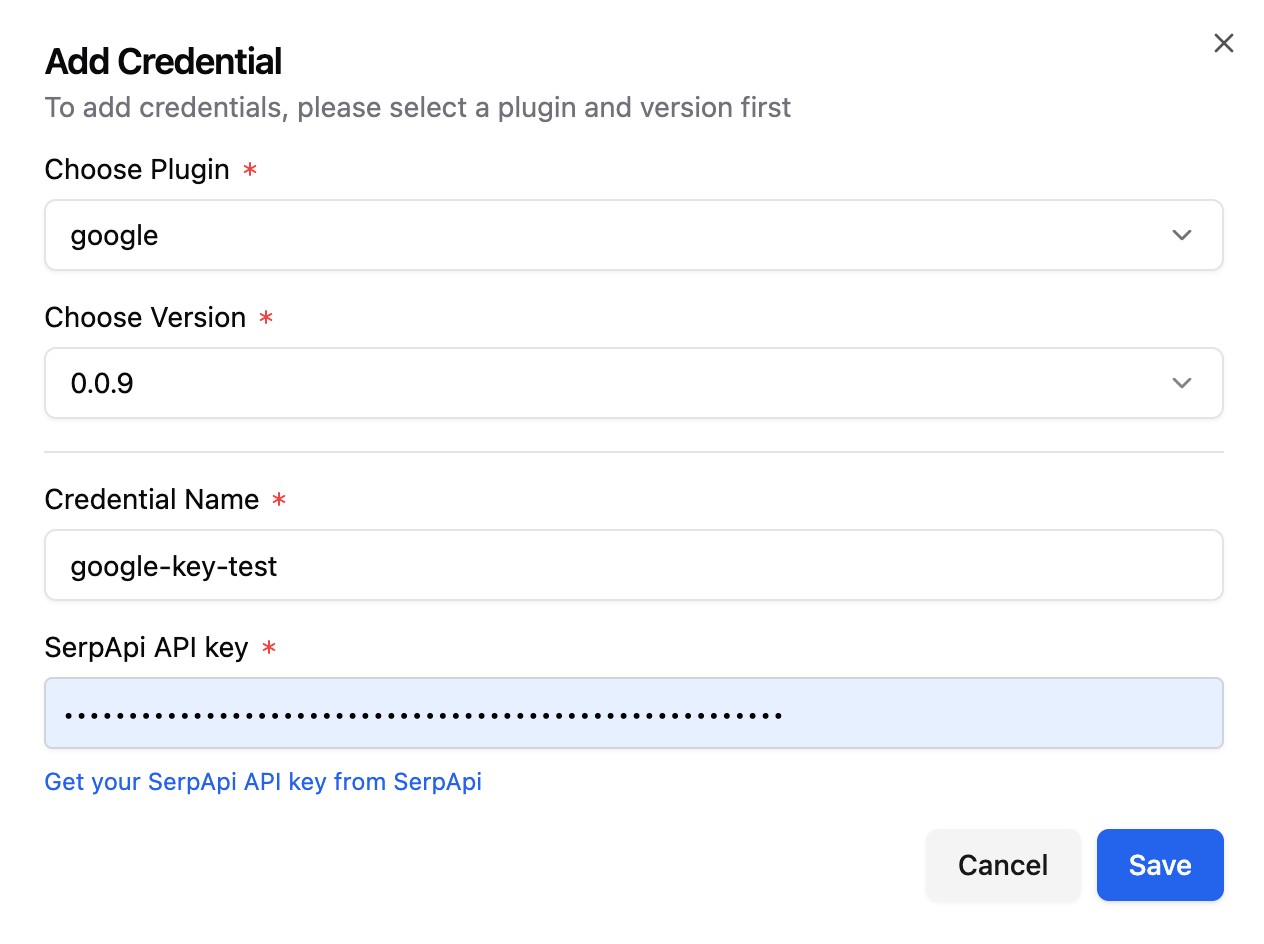
2.4 Add Model Plugin Credential
On the Model Plugin Credential page, you can create credentials for predefined models or custom models:- Click 【Add Credential】
- Select the model plugin and version
-
Choose Model Type:
- Predefined Model: Enter credential name and parameters
- Custom Model: Select Model Type and enter the model name, then enter credential name and parameters
- Click 【Save】; the system will validate the credential
- Credential validation failed: Check the vendor API Key or network status
- Name already exists: Duplicate name within the plugin; change it to a unique value
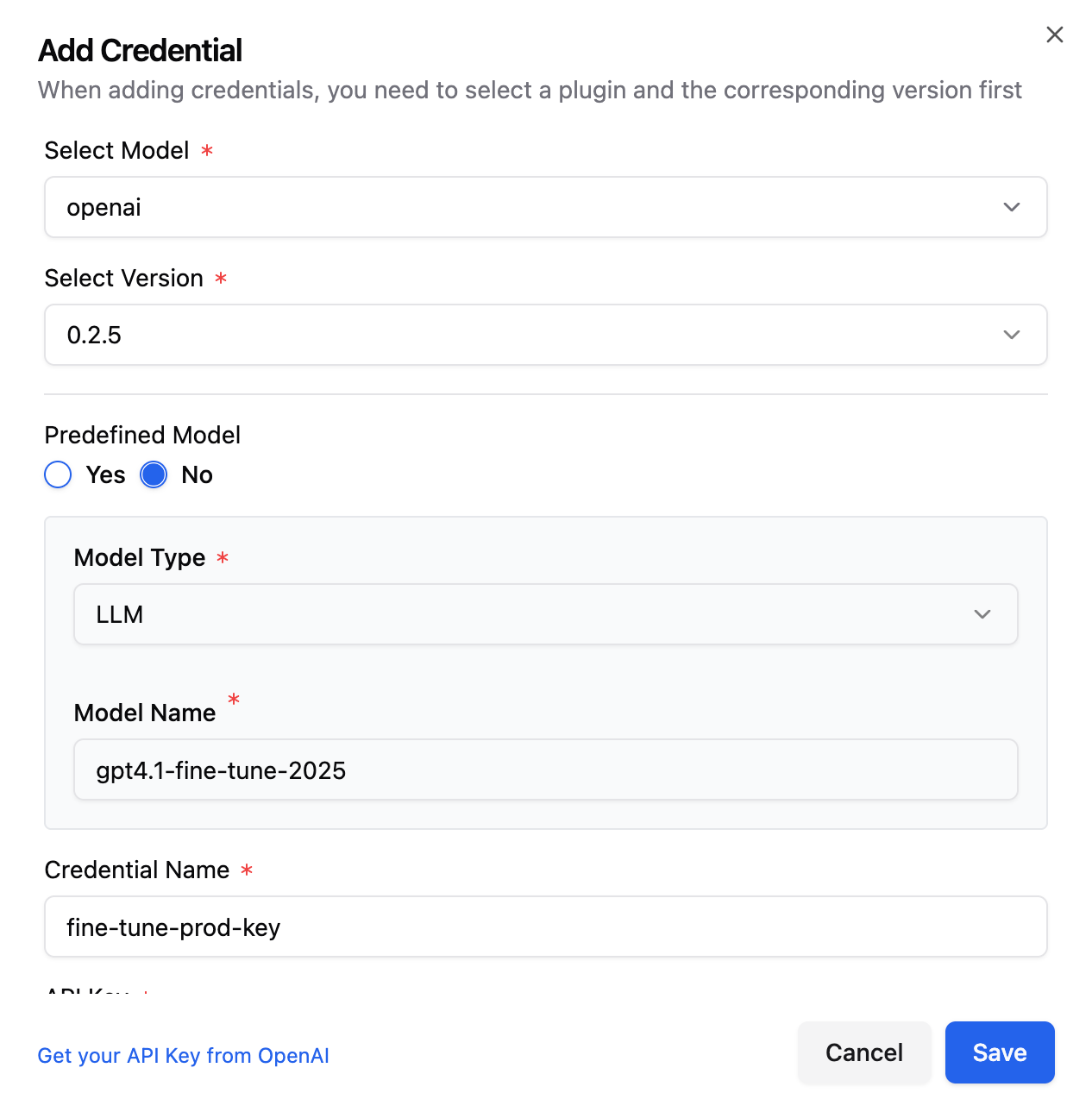
2.5 Edit Credential
Click 【Details】 in the credential list to modify the credential name, version, and parameters.- Plugin type cannot be changed
- For Model Plugin Credentials, “whether it is a predefined model,” “Model Type,” and “Model Name” cannot be changed
- When switching versions, compatible fields are migrated automatically; incompatible fields must be entered manually
2.6 Assign Credential
Click 【Assign Credential】 in the credential list to select target workspaces for assignment. Only assigned workspaces can use the credential in Tools, Model Provider, or Orchestration. When removing a workspace on the assignment page, the system detects whether any applications in that workspace are referencing the credential. If so, it lists the affected applications and warns that calls will fail after removal. To ensure normal operation, replace the credential in the workspace first, then remove the assignment.Note: When removing Model Plugin Credentials, the system can only detect whether the workspace is using the credential. Because model credentials take effect at the workspace level, they cannot be traced down to specific applications. The same rule applies to deleting credentials.
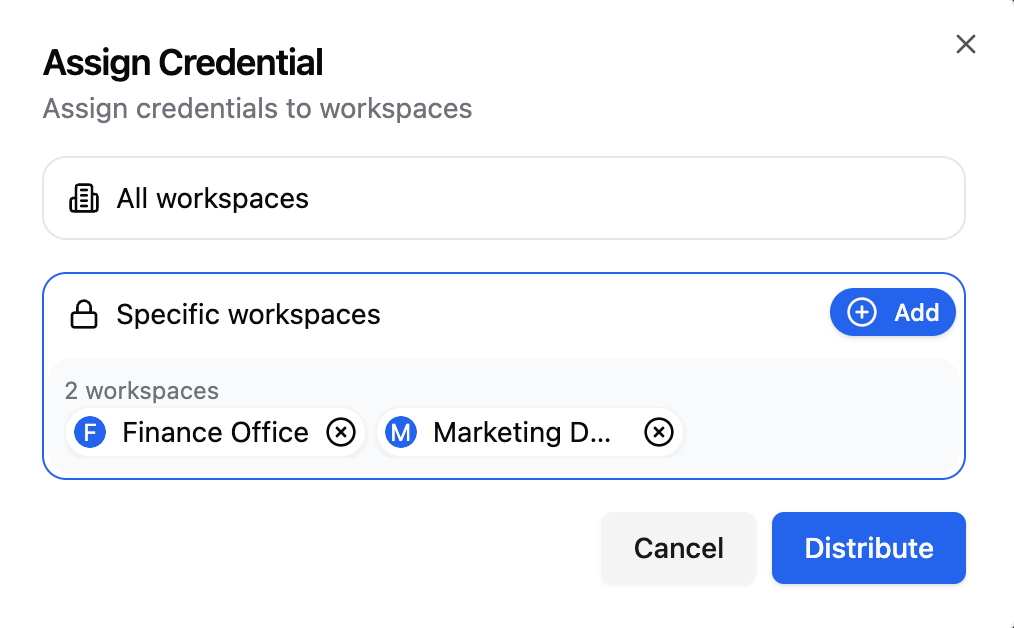
2.7 Delete Credential
Click 【Delete Credential】 to remove a credential permanently. The system checks whether any applications are referencing the credential. If references exist, the system lists the dependencies and warns that related applications will fail to invoke the plugin after deletion. Delete only after completing replacement.2.8 Configure Credential Policies
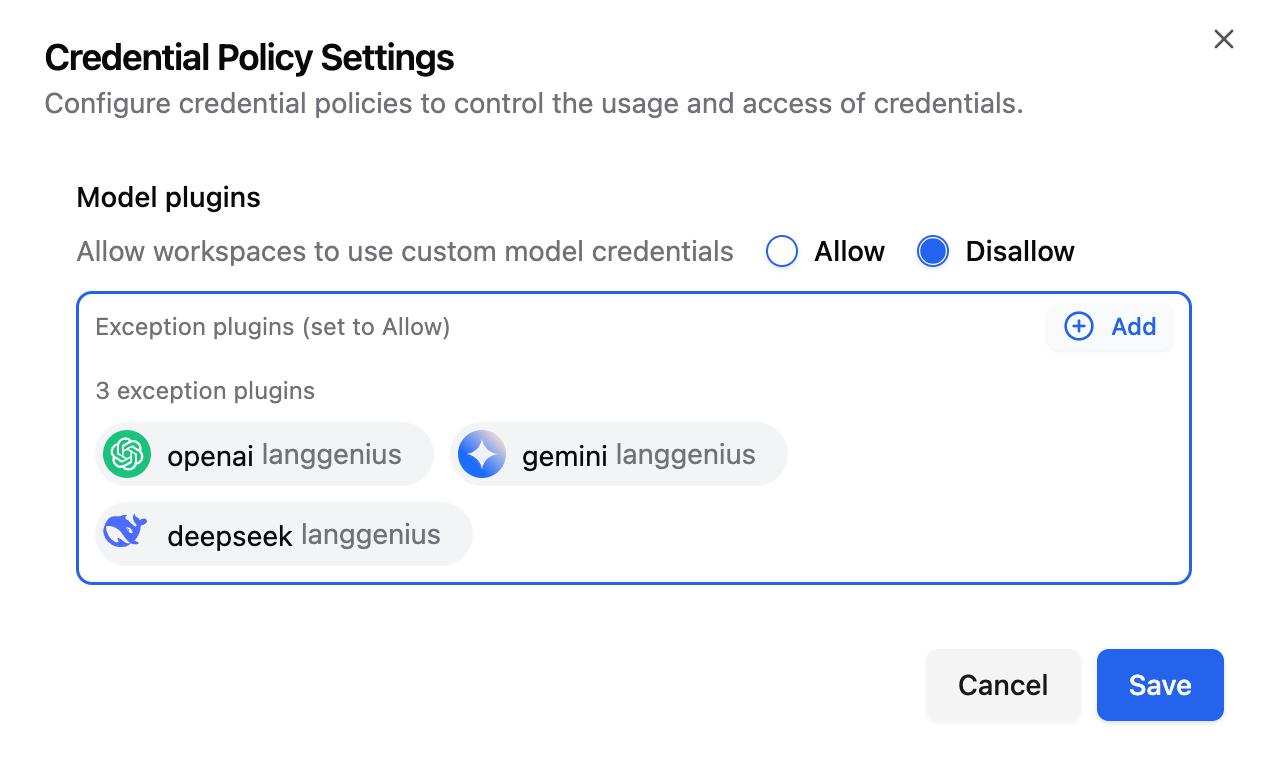
Credential policies control whether workspaces may use custom credentials. Typical scenarios include:- Payment-related plugins (such as PayPal, Alipay) are only allowed to use global credentials configured in the Admin Dashboard.
- Forbid workspaces from using custom credentials and enforce reliance on global credentials for specified models.
- Allow: Workspaces can create and use custom credentials
- Forbid: Workspace custom credential entry is disabled; cannot create or use
- Exception plugins: Not bound by the global restriction; can be allowed individually
Note: For model plugins, the system can only detect whether the workspace is using related credentials. Because model credentials take effect at the workspace level, they cannot be traced down to specific applications.
2.9 Use Credentials in Workspaces
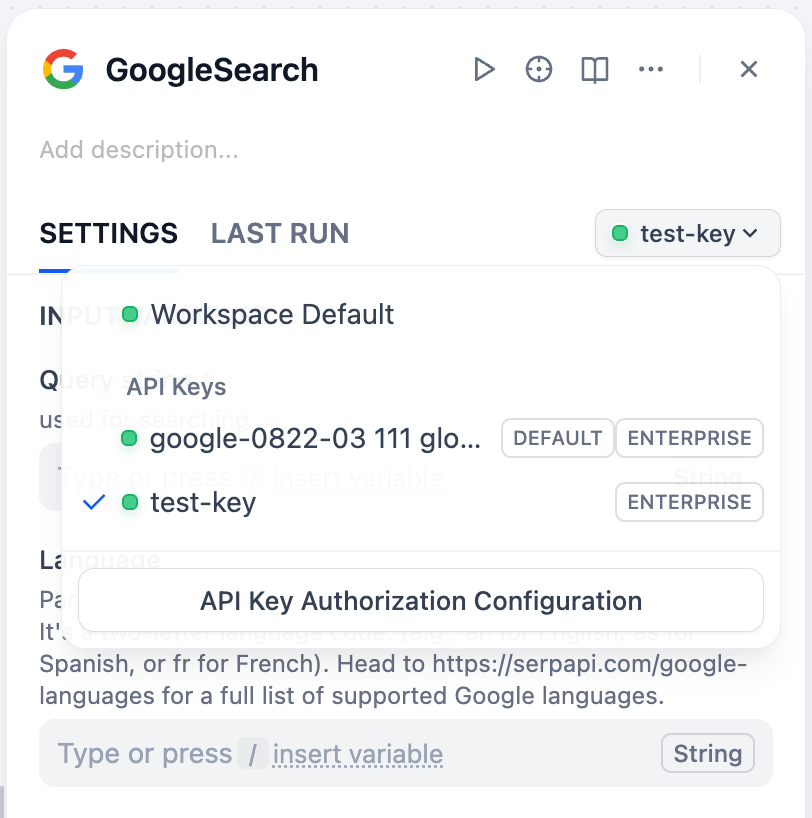
Workspace administrators and orchestrators can use credentials in the following places:- Tools page or Model Provider settings: Select an assigned global credential
- Create a workspace credential (when policies allow): Click 【Add Credential】, fill in parameters, and save
- Orchestrate applications: Select a credential in node configuration, or create a workspace credential when allowed
3. Troubleshooting
- Credential has been deleted: The global credential was removed in the Admin Dashboard. Switch to another credential or contact the administrator to restore it.
- Credential unavailable: Possibly due to assignment removal or the disabling of the workspace custom credential policy in the Admin Dashboard. Verify the assignment and contact the administrator to adjust if necessary.
- Credential validation failed: Invalid API Key, parameter error, or network timeout. Check credential parameters and network, and regenerate the key if necessary.
4. FAQ
Why can’t I create a credential in a workspace?
Whether a workspace can create credentials depends on the credential policy configured in the Admin Dashboard. If the policy forbids custom credentials for specific plugins, the “Create Credential” entry for those plugins will be hidden in that workspace, and only global credentials can be used.What is the difference between global credentials and workspace credentials?
Global credentials are maintained centrally in the Admin Dashboard and can be assigned to multiple workspaces. Workspace credentials are visible only within a single workspace, and whether they are allowed depends on the credential policy.After forbidding workspace custom credentials for a specific plugin in the policy, what happens to existing custom credentials?
Once the policy takes effect, existing custom credentials for that plugin in the workspace will be immediately marked “unavailable,” and can no longer be used or created. Related applications must switch to global credentials.Why do applications fail after removing a workspace on the credential assignment page?
After you remove a workspace from a credential’s assignments, that workspace loses the right to use the credential. If applications still reference it, they can no longer invoke the related service and will error. To avoid impact, replace the credential in the applications first, then remove the assignment.What is the difference between deleting a credential and removing a workspace on the assignment page?
- Delete credential: Permanently removes the credential; all references across all workspaces and applications fail immediately.
- Remove workspace on the assignment page: Only affects the removed workspace; applications in that workspace lose access to the credential, while other workspaces are unaffected.
After a plugin is uninstalled, do global credentials remain?
When a plugin version has been completely uninstalled from all workspaces, the corresponding global credentials are not deleted automatically. Such credentials remain in the system but can no longer be edited. You may switch the credential’s plugin version to another installed version of that plugin, or delete the credential directly.5. Best Practices
- Centralize sensitive credentials: Configure global credentials in the Admin Dashboard to avoid scattering sensitive information.
- Establish a rotation mechanism: Update credentials regularly—add replacements and assign them, switch usage, then reclaim old credentials.
- Export a dependency list before deleting or removing: Ensure replacements are completed to avoid service interruption.
- Combine policies and exceptions: Generally allow workspace-managed credentials; disable them for sensitive plugins, and set exceptions for a small number of plugins when needed.
- Use clear naming: Credential names should clearly distinguish predefined models from custom models to simplify maintenance and troubleshooting.
- Clear roles and responsibilities: System administrators handle global policies and sensitive operations; workspace administrators handle in-app replacement and selection.
- Test before production: Validate credential and plugin version compatibility in a test workspace before enabling in production.