This document will mention internal users and external users. The following distinctions are made: Internal members: Members registered within the Dify Enterprise workspace or added through the admin backend. External users: Members not within Dify Enterprise
1. Create a New Application in Okta
-
Access the Okta administrator backend page, navigate to the Applications page. Click the Create App Integration button, select OIDC login method and Web Application application type.
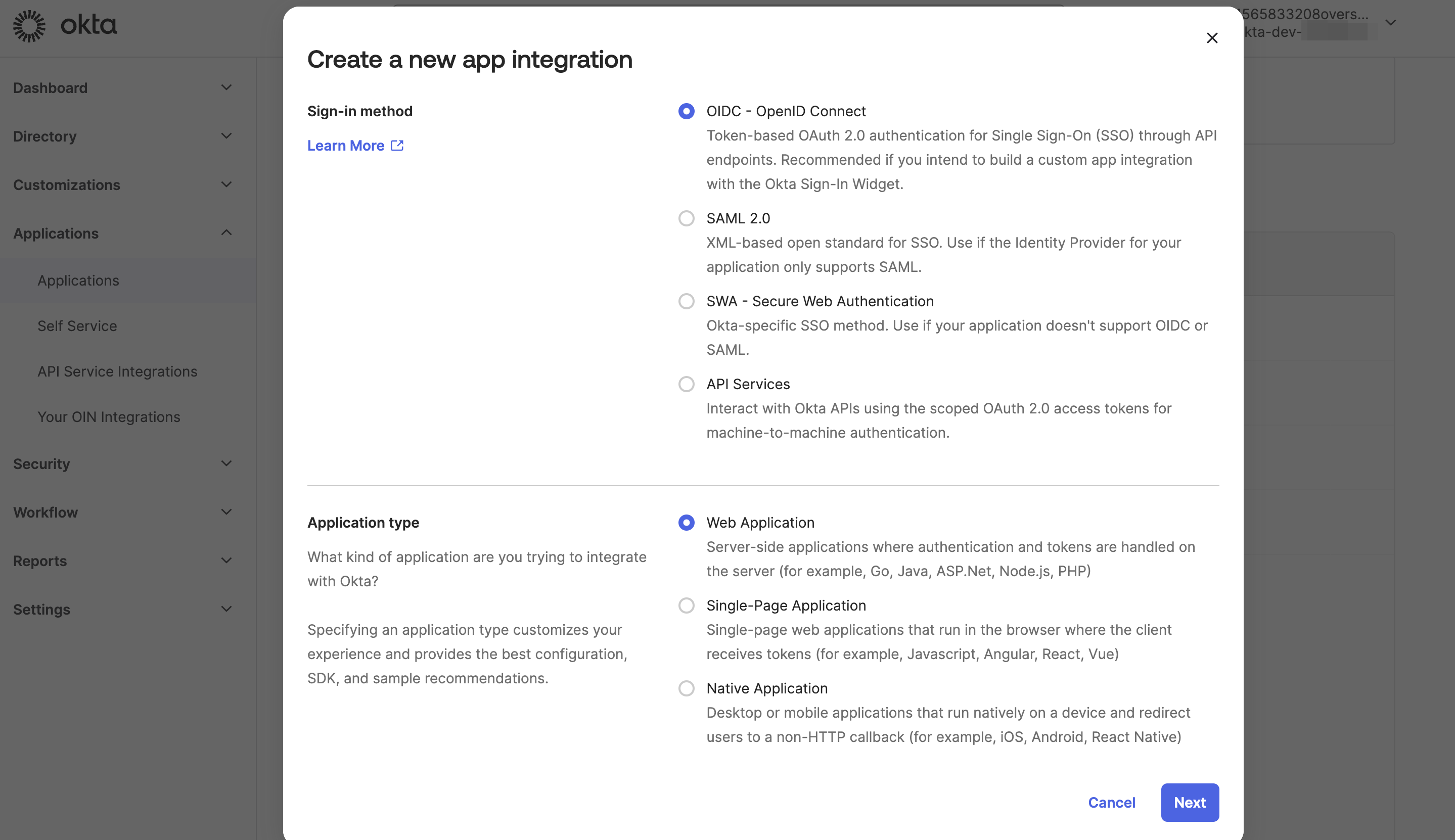
- Fill in the application name according to the page prompts and define the authorization scope according to requirements.
- The
Sign-in redirect URIsfield needs to be filled with the Dify Enterprise Callback URL. Please refer to the section below for how to obtain it. - Leave the
Sign-out redirect URIsfield empty.
2. Configuring Okta Application
According to the required SSO scope to be enabled, Callback URLs differ. System administrators need to fill the Dify Enterprise Callback URL into the corresponding Okta OAuth2 application to complete the creation process.- Workspace
- WebApp Members (For Internal Users)
- WebApp External Users (For External Users)
Click Admin Backend → Authentication → Members → SSO Identity Provider → New Identity Provider → New OIDC Provider, and get the Callback URL at the bottom.It usually follows this format:
- Paste it into the Sign-in redirect URIs field in the Okta App and save the application.
3. Enable OIDC Authentication
3.1 Obtain Key Information from Okta Application
-
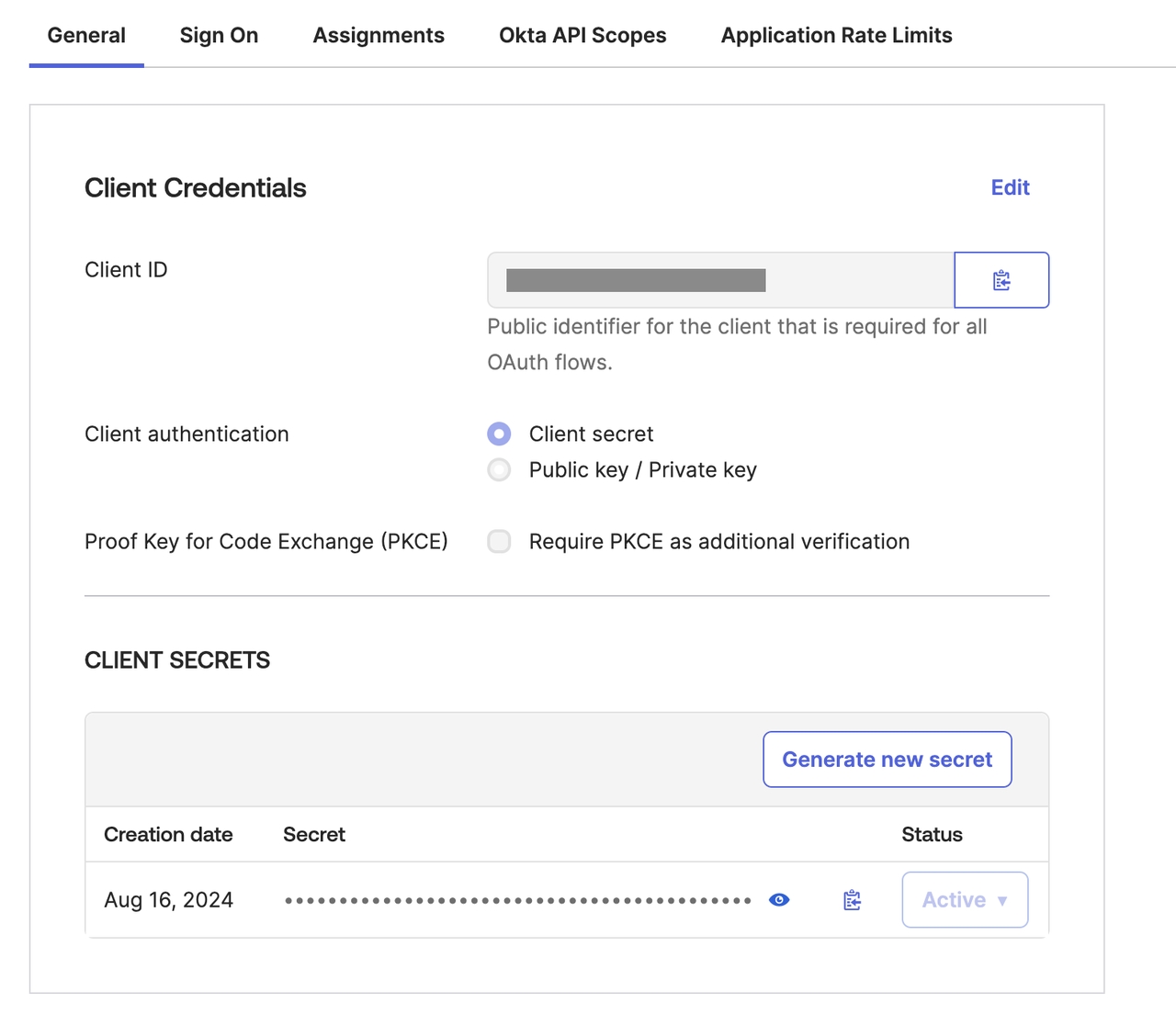
Go to the “General” page of the Okta application and find the following fields:
- Client ID
- Client secret
-
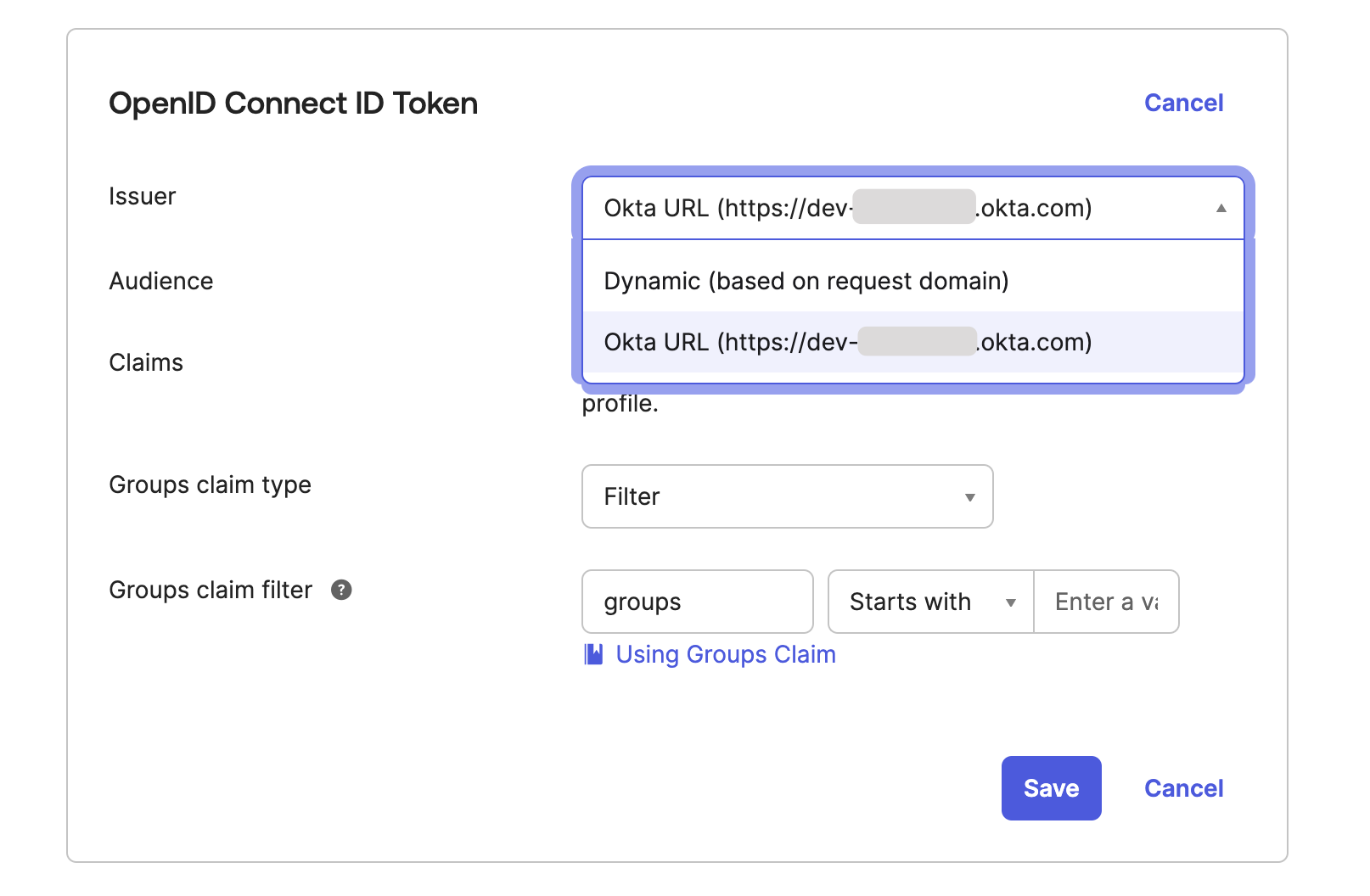
Switch to the “Sign On” page and find the Issuer field, set the Issuer to a fixed link and copy the information.
3.2 Configure OIDC Authentication
Access the Dify Enterprise Authentication page, click + New Identity Provider → New OIDC Provider, and fill in the following information according to the prompts:- Issuer URL
- Client ID
- Client Secrets
4. Enable SSO Mandatory Authentication (Optional)
System administrators can enable SSO Enforcement options for the following two scenarios to enable mandatory authentication:- Workspace: Requires authorization when logging into Dify Enterprise Workspace.
- WebApp: Requires verification when using applications created by the current Dify Enterprise.