

Authentication Scope Overview
Dify Enterprise offers tailored authentication methods based on user roles and access requirements:Authentication Method
System administrators can navigate to Admin Console → Authentication → Members to centrally configure authentication methods for internal users accessing workspaces and Web Apps.
Email and Password Authentication
Applicable Scope:- Workspace
- Web App
- Classic username and password authentication
- Configurable password security policies
- Suitable for all user types
- Authentication → Members → Email and Password
- Enable the toggle
- Admin Console Configuration
- User Login Interface

Enable email and password authentication in enterprise admin console
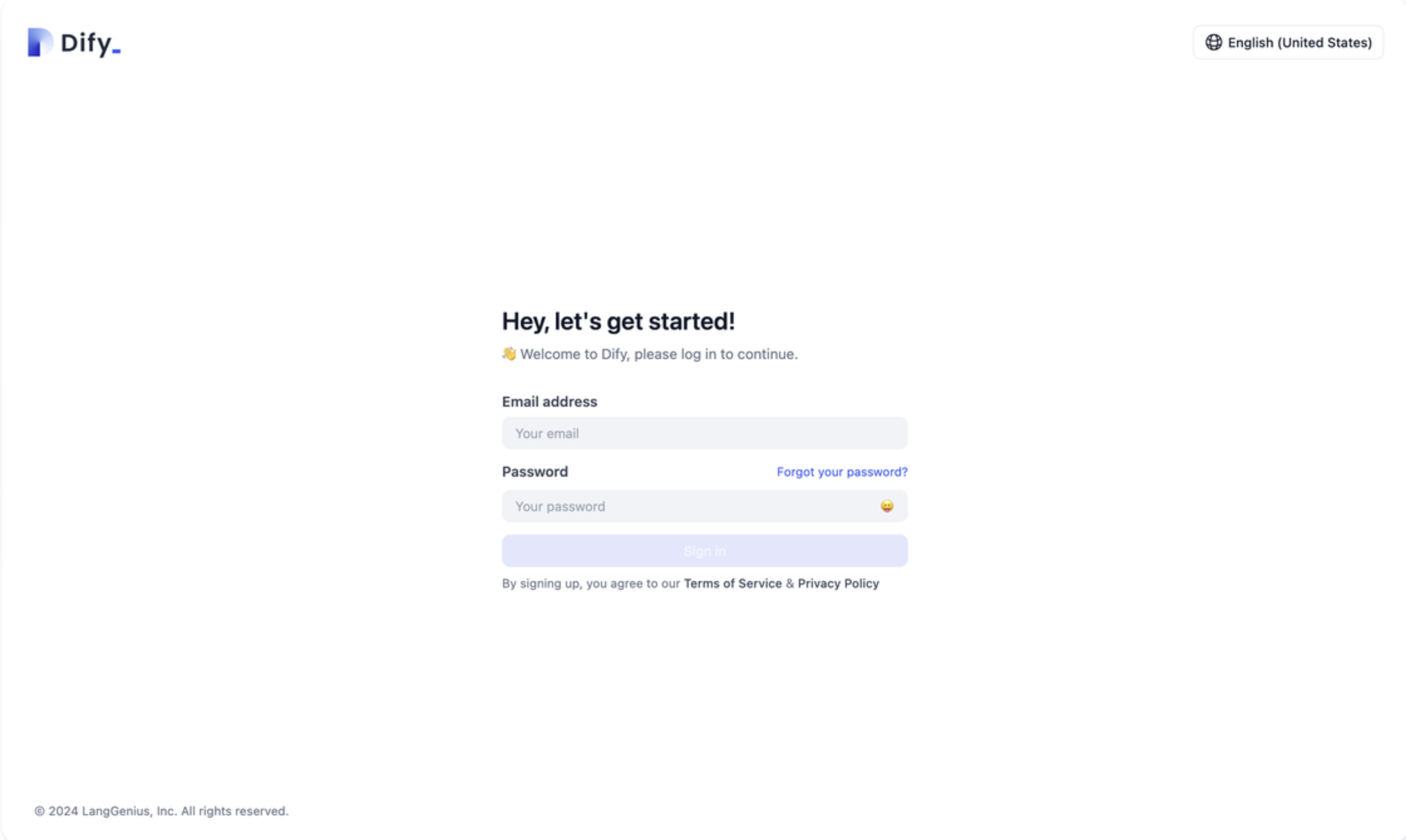
- Enforce minimum password length of 8 characters
- Include uppercase and lowercase letters, numbers, and special characters
- Regularly remind users to update passwords
- Prohibit common weak passwords
Email and Verification Code Authentication
Applicable Scope:- Workspace
- Web App
- Passwordless login method
- Single-use email verification codes
- Enhances user experience by eliminating password management
- Verify that your email service is properly configured
- Enable “Email and Verification Code” on Authentication → Members page
- Configure verification code parameters:
- Verification code validity period (recommended 5-10 minutes)
- Sending frequency limits
- Verification code length and type
- Admin Console Configuration
- User Login Interface

Enable email verification code authentication in enterprise admin console
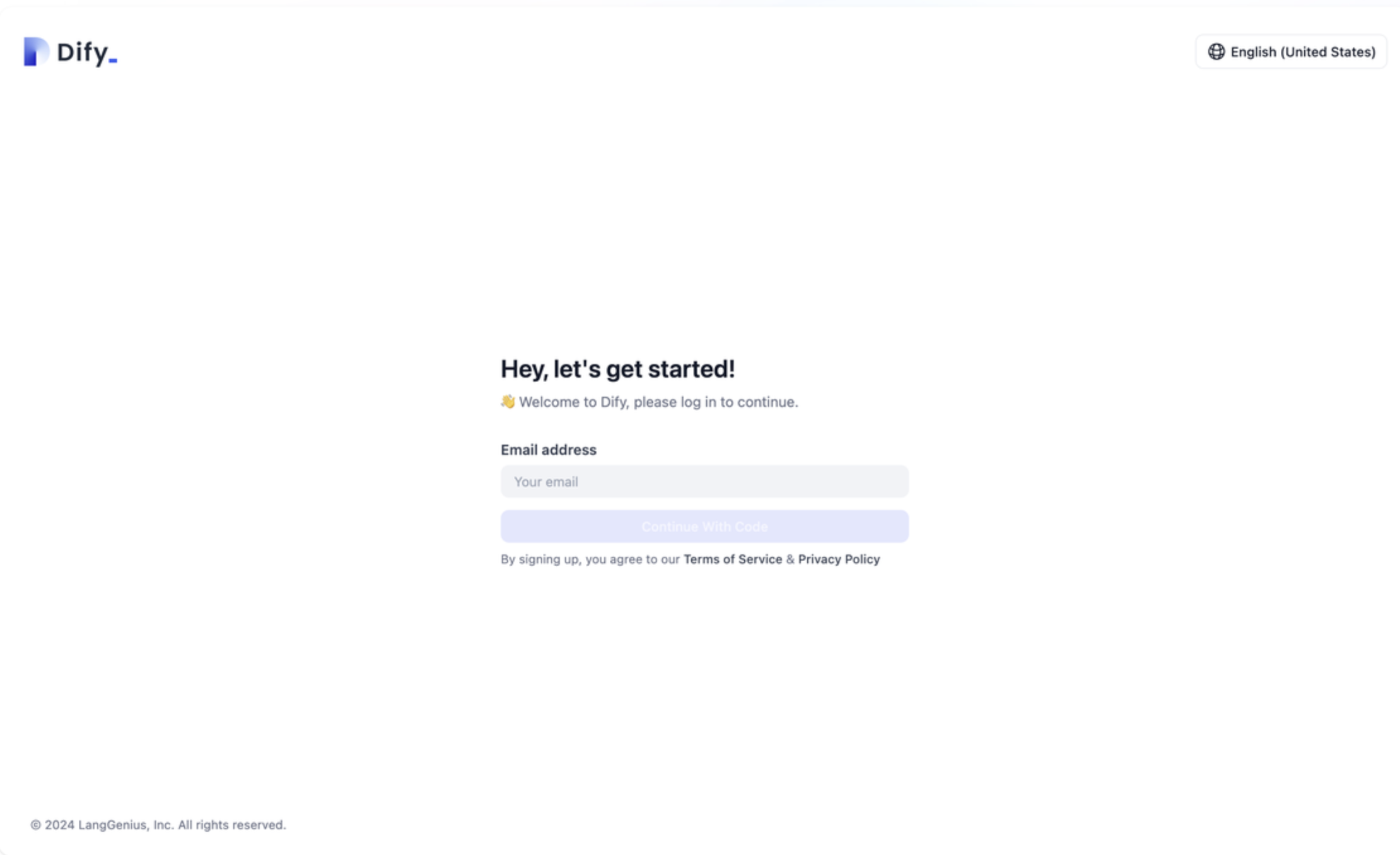
- SMTP email service configured
- Email service stable and available
- Valid user email addresses
Single Sign-On (SSO)
Applicable Scope:- Workspace
- Web App
- Integration with existing enterprise identity systems
- Supports OIDC, SAML, OAuth2 protocols
- Unified enterprise identity management
- Supports automatic user synchronization
- Enable “Single Sign-On (SSO)” on Authentication → Members page
- Configure identity provider information
- Set user attribute mapping
- Test SSO connection
- Admin Console Configuration
- User Login Interface

Enable SSO authentication in enterprise admin console
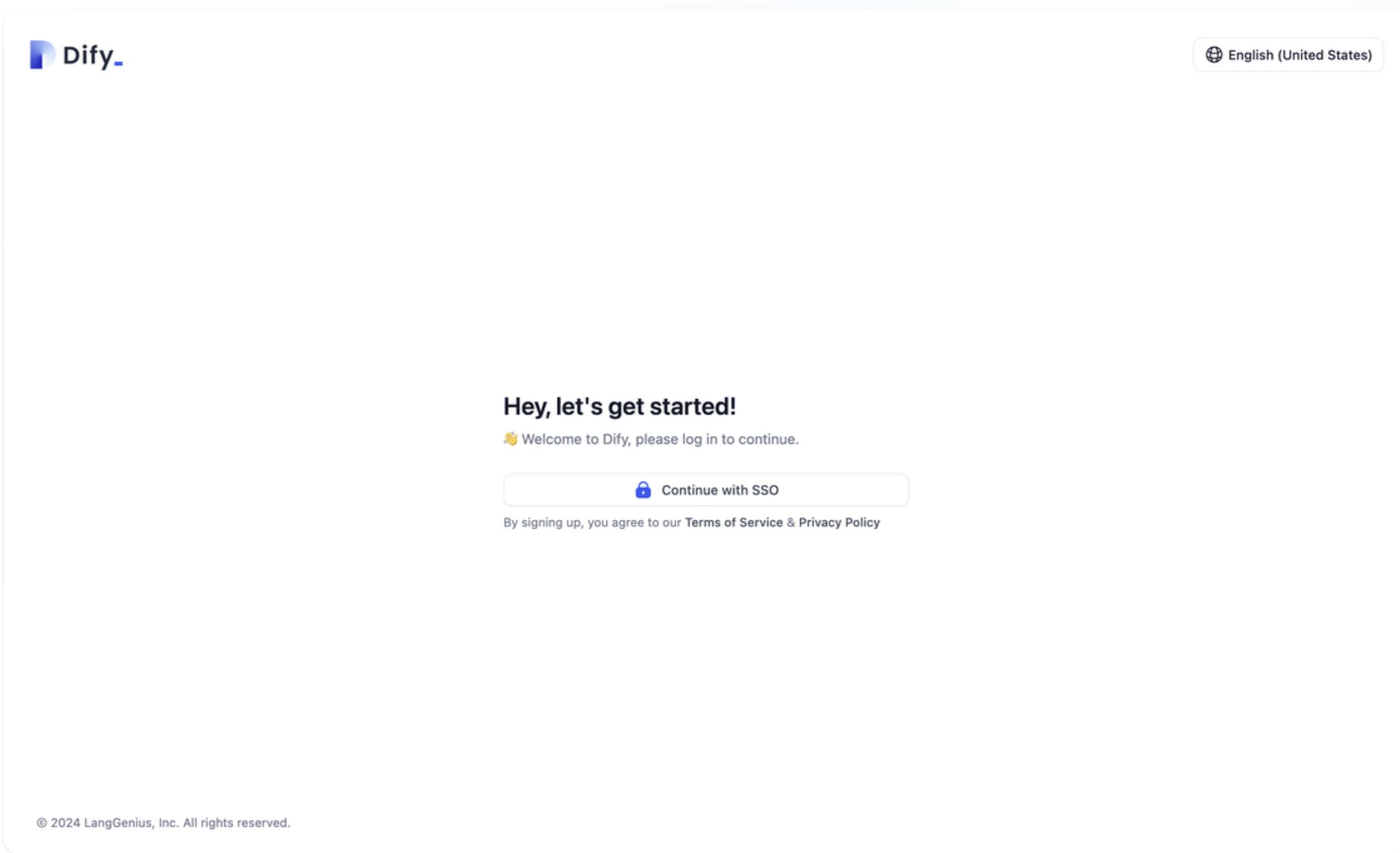
Access Permission Management
Workspace
System administrators can enable email and password authentication, email and verification code authentication, and Single Sign-On (SSO) authentication methods in System Settings → Authentication → Members.
When users access the Dify Enterprise workspace, they’ll see authentication prompts based on your configuration settings and gain access upon successful verification.
User Registration Strategies:
Here are the most common user registration strategies:
- Open Registration Mode
- Invitation Registration Mode
- Fully Controlled Mode
Configuration:
- Enable “Allow users to register accounts themselves”
- Enable “Allow system to automatically create personal spaces”
- Users can self-register and start using the platform immediately
- Personal workspaces are automatically created
- Suitable for open enterprise environments
Web App
When Web App access is set to All Platform Members or Specific Platform Groups, the authentication methods configured in “Enterprise User Authentication” (email/password, email verification codes, or SSO) will be automatically applied. Users not on the Dify Enterprise member list will receive an access denied message.Security Best Practices
Authentication Strategy Recommendations
Enable Multiple Authentication Methods- Use SSO as your primary method for centralized identity management
- Maintain email/password authentication as a fallback option
- Reserve email verification codes for emergency situations
Session Management
Session Security Configuration:- Session Timeout: Recommended 7-30 days, adjust based on security requirements
- Concurrent Login Limits: Restrict simultaneous logins per user account
- IP Address Binding: Implement IP whitelisting for enhanced security environments
Password Policy
Strong Password Requirements:- Minimum 8 characters, recommended 12+ characters
- Include uppercase and lowercase letters, numbers, and special characters
- Block commonly used weak passwords and dictionary attacks
- Enforce periodic password changes (every 90-180 days)
Troubleshooting
Common Issues
When accessing Web App, prompted with no access permission
When accessing Web App, prompted with no access permission
Possible Causes:
- SSO configuration not enabled
- Identity provider configuration error
- Network connection issues
User cannot log in, prompted with 'Authentication method not configured'
User cannot log in, prompted with 'Authentication method not configured'
Root Cause Analysis:
No authentication methods are currently enabled, or all methods have been disabled by the administrator.Solutions:
- Check Authentication → Members configuration
- Enable at least one authentication method
- Confirm email service configuration is normal (if using email verification code)
- Test SSO connection status (if using SSO)
Email verification code cannot be sent or received
Email verification code cannot be sent or received
Possible Causes:
- SMTP email service configuration error
- Email server connection issues
- Invalid user email address
- Email filtered by spam
- Verify SMTP server settings and connectivity
- Confirm email server authentication credentials
- Validate user email addresses
- Advise users to check their spam/junk folders
- Verify service status with your email provider
SSO login failure or cannot redirect
SSO login failure or cannot redirect
Possible Causes:
- Identity provider configuration error
- Incorrect callback address settings
- User lacks permissions in identity provider
- Network connection issues
- Check identity provider configuration information
- Confirm the callback URL is correctly configured
- Verify user account status and permissions in your identity provider
- Check network connectivity to your identity provider
- Review system logs for detailed error messages