

This covers using MCP tools in Dify. To publish Dify apps as MCP servers, see here.
Only supports MCP servers with HTTP transport right now.
Add MCP servers
Go to Tools → MCP in your workspace.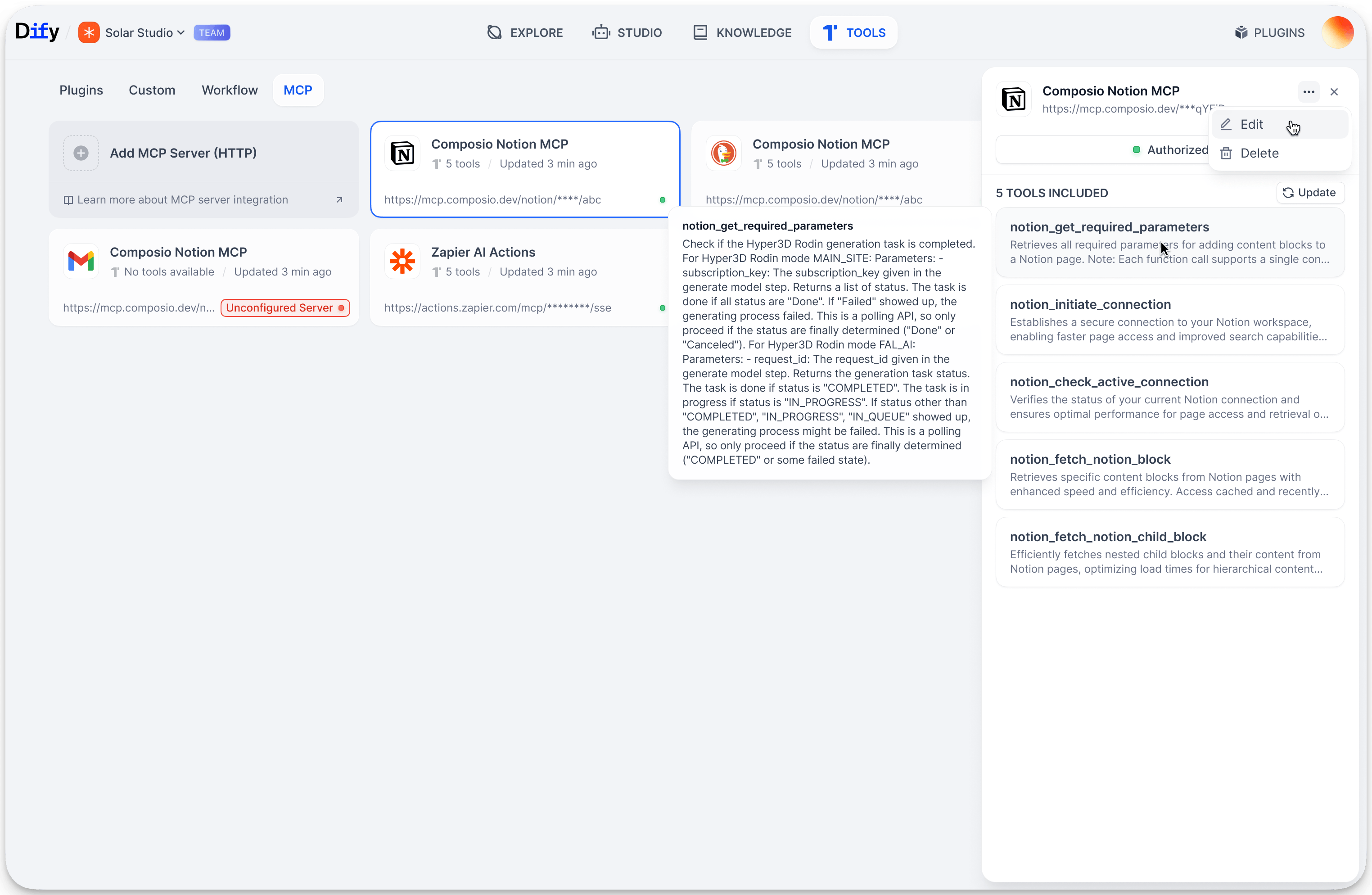
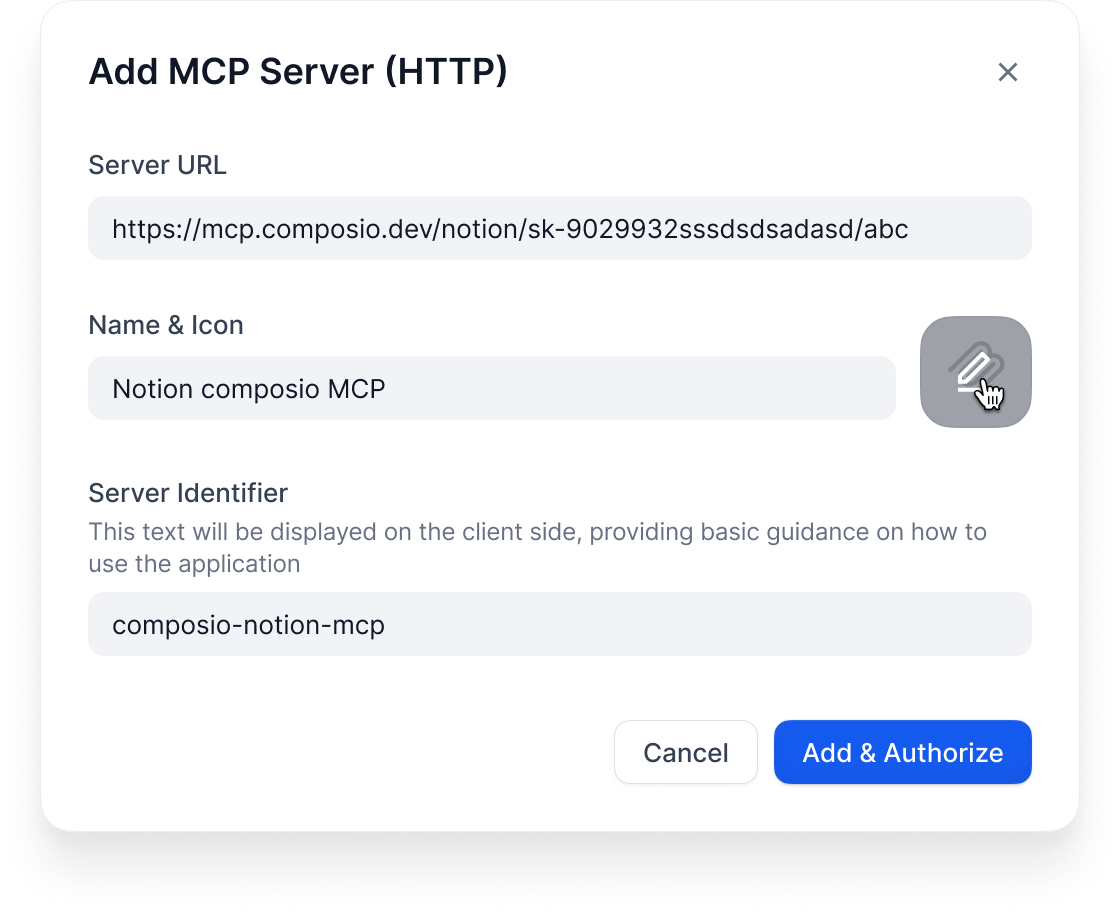
https://api.notion.com/mcp)
Name & Icon: Call it something useful. Dify tries to grab icons automatically.
Server ID: Unique identifier (lowercase, numbers, underscores, hyphens, max 24 chars)
- Apps reference a server by its identifier. If you change it later, the server’s tools stop working in apps that used the old one; re-add the tools in each affected app to restore them.
- Exported apps reference servers by identifier too, so to run one in another workspace, recreate the same servers there with matching identifiers.
What happens next
Dify automatically:- Connects to the server
- Handles any OAuth stuff
- Gets the list of available tools
- Makes them available in your app builder
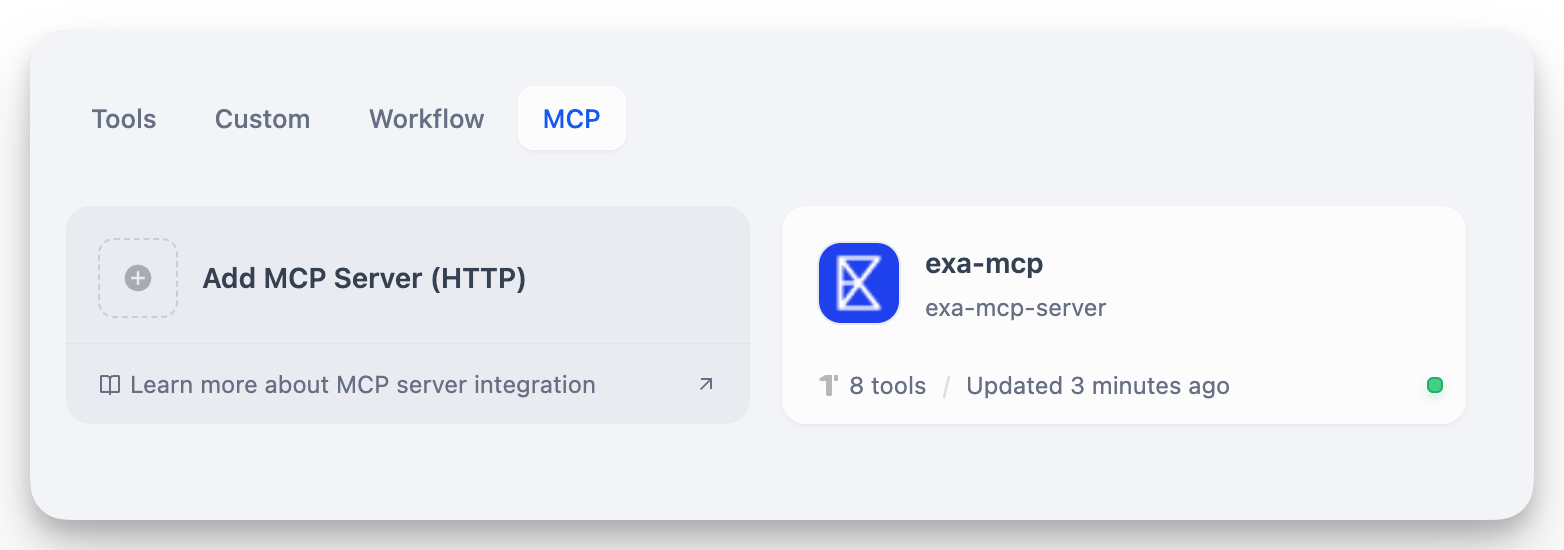
Authentication
Dynamic Client Registration (on by default) lets Dify obtain OAuth credentials from the server automatically, so you don’t register an application yourself. Leave it on whenever the server supports it. Turn it off when the server doesn’t support automatic registration, or when you must use your team’s existing OAuth application. Enter its Client ID and Client Secret, then register the redirect URL Dify shows.Timeouts
Control how long Dify waits on the server. Raise the request timeout when the server is slow to respond, and the SSE read timeout for long-running, streamed results. Change them only if you hit timeout errors.Manage servers
Click any server card to: Update Tools: Refresh when the external service adds new tools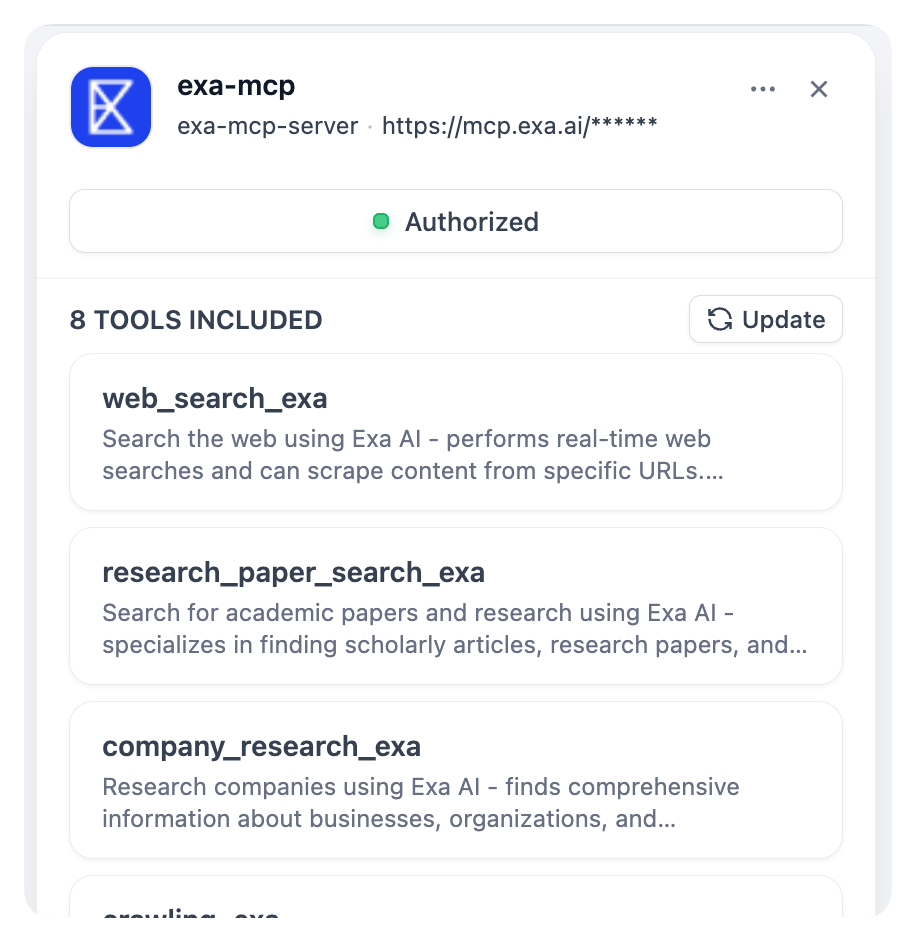
Use MCP tools
Once connected, MCP tools show up everywhere you’d expect: In agents: Tools appear grouped by server (“Notion MCP » Create Page”) In workflows: MCP tools become available as nodes In agent nodes: Same as regular agentsCustomize tools
When you add an MCP tool, you can customize it: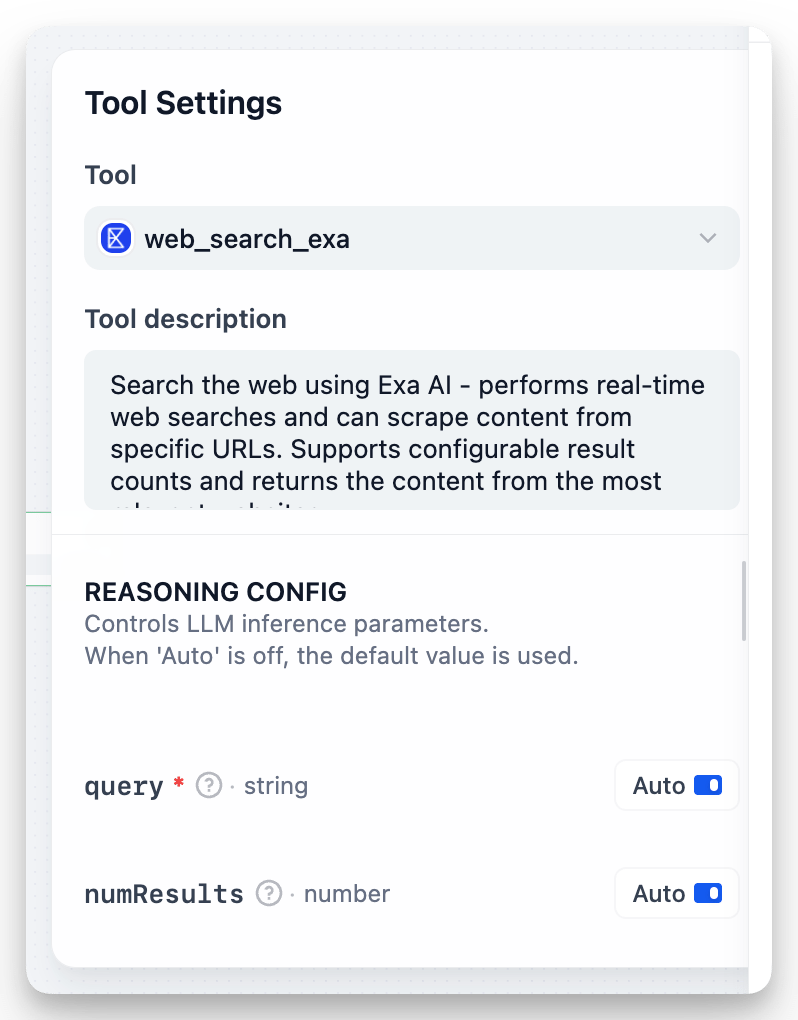
- Auto: Let the AI decide the value
- Fixed: Set a specific value that never changes
numResults to 5 (fixed) but keep query on auto.
Share apps
When you export apps that use MCP tools:- The export includes server IDs
- To use the app elsewhere, add the same servers with identical IDs
- Document which MCP servers your app needs
Troubleshooting
“Unconfigured Server”: Check the URL and re-authorize Missing tools: Hit “Update Tools” Broken apps: You probably changed a server ID. Add it back with the original ID.Tips
- Use permanent, descriptive server IDs like
github-prodorcrm-system - Keep the same MCP setup across dev/staging/production
- Set fixed values for config stuff, auto for dynamic inputs
- Test MCP integrations before deploying