App Management brings together the apps from every workspace in the organization. Use it to take inventory of apps, check the version and runtime status in each environment, and find apps that are failing or haven’t been called for a long time. Access path: Enterprise Dashboard > Apps. App Management is view-only. Editing, publishing, and deploying apps happen in Studio; see FAQ.

View the app list

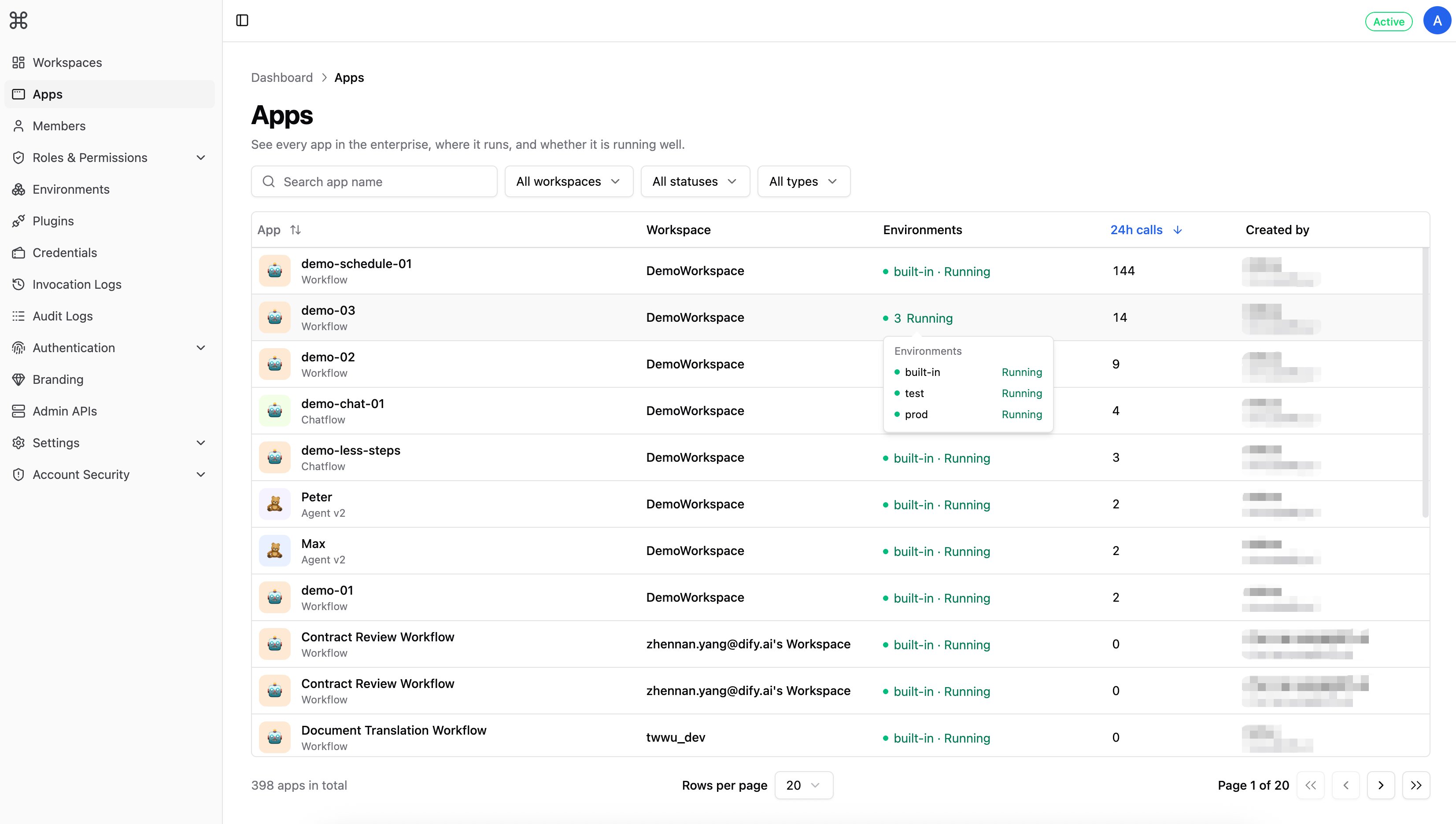
The list is sorted by 24h calls from highest to lowest by default. Click any row to open the app details.
App Management list
Environments shows one of the following:
  • N Running: N is the number of running environments. For example, an app deployed to 3 environments with 1 of them running shows 1 Running. Hover to see each environment’s status.
  • built-in with a status, such as built-in · Running: the app runs only in the built-in environment. Every app comes with a built-in environment, which always runs the app’s latest published version. Other environments are created in Environments.
  • Not deployed: the app isn’t deployed to any environment.

Search, filter, and sort

  • Search app name: Find apps by name.
  • All workspaces: Filter by workspace. You can search workspace names in the dropdown.
  • All statuses: Select any of Running, Deploying, Deploy failed, Abnormal, and Not deployed. An app appears in the results if any of its environments is in a selected status.
  • All types: Filter by app type.
Click Reset to clear all filters. Click the 24h calls column header to switch between descending and ascending order; ascending order brings apps that haven’t been called for a long time to the top. Click the App column header to sort by name.

View app details

The top of the details page shows the app’s name, type, workspace, creator, and creation time. The runtime information below it uses one of two layouts, depending on how the app is deployed:
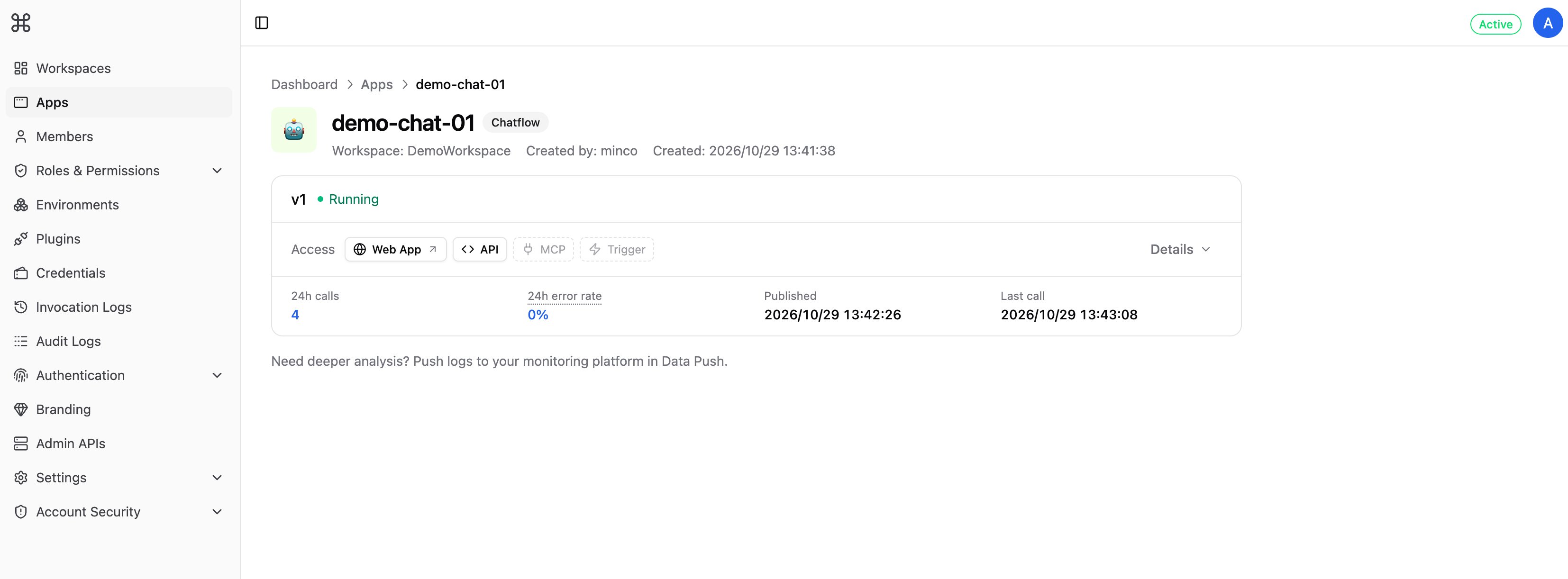
  • Single-environment layout: the app runs only in the built-in environment, or has no deployment.
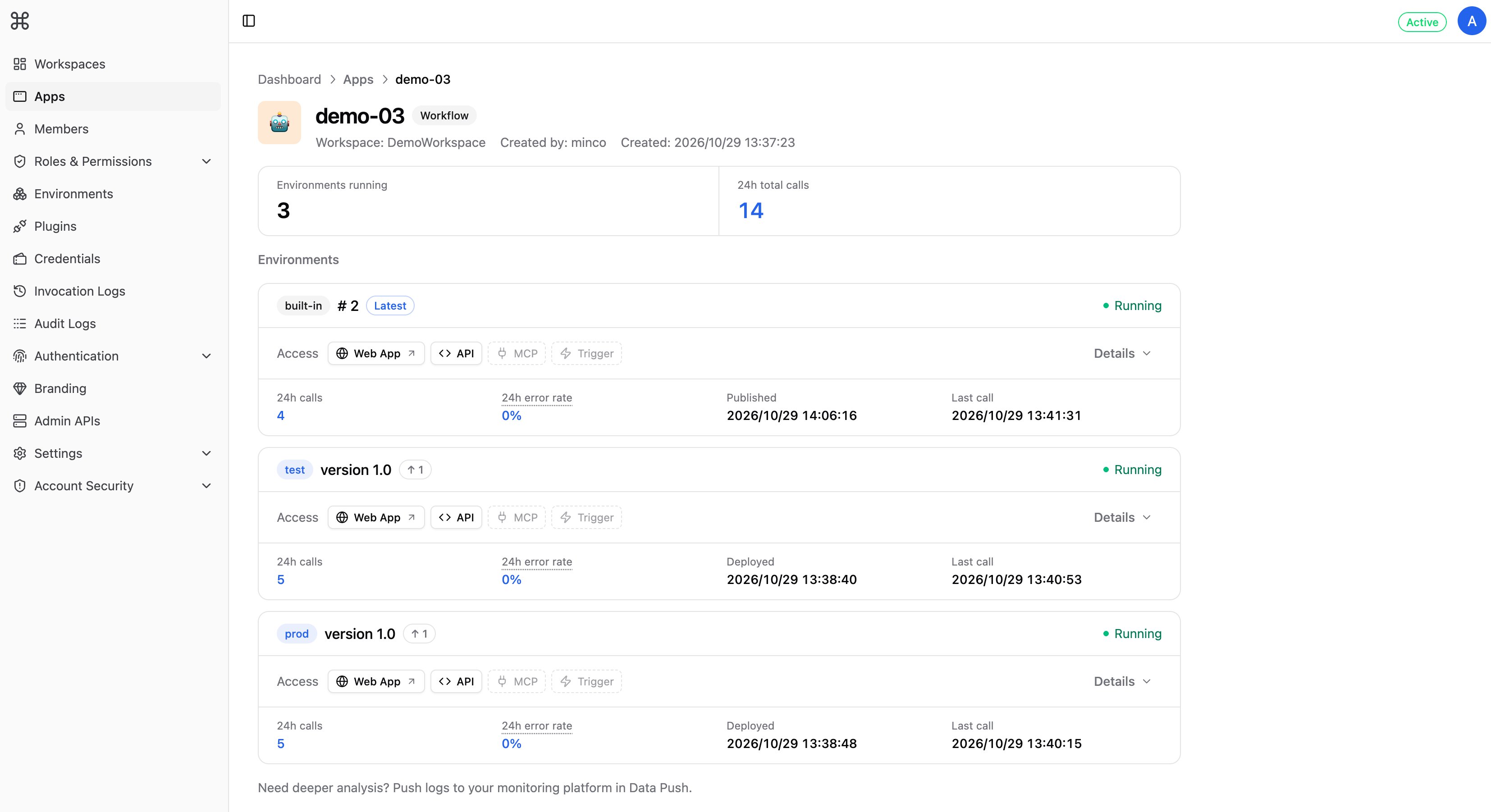
  • Multi-environment layout: the app is deployed to at least one environment other than the built-in environment.
Single-environment layout of the app details page
The multi-environment layout shows Environments running (the number of running environments) and 24h total calls at the top, and one card per environment under Environments.
Multi-environment layout of the app details page

Runtime information

The single-environment layout and every environment card in the multi-environment layout show the following: The deployment status reflects only the current version in that environment:

Access channels

The Access row lists Web App, API, MCP, and Trigger in that order. Enabled channels have a solid outline; disabled channels have a dashed outline. Hover over an enabled channel:
  • Web App shows Enabled · Click to open. Click it to open the app in a new tab.
  • Trigger shows Enabled with the number of triggers, such as Enabled · 1 trigger.
  • API and MCP show Enabled.
Click Details to see and copy the full URLs of Web App and API. The MCP URL is partly masked; view the full URL in Studio.

View invocation logs

Click the 24h calls or 24h error rate number to open Invocation Logs filtered to that app and environment. 24h total calls filters by app only. For trend analysis and alerts, push logs to your organization’s monitoring platform with Data Push.

FAQ

Why can’t I edit an app or publish a new version here?

Apps are orchestrated and published in Studio by members of the app’s workspace who have the right permissions.

Why can’t I deploy or roll back a version here?

Deploying and rolling back happen in Studio. To stop an environment’s service right away, undeploy the app in Environments.

Why can’t I manage API keys or end-user permissions here?

API keys and end-user access are managed in Studio.

Why can’t I change channel switches or access configuration here?

Each channel’s switch, URL, and credentials are configured per environment in Studio. App Management only displays them.

Why can’t I delete an app here?

Apps are deleted in Studio. To stop a service, undeploy the app in Environments.