

1. Feature Introduction
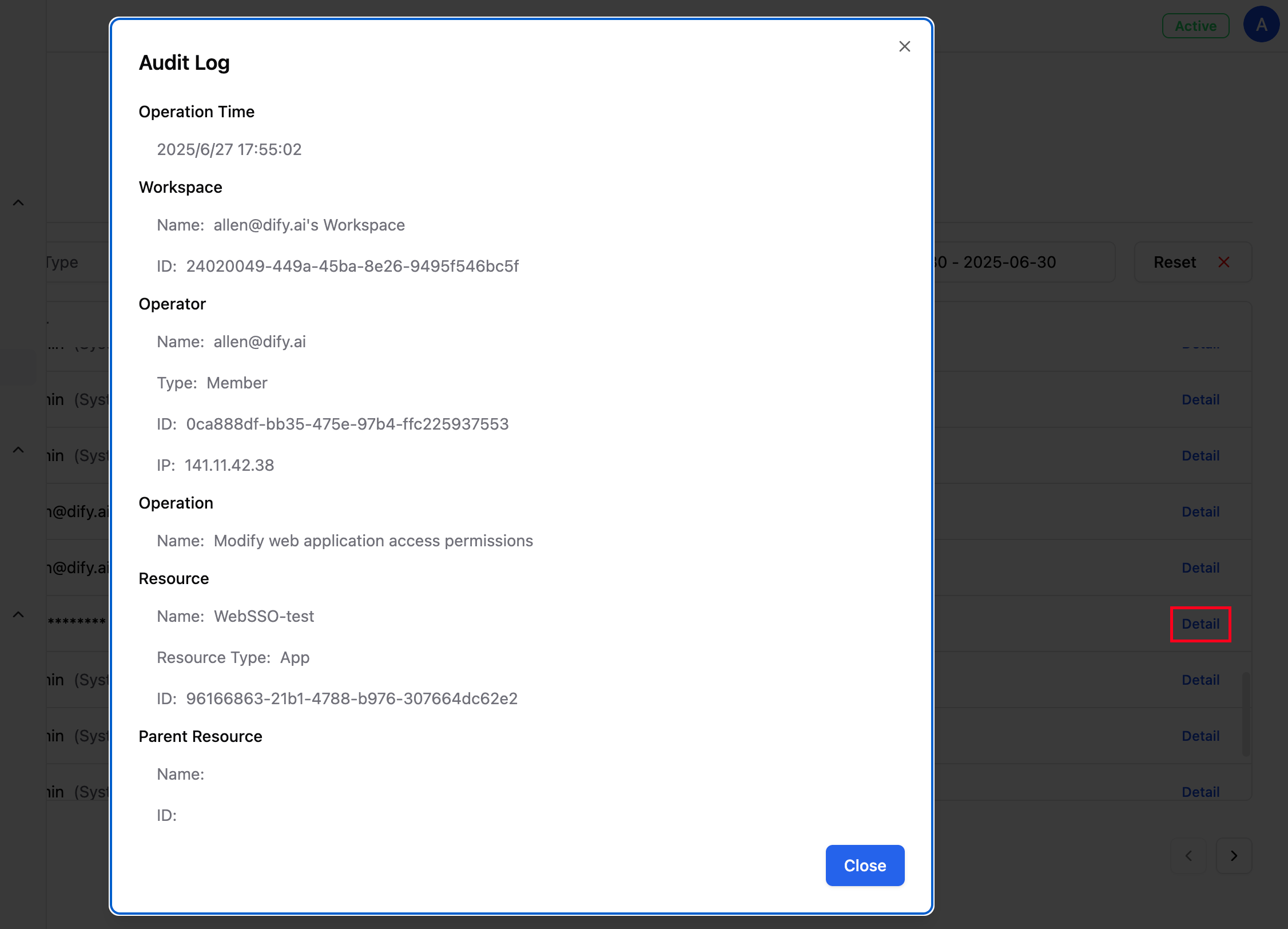
The audit log feature provides the capability to record and query key behaviors such as resource changes, permission operations, and configuration adjustments in the platform. The log has structured fields, supports precise filtering, querying, and exporting, helping enterprises identify potential risks and meet security compliance requirements. Typical application scenarios include:- Operation tracing and responsibility positioning
- Security policy audit and risk troubleshooting
- Compliance check and external audit support
2. Operation Instructions
2.1 Access Path
Enterprise Admin Dashboard > Audit Log.2.2 Log Structure and Field Description
2.3 Query Function Description
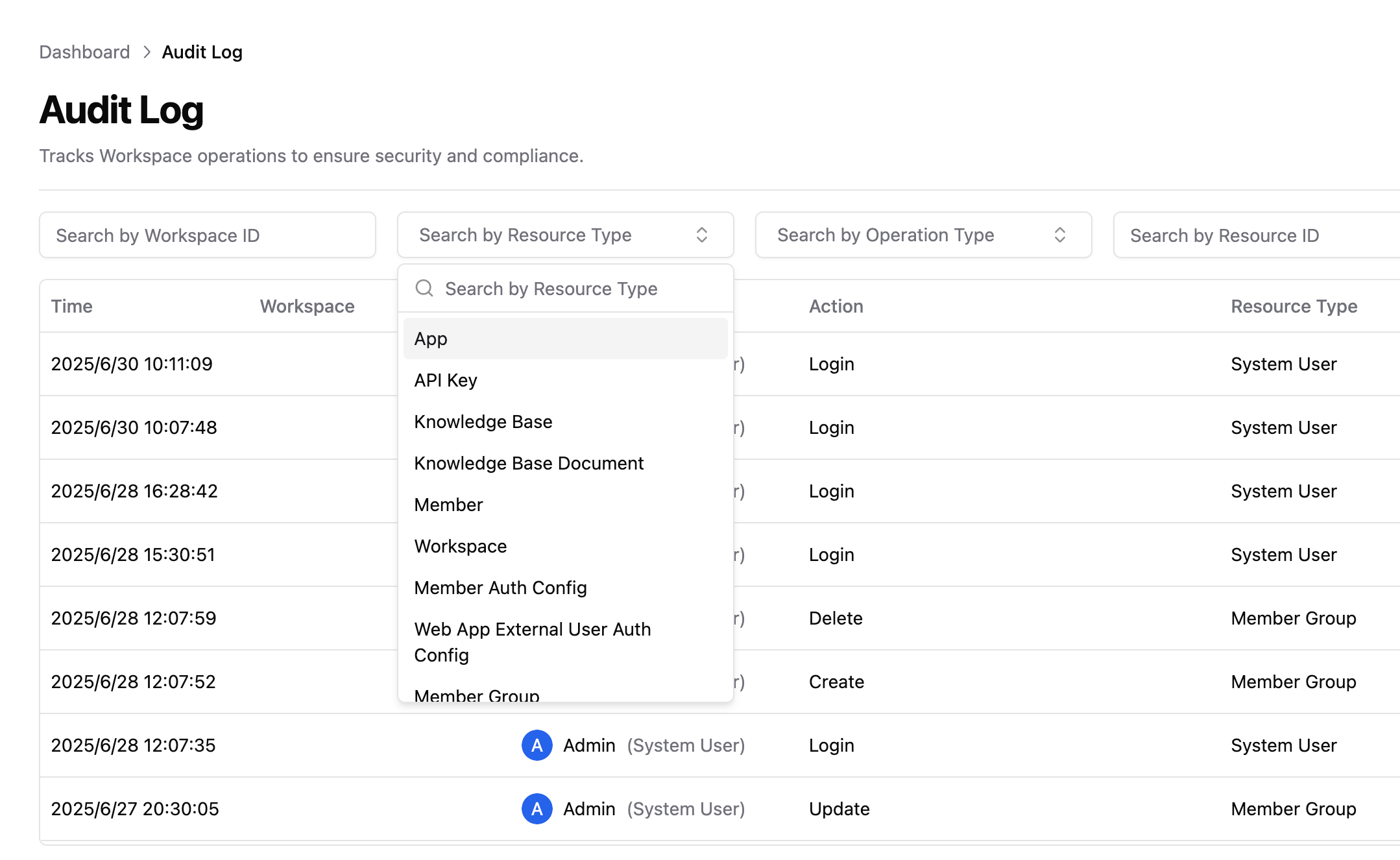
Optional filter conditions:- Workspace, search by workspace ID
- Resource type, for example: members, applications, authentication configuration
- Operation type, for example: create, modify, export DSL
- Resource ID, exact match of resource ID
- Time range, by default only supports the last 90 days
3. Download Log
3.1 Feature Description
To ensure query efficiency and system performance, logs older than 90 days will be automatically archived. Users can obtain them by downloading log files (CSV format).3.2 Operation Steps
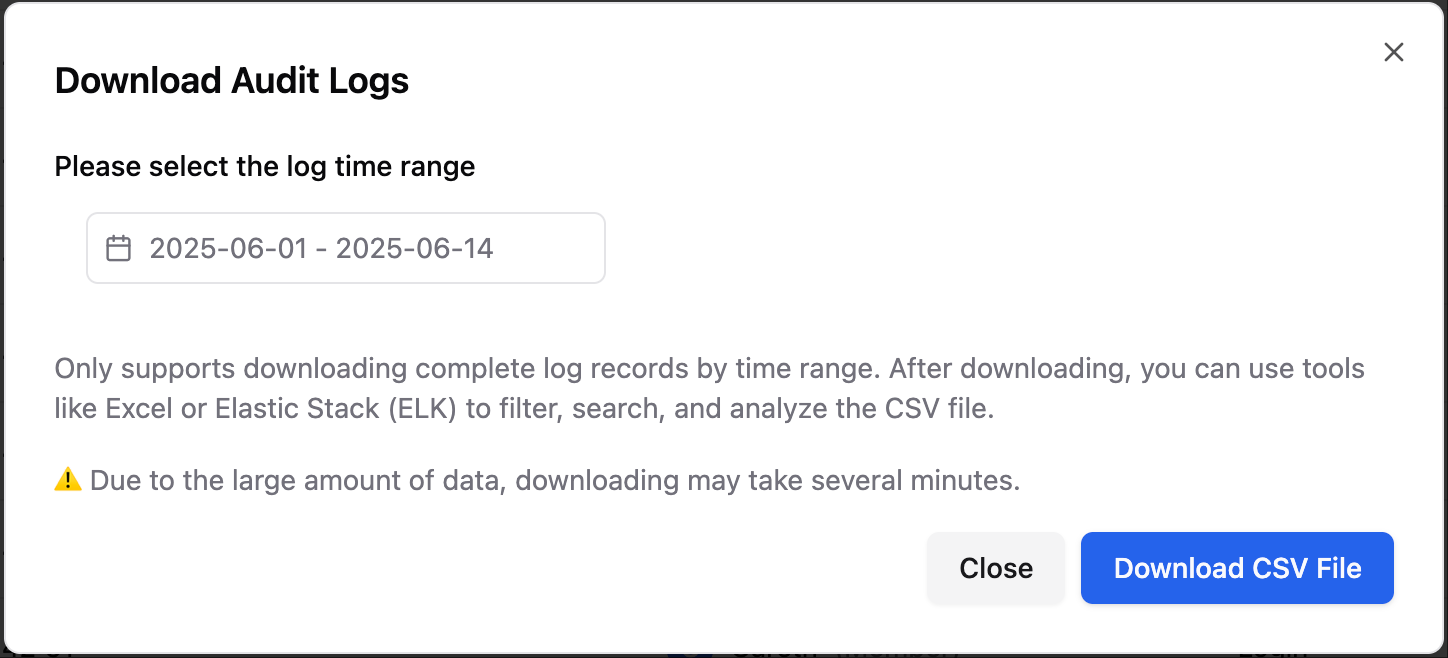
- Click “Download Log” in the upper right corner of the page;
- Select the time range in the pop-up window (supports any historical time period);
- Click “Download CSV File”, and the system will start downloading the CSV file.
- If part of the data in the selected time range is still within the online query range, the system will package and download it together.
- The log file may be large in size, and the download time depends on the selected range and data volume, please be patient.
3.3 Data Analysis Suggestions
You can use the following tools to filter and analyze the exported CSV files:- Excel / Numbers: suitable for lightweight filtering and summarizing
- Notion / Airtable: suitable for structured visual management
- ELK Stack (Elasticsearch + Logstash + Kibana): suitable for large-scale log visualization, search, and alerting
Tip: The downloaded log is a structured CSV file, and the fields are consistent with online queries, which is convenient for subsequent analysis.
4. Operation Type Classification Description
5. Frequently Asked Questions
Why can’t I view logs from 3 months ago?
For system performance considerations, only online queries of data from the last 90 days are provided. Please obtain historical data through the download log function.How to analyze after downloading the log?
It is recommended to use tools such as Excel, Notion to filter fields, or import into Elasticsearch for full-text search and chart visualization.Will the audit log be automatically cleared?
The audit log will be archived regularly according to system configuration, but it will not be actively deleted unless the administrator customizes a cleaning strategy.6. Data Security Description
The content of the audit log is only accessible to system users in the enterprise admin dashboard or users with corresponding permissions. The system ensures that log data cannot be tampered with and is retained and processed in accordance with enterprise data compliance requirements.For further support, please contact technical support or the system administrator.