

Requires Dify Enterprise 3.11.1 or later, with collaboration enabled in your deployment. See Workflow Collaboration for setup.
Comments and collaborator cursors can be hidden from the zoom menu in the bottom-right corner of the canvas.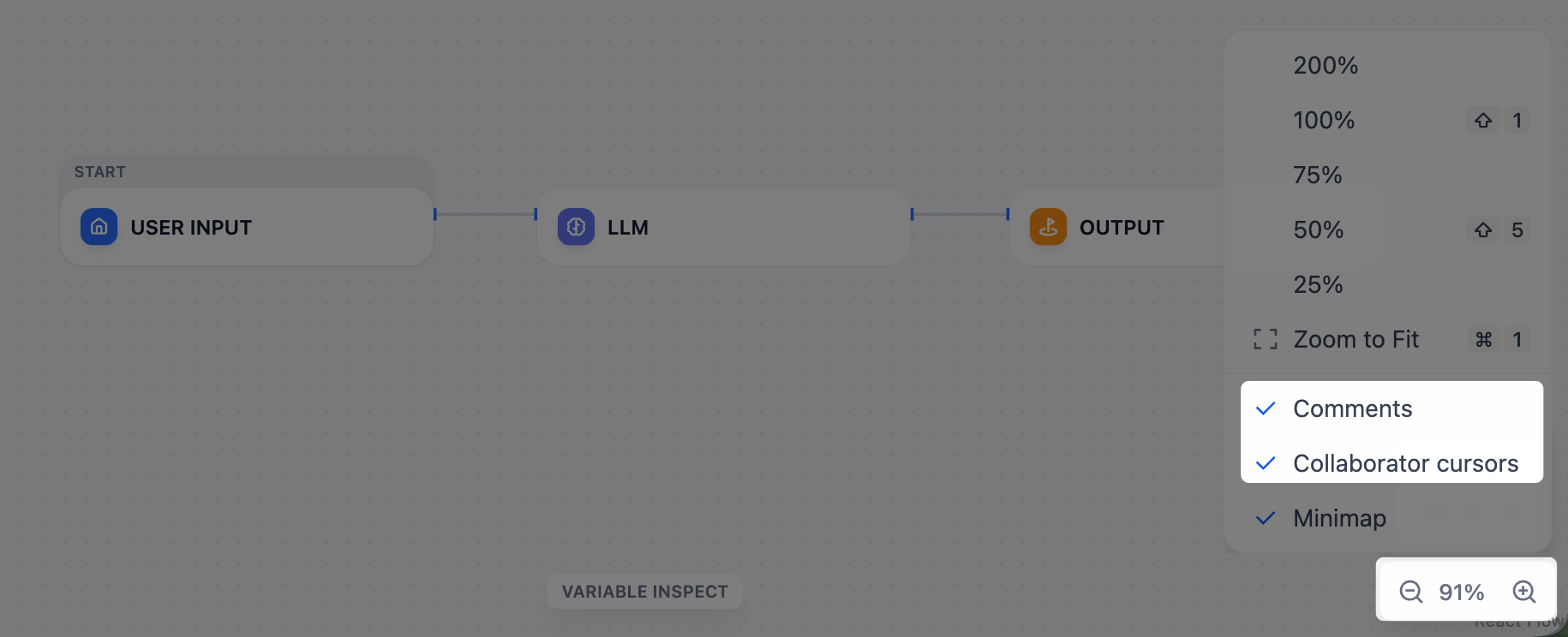
Real-Time Editing
Members with the Edit and orchestrate app permission can edit a workflow together, on the apps their resource access reaches. When two members change the same element at the same time, the last edit wins.Comments
Right-click an empty area of the canvas and select Add Comment to leave a note. To drop multiple comments in a row, pressC to enter comment mode. Comments persist across workflow versions.
If you @mention a workspace member in a comment, they’ll receive an email notification.
Members with the following permissions can view, add, and resolve comments, on the apps their resource access reaches. Members can edit or delete the comments they created.
- Read-only orchestration page
- Test and use app
- Edit and orchestrate app