> ## Documentation Index
> Fetch the complete documentation index at: https://enterprise-docs.dify.ai/llms.txt
> Use this file to discover all available pages before exploring further.
# Key Concepts
> Quick overview of essential Dify concepts
### Dify App
Dify is made for agentic app building. In **Studio**, you can quickly build agentic workflows via a drag & drop interface and publish them as apps. You can access published apps via API, the web, or as an [MCP server](/en/3.13.x/use/publish/publish-mcp). Dify offers two main app types: Workflow and Chatflow. You will need to choose an app type when creating a new app.
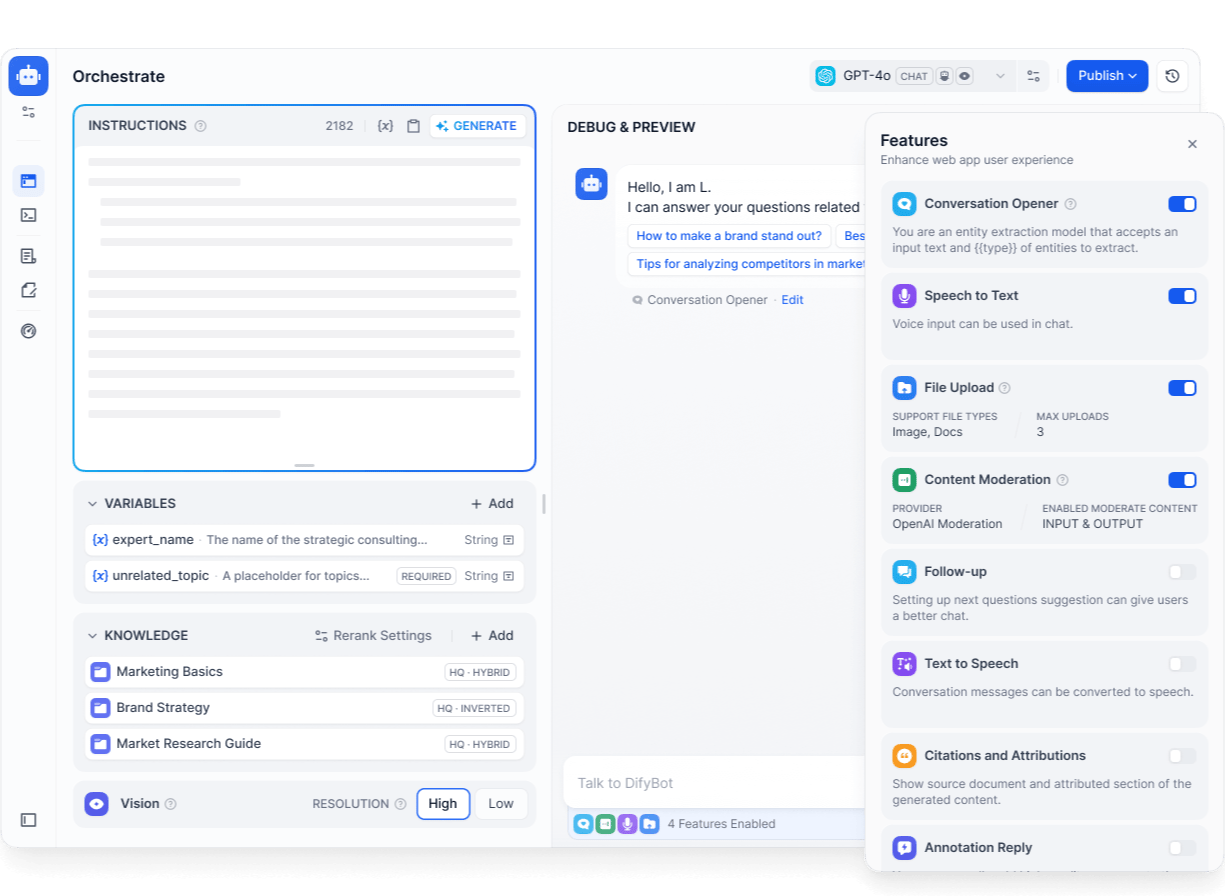
We recommend choosing Workflow or Chatflow as your app type. But in addition to these, Dify also offers 3 more basic app types: Chatbot, Agent, and Text Generator.
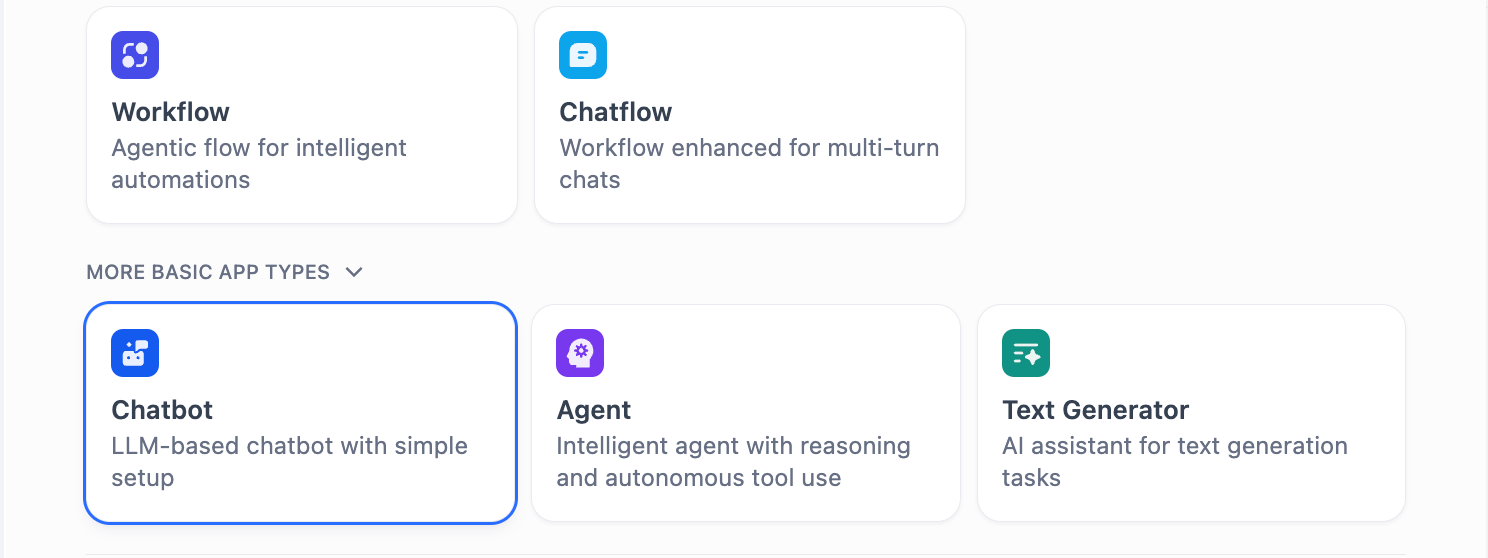 These app types run on the same workflow engine underneath, but comes with simpler legacy interfaces:
 ### Workflow
Build Workflow apps to handle single-turn tasks. The webapp interface and API provides easy access to batch execute many tasks at once.
Underneath it all, workflow forms the basis for all other app types in Dify.
Every workflow begins with a [start node](/en/3.13.x/use/nodes/start): either User Input (on-demand, triggered by a user or API call) or a Trigger (automatic, on a schedule or in response to external events).
### Chatflow
Chatflow is a special type of workflow app that gets triggered at every turn of a conversation. Other than workflow features, Chatflow comes with the ability to store and update custom conversation-specific variables, enable memory in LLM nodes, and stream formatted text, images, and files at different points throughout the Chatflow run.
Chatflows always start with User Input.
### Dify DSL
All Dify apps can be exported into a YAML file in Dify's own DSL (Domain-Specific Language) and you may create Dify apps from these DSL files directly. This makes it easy to port apps to other Dify instances and share with others.
### Variables
A variable is a labeled container to store information, so you can find and use that information later by referencing its name. You'll come across different types of variables when building a Dify app:
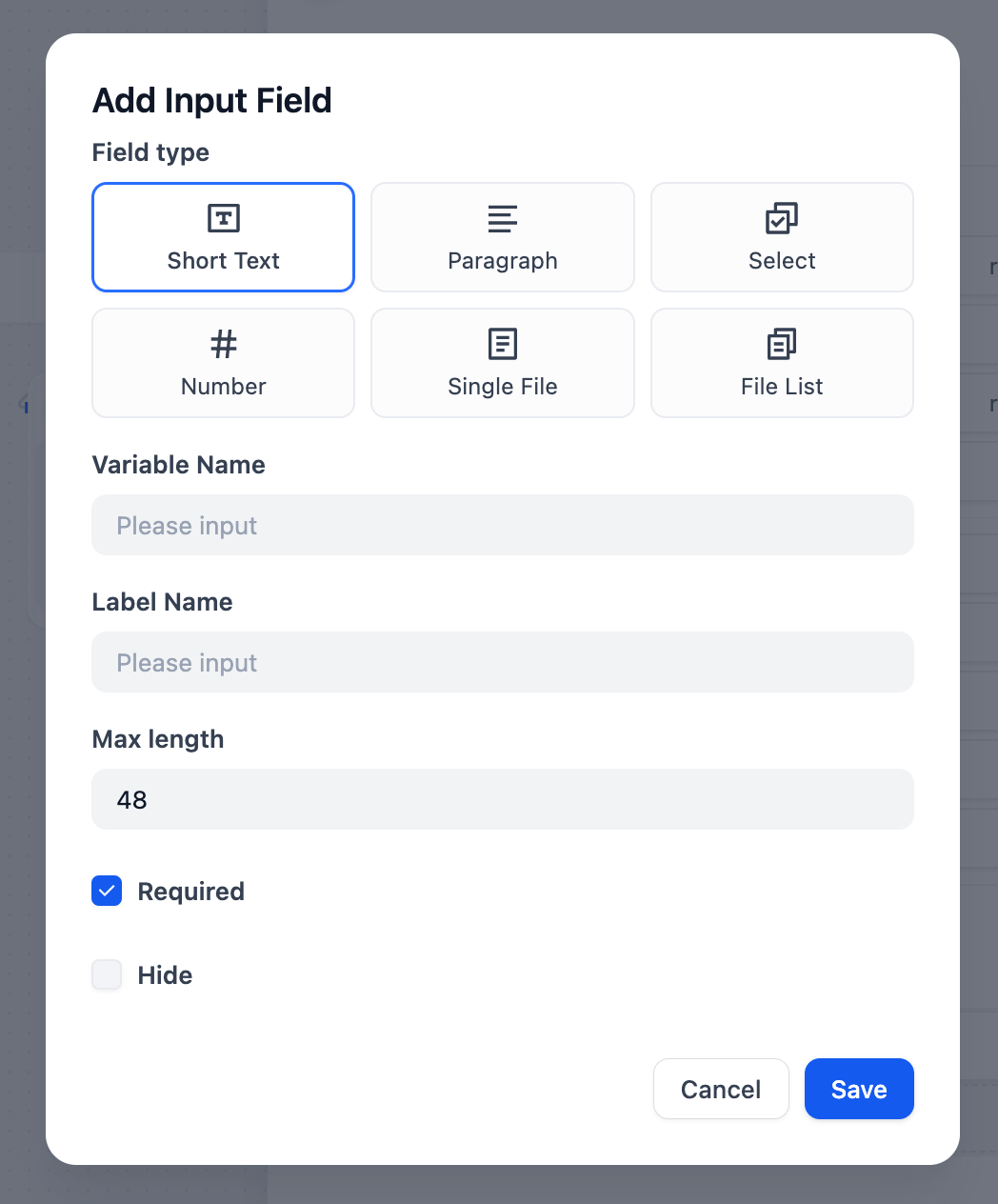
**Inputs**: You can specify any number of input variables at the [User Input](/en/3.13.x/use/nodes/user-input) node for your app's end users to fill in.
### Workflow
Build Workflow apps to handle single-turn tasks. The webapp interface and API provides easy access to batch execute many tasks at once.
Underneath it all, workflow forms the basis for all other app types in Dify.
Every workflow begins with a [start node](/en/3.13.x/use/nodes/start): either User Input (on-demand, triggered by a user or API call) or a Trigger (automatic, on a schedule or in response to external events).
### Chatflow
Chatflow is a special type of workflow app that gets triggered at every turn of a conversation. Other than workflow features, Chatflow comes with the ability to store and update custom conversation-specific variables, enable memory in LLM nodes, and stream formatted text, images, and files at different points throughout the Chatflow run.
Chatflows always start with User Input.
### Dify DSL
All Dify apps can be exported into a YAML file in Dify's own DSL (Domain-Specific Language) and you may create Dify apps from these DSL files directly. This makes it easy to port apps to other Dify instances and share with others.
### Variables
A variable is a labeled container to store information, so you can find and use that information later by referencing its name. You'll come across different types of variables when building a Dify app:
**Inputs**: You can specify any number of input variables at the [User Input](/en/3.13.x/use/nodes/user-input) node for your app's end users to fill in.
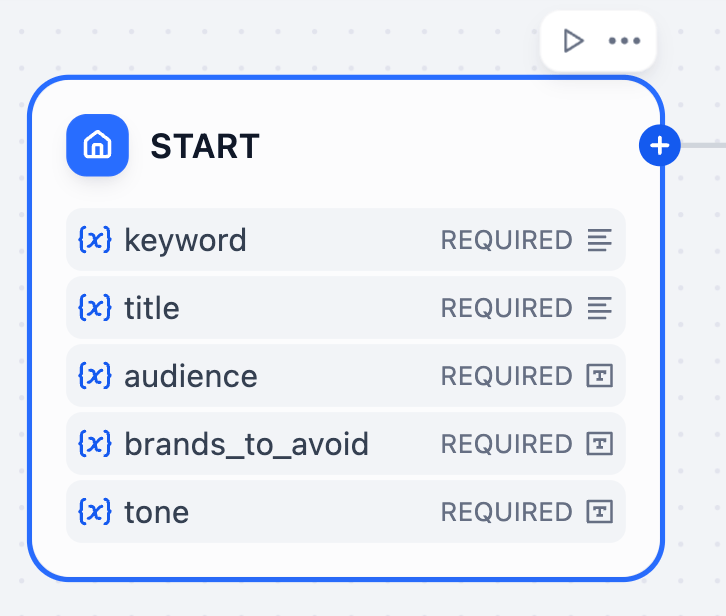 Additionally, the User Input node comes with a set of input variables that you can reference later in the flow. Depending on the app type (Workflow or Chatflow), different variables are provided.
| Variable Name |
Additionally, the User Input node comes with a set of input variables that you can reference later in the flow. Depending on the app type (Workflow or Chatflow), different variables are provided.
| Variable Name | Data Type
| Description | Notes |
| :- | :- | :- | :- |
| `sys.user_id` | String | User ID: A unique identifier automatically assigned by the system to each user when they use a Workflow application. It is used to distinguish different users. | |
| `sys.app_id` | String | App ID: A unique identifier automatically assigned by the system to each App. This parameter is used to record the basic information of the current application. | This parameter is used to differentiate and locate distinct Workflow applications for users with development capabilities. |
| `sys.workflow_id` | String | Workflow ID: This parameter records information about all nodes information in the current Workflow application. | This parameter can be used by users with development capabilities to track and record information about the nodes contained within a workflow. |
| `sys.workflow_run_id` | String | Workflow Run ID: Used to record the runtime status and execution logs of a Workflow application. | This parameter can be used by users with development capabilities to track the application's historical execution records. |
| `sys.timestamp` | Number | The start time of each workflow execution. | |
| Variable Name | Data Type
| Description | Notes |
| :- | :- | :- | :- |
| `sys.conversation_id` | String | A unique ID for the chatting box interaction session, grouping all related messages into the same conversation, ensuring that the LLM continues the chatting on the same topic and context. | |
| `sys.dialogue_count` | Number | The number of conversations turns during the user's interaction with a Chatflow application. The count automatically increases by one after each chat round and can be combined with if-else nodes to create rich branching logic.
For example, LLM will review the conversation history at the X conversation turn and automatically provide an analysis. | |
| `sys.user_id` | String | A unique ID is assigned for each application user to distinguish different conversation users. | The Service API does not share conversations created by the web app. This means users with the same ID will have separate conversation histories between API and web app interfaces. |
| `sys.app_id` | String | App ID: A unique identifier automatically assigned by the system to each App. This parameter is used to record the basic information of the current application. | This parameter is used to differentiate and locate distinct applications for users with development capabilities. |
| `sys.workflow_id` | String | Workflow ID: This parameter records information about all nodes information in the current application. | This parameter can be used by users with development capabilities to track and record information about the nodes contained within a workflow. |
| `sys.workflow_run_id` | String | Workflow Run ID: Used to record the runtime status and execution logs of an application. | This parameter can be used by users with development capabilities to track the application's historical execution records. |
User inputs are set at the start of each workflow run and cannot be updated.
**Outputs**: Each node produces one or more outputs that can be referenced in subsequent nodes. For instance, the LLM node has outputs:
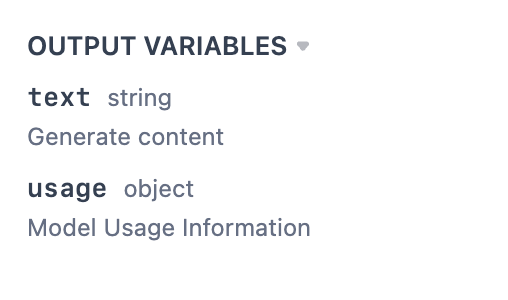 Like inputs, node outputs cannot be updated either.
**Environment Variables**: Store secrets like API keys outside the app itself, so sharing your app's DSL doesn't expose them. An environment variable can also hold a model configuration shared by multiple LLM nodes; editing the variable updates the model in every node that uses it.
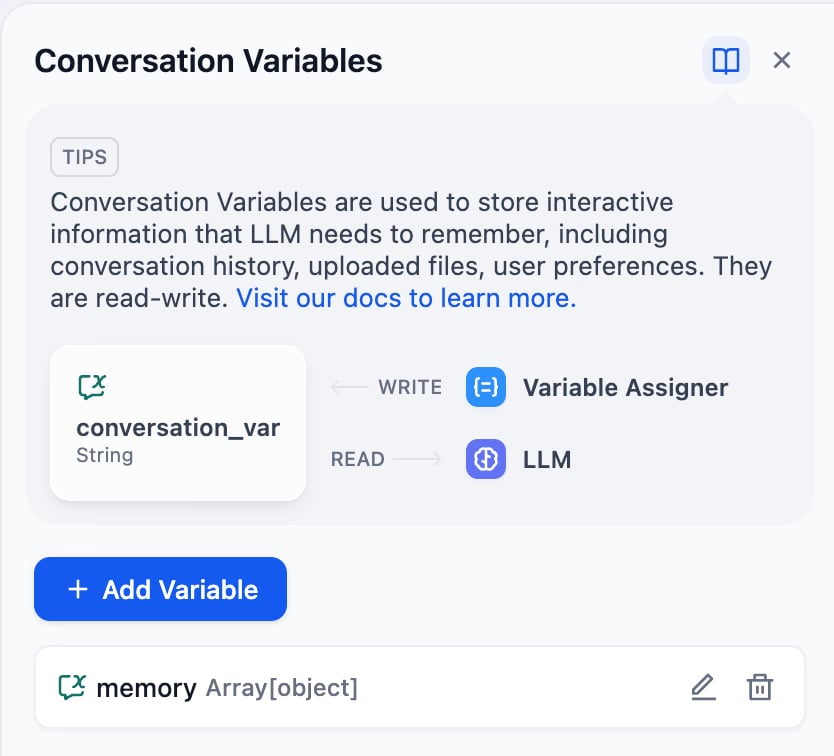
**Conversation Variables (Chatflow only)**: These variables are conversation-specific -- meaning they persist over multi-turn Chatflow runs in a single conversation so you can store and access dynamic information like to-do list and token cost. You can update the value of a conversation variable via the Variable Assigner node:
Like inputs, node outputs cannot be updated either.
**Environment Variables**: Store secrets like API keys outside the app itself, so sharing your app's DSL doesn't expose them. An environment variable can also hold a model configuration shared by multiple LLM nodes; editing the variable updates the model in every node that uses it.
**Conversation Variables (Chatflow only)**: These variables are conversation-specific -- meaning they persist over multi-turn Chatflow runs in a single conversation so you can store and access dynamic information like to-do list and token cost. You can update the value of a conversation variable via the Variable Assigner node:
 ### Variable Referencing
You can easily pass variables to any node when configuring its input field by selecting from a dropdown:
### Variable Referencing
You can easily pass variables to any node when configuring its input field by selecting from a dropdown:
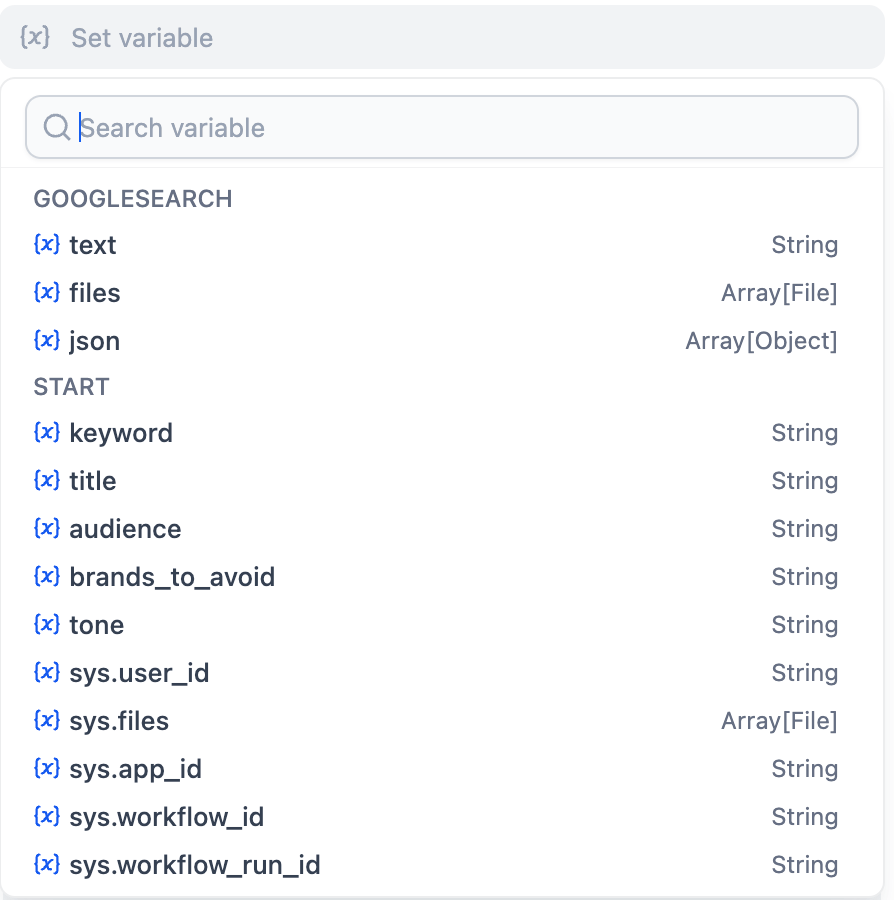 You can also insert variable values into complex text inputs by typing `/` slash, and selecting the desired variable from the dropdown.