> ## Documentation Index
> Fetch the complete documentation index at: https://enterprise-docs.dify.ai/llms.txt
> Use this file to discover all available pages before exploring further.
# Environments
> Create and manage application runtime environments, allocate resources, and view application statuses and deployment records
Use Environments to create and manage application runtime environments, allocate resources, and view application status and deployment records.
Environment management is available only for Kubernetes (Helm) deployments. Docker Compose deployments do not support this feature.
 ## Resource model and modes
The platform's total CPU quota is determined by the license. When creating an environment, set **CPU allocation** using the platform's available quota to create a CPU resource pool for applications in that environment.
Regardless of whether applications are deployed in the environment, the quota allocated to an environment counts toward the platform's allocated quota. Environments that have failed or are being deleted don't count. **Both shared and isolated modes use the environment's resource pool; the difference lies in how applications run and how resources in the pool are allocated.**
| Comparison | Shared mode | Isolated mode |
| - | - | - |
| How applications run | All applications run in the same App Runner | Each application runs in an independent App Runner |
| How CPU is allocated | All applications share the environment's CPU without per-application quotas | CPU is allocated individually to each application from the environment resource pool, and the total allocation cannot exceed the environment quota |
| How memory is configured | Configure maximum memory uniformly for the environment, shared by all applications | Configure maximum memory individually for each application, with no environment-level memory pool |
For example, if the platform total quota is 24 vCPU, after creating an environment with a CPU allocation of 4 vCPU, the platform has 20 vCPU remaining to allocate to other environments:
* **Shared mode**: All applications in the environment share these 4 vCPU.
* **Isolated mode**: After allocating 1 vCPU each to Application A and Application B, 2 vCPU remains available in the environment resource pool. The platform's available quota remains 20 vCPU and is not deducted again for application allocations.
CPU allocation represents the allocated resource allowance, not the current actual CPU usage. An empty isolated environment does not launch an App Runner in advance that occupies the entire environment quota.
Environment mode cannot be changed after creation. The environment's CPU allocation can be adjusted later, but in isolated mode it cannot be lower than the total CPU already allocated to its applications. Memory is not constrained by the license CPU quota, but it must still meet the minimum displayed in the form, and you must ensure cluster resources are sufficient.
## Create environment
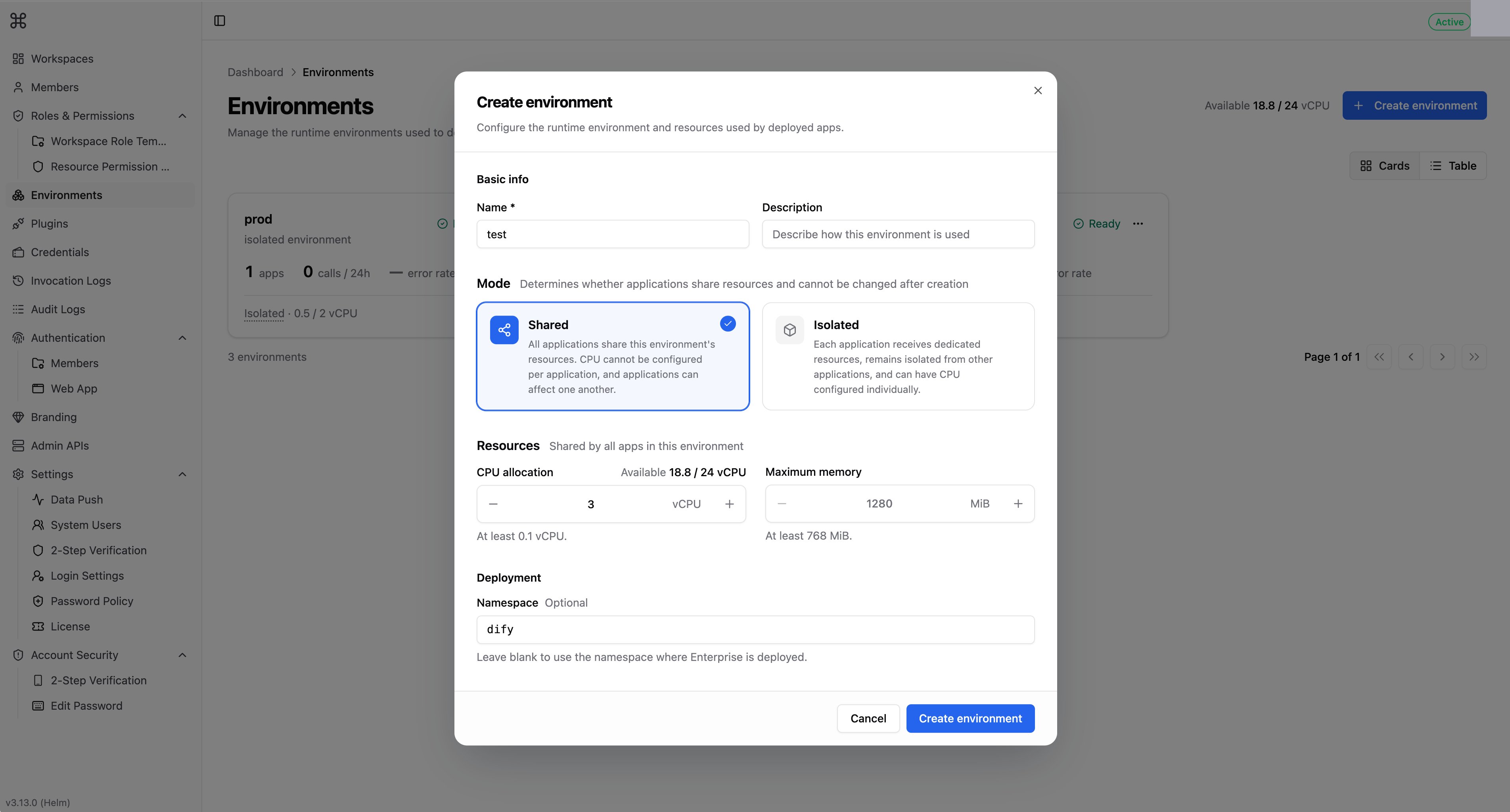
Click **Create environment** in the top right corner of the page and fill in the following information:
| Configuration | Description |
| - | - |
| **Name** | Required. Used to identify the environment. |
| **Description** | Optional. Used to describe how this environment is used. |
| **Mode** | Select shared or isolated mode. Cannot be changed after creation. |
| **CPU allocation** | Set the total size of the environment's CPU resource pool. It must be at least 0.1 vCPU and cannot exceed the platform's currently available quota. |
| **Maximum memory** | Configured during creation in shared mode only. The minimum changes with the CPU allocation, and the form displays "At least N MiB"; if left blank, the system calculates a default value based on the CPU allocation. In isolated mode, memory is configured individually for each application after deployment via [Edit resources](#adjust-resources-per-application) in the Enterprise Dashboard. |
| **Namespace** | Leave blank to use the namespace where Dify Enterprise is deployed. Before specifying a different namespace, you must enable `enterprise.appDeploy.clusterRole.enabled` in Helm values, which defaults to `false`. The namespace must already exist; otherwise the environment fails (`namespace_missing`). |
After completing the configuration, click **Create environment**.
## Resource model and modes
The platform's total CPU quota is determined by the license. When creating an environment, set **CPU allocation** using the platform's available quota to create a CPU resource pool for applications in that environment.
Regardless of whether applications are deployed in the environment, the quota allocated to an environment counts toward the platform's allocated quota. Environments that have failed or are being deleted don't count. **Both shared and isolated modes use the environment's resource pool; the difference lies in how applications run and how resources in the pool are allocated.**
| Comparison | Shared mode | Isolated mode |
| - | - | - |
| How applications run | All applications run in the same App Runner | Each application runs in an independent App Runner |
| How CPU is allocated | All applications share the environment's CPU without per-application quotas | CPU is allocated individually to each application from the environment resource pool, and the total allocation cannot exceed the environment quota |
| How memory is configured | Configure maximum memory uniformly for the environment, shared by all applications | Configure maximum memory individually for each application, with no environment-level memory pool |
For example, if the platform total quota is 24 vCPU, after creating an environment with a CPU allocation of 4 vCPU, the platform has 20 vCPU remaining to allocate to other environments:
* **Shared mode**: All applications in the environment share these 4 vCPU.
* **Isolated mode**: After allocating 1 vCPU each to Application A and Application B, 2 vCPU remains available in the environment resource pool. The platform's available quota remains 20 vCPU and is not deducted again for application allocations.
CPU allocation represents the allocated resource allowance, not the current actual CPU usage. An empty isolated environment does not launch an App Runner in advance that occupies the entire environment quota.
Environment mode cannot be changed after creation. The environment's CPU allocation can be adjusted later, but in isolated mode it cannot be lower than the total CPU already allocated to its applications. Memory is not constrained by the license CPU quota, but it must still meet the minimum displayed in the form, and you must ensure cluster resources are sufficient.
## Create environment
Click **Create environment** in the top right corner of the page and fill in the following information:
| Configuration | Description |
| - | - |
| **Name** | Required. Used to identify the environment. |
| **Description** | Optional. Used to describe how this environment is used. |
| **Mode** | Select shared or isolated mode. Cannot be changed after creation. |
| **CPU allocation** | Set the total size of the environment's CPU resource pool. It must be at least 0.1 vCPU and cannot exceed the platform's currently available quota. |
| **Maximum memory** | Configured during creation in shared mode only. The minimum changes with the CPU allocation, and the form displays "At least N MiB"; if left blank, the system calculates a default value based on the CPU allocation. In isolated mode, memory is configured individually for each application after deployment via [Edit resources](#adjust-resources-per-application) in the Enterprise Dashboard. |
| **Namespace** | Leave blank to use the namespace where Dify Enterprise is deployed. Before specifying a different namespace, you must enable `enterprise.appDeploy.clusterRole.enabled` in Helm values, which defaults to `false`. The namespace must already exist; otherwise the environment fails (`namespace_missing`). |
After completing the configuration, click **Create environment**.
 The environment shows **Creating** until it can accept deployments, then **Ready**. From then on, members with the **Deploy app** permission can deploy apps to it.
If an error occurs during initialization, the environment transitions to **Failed**. Hover over the status badge to view the reason. Failed environments do not support retries; troubleshoot the issue, then delete and recreate the environment.
## Environment status
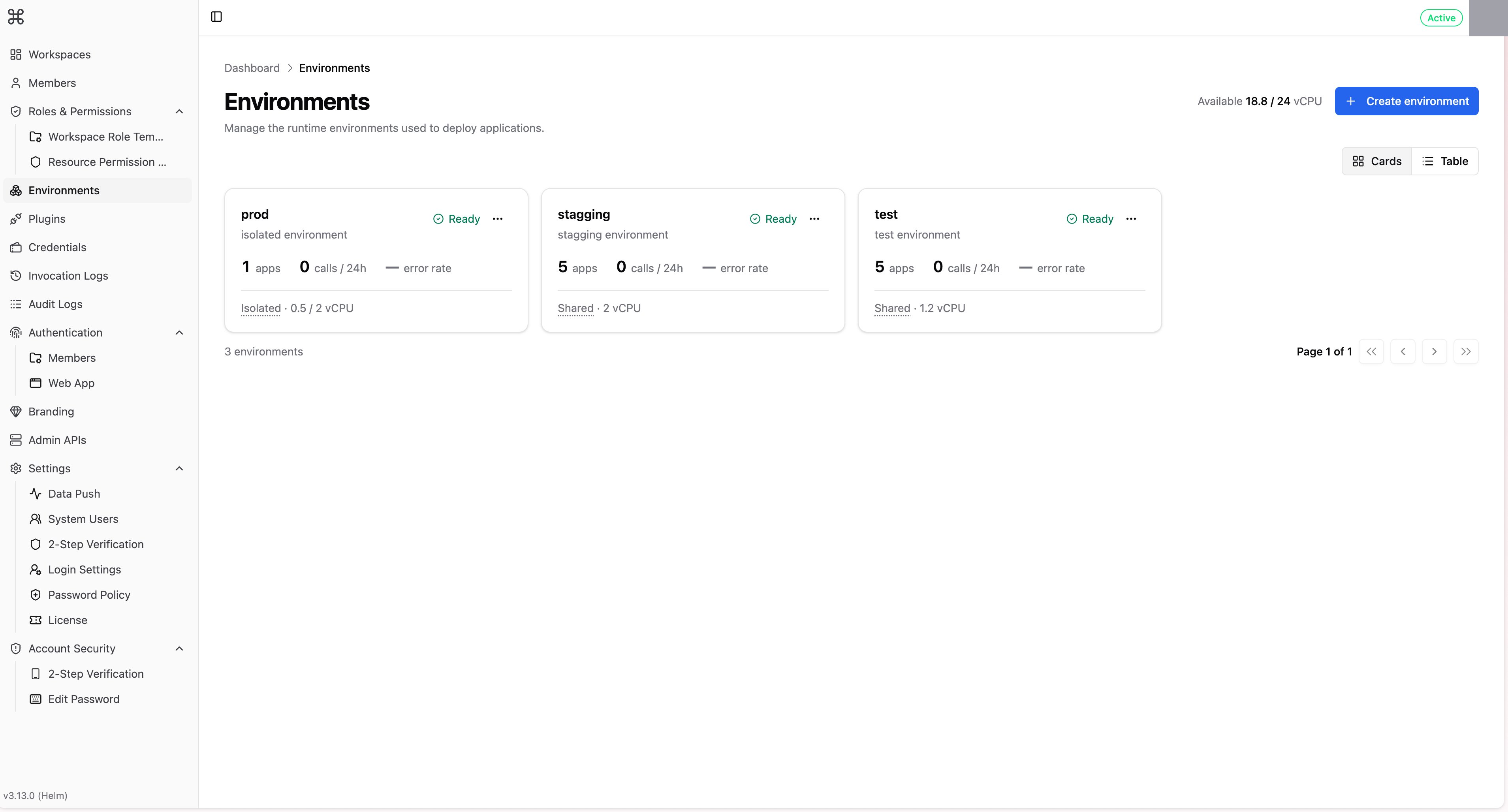
The environment list supports two views, **Cards** and **Table**, displaying resource allocations and runtime metrics for the last 24 hours:
* **24h calls** and **Error rate**: Error rate is the ratio of failed calls to total calls. When there are no calls in the last 24 hours, the error rate shows `—`.
* **CPU allocation**: Isolated mode displays "allocated / quota" to show how much of the resource pool has been allocated; shared mode displays only the quota.
* **24h failed deploys**: Click the number to open those deployments and their failure reasons in [Deployments](#deployments).
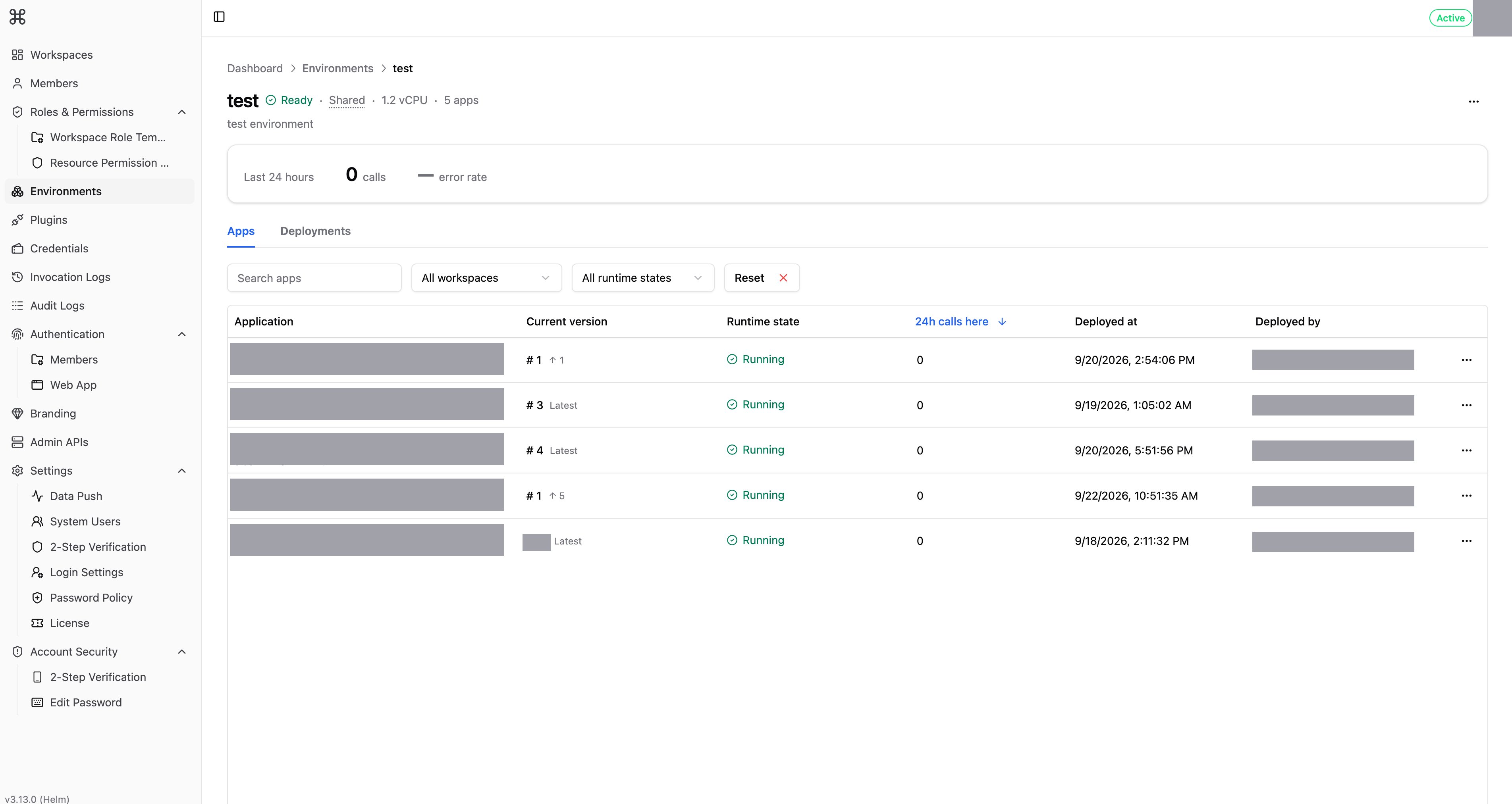
Click an environment to enter its details page. The **Apps** tab lists the **Runtime state**, **Current version**, and **24h calls here** by application. When a notice next to **Current version** indicates "N versions behind the latest published version", it means the currently deployed version lags behind the latest published version and must be redeployed to update.
The environment shows **Creating** until it can accept deployments, then **Ready**. From then on, members with the **Deploy app** permission can deploy apps to it.
If an error occurs during initialization, the environment transitions to **Failed**. Hover over the status badge to view the reason. Failed environments do not support retries; troubleshoot the issue, then delete and recreate the environment.
## Environment status
The environment list supports two views, **Cards** and **Table**, displaying resource allocations and runtime metrics for the last 24 hours:
* **24h calls** and **Error rate**: Error rate is the ratio of failed calls to total calls. When there are no calls in the last 24 hours, the error rate shows `—`.
* **CPU allocation**: Isolated mode displays "allocated / quota" to show how much of the resource pool has been allocated; shared mode displays only the quota.
* **24h failed deploys**: Click the number to open those deployments and their failure reasons in [Deployments](#deployments).
Click an environment to enter its details page. The **Apps** tab lists the **Runtime state**, **Current version**, and **24h calls here** by application. When a notice next to **Current version** indicates "N versions behind the latest published version", it means the currently deployed version lags behind the latest published version and must be redeployed to update.
 Call count and error rate are aggregate metrics. To view the status, duration, token usage, and error messages of individual calls, open [Invocation Logs](/en/3.13.x/administer/invocation-logs) and filter by environment.
## Deployments
Open the **Deployments** tab on the environment details page to filter by application, time range (default **Last 7 days**), operation type, and status.
Call count and error rate are aggregate metrics. To view the status, duration, token usage, and error messages of individual calls, open [Invocation Logs](/en/3.13.x/administer/invocation-logs) and filter by environment.
## Deployments
Open the **Deployments** tab on the environment details page to filter by application, time range (default **Last 7 days**), operation type, and status.
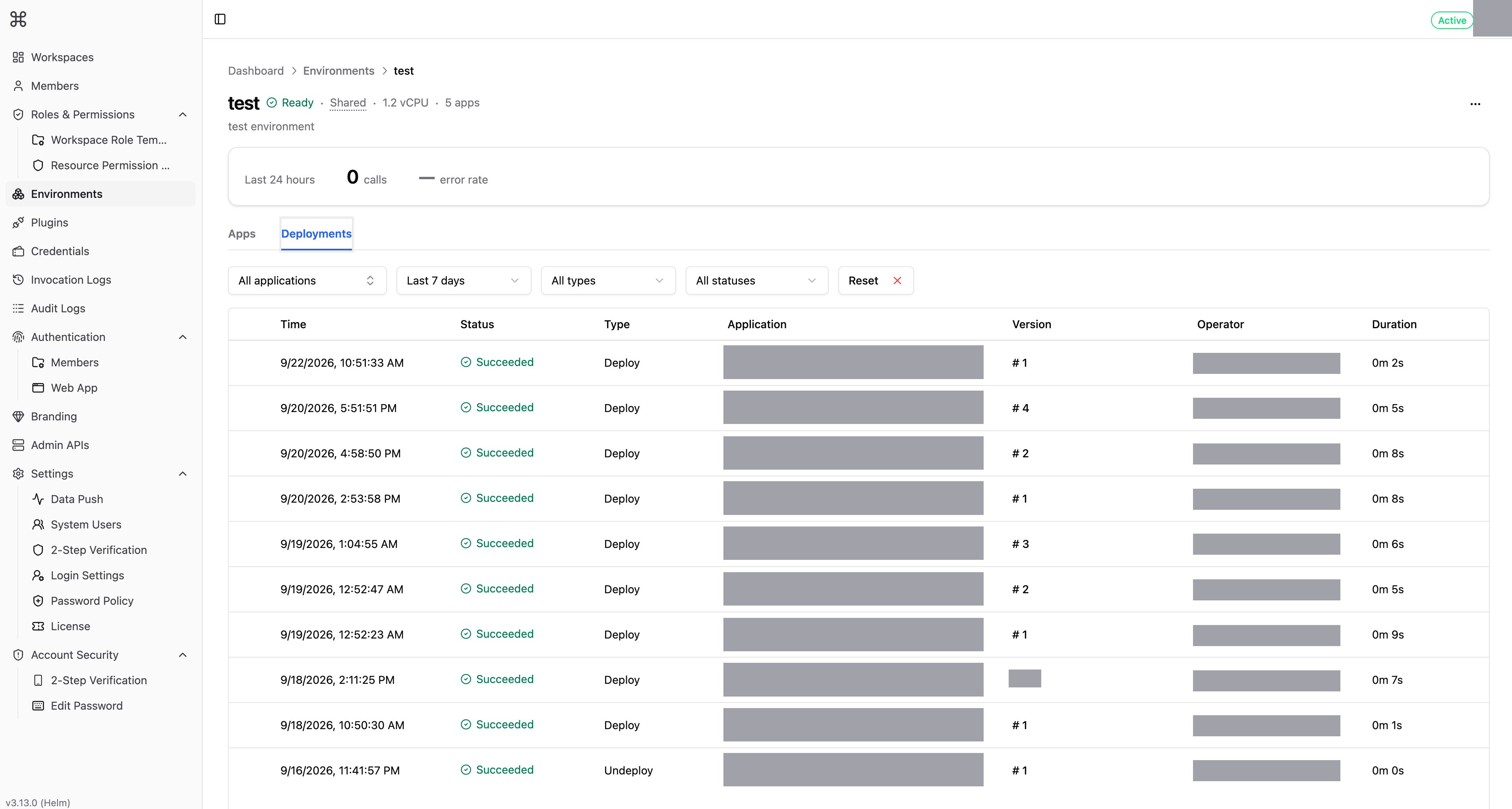 Expand a failed record to view and copy the **Failure reason**, including the error code and error message. **Operator** displays the user who initiated the deployment.
Insufficient resources in an isolated environment can cause deployment failures: applications deployed to an isolated environment are allocated 0.5 vCPU by default, and deployment will fail if less than 0.5 vCPU remains in the resource pool. Increase the environment's **CPU allocation**, or reduce the CPU of other applications via [Adjust resources per application](#adjust-resources-per-application), then redeploy the application.
## Edit environment
Select **Edit** from the **…** menu on an environment card, at the end of a table row, or in the top right corner of the details page. You can modify the name, description, and resource configuration. Mode and namespace cannot be changed after creation; if changes are required, recreate the environment. Resource configurations supported by each mode are as follows:
* **Shared mode**: You can modify **CPU allocation** and **Maximum memory**, following the same rules as during creation. Increasing CPU raises the minimum memory requirement; if the currently configured maximum memory is below the new minimum, the form prompts you to increase memory first.
* **Isolated mode**: Supports modifying only the **CPU allocation**, which is the resource pool size. When decreasing it, the allocation cannot be lower than the amount already held by applications. To release quota, first decrease application CPU allocations or undeploy applications. Adjusting the resource pool size does not restart applications in the environment.
## Adjust resources per application
Isolated mode supports configuring CPU and memory individually for each application. On the **Apps** tab of the environment details page, click the **…** menu at the end of the target application row and select **Edit resources**. Shared mode does not support adjusting resources per application; modify environment resources via [Edit environment](#edit-environment).
Expand a failed record to view and copy the **Failure reason**, including the error code and error message. **Operator** displays the user who initiated the deployment.
Insufficient resources in an isolated environment can cause deployment failures: applications deployed to an isolated environment are allocated 0.5 vCPU by default, and deployment will fail if less than 0.5 vCPU remains in the resource pool. Increase the environment's **CPU allocation**, or reduce the CPU of other applications via [Adjust resources per application](#adjust-resources-per-application), then redeploy the application.
## Edit environment
Select **Edit** from the **…** menu on an environment card, at the end of a table row, or in the top right corner of the details page. You can modify the name, description, and resource configuration. Mode and namespace cannot be changed after creation; if changes are required, recreate the environment. Resource configurations supported by each mode are as follows:
* **Shared mode**: You can modify **CPU allocation** and **Maximum memory**, following the same rules as during creation. Increasing CPU raises the minimum memory requirement; if the currently configured maximum memory is below the new minimum, the form prompts you to increase memory first.
* **Isolated mode**: Supports modifying only the **CPU allocation**, which is the resource pool size. When decreasing it, the allocation cannot be lower than the amount already held by applications. To release quota, first decrease application CPU allocations or undeploy applications. Adjusting the resource pool size does not restart applications in the environment.
## Adjust resources per application
Isolated mode supports configuring CPU and memory individually for each application. On the **Apps** tab of the environment details page, click the **…** menu at the end of the target application row and select **Edit resources**. Shared mode does not support adjusting resources per application; modify environment resources via [Edit environment](#edit-environment).
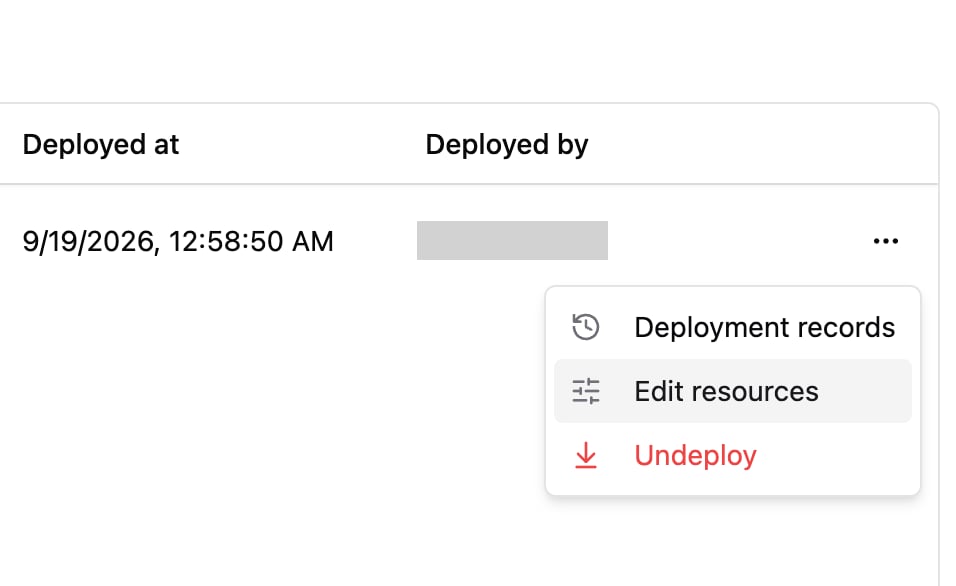 * **CPU**: At least 0.1 vCPU, and cannot exceed the environment quota minus the CPU allocated to other applications. Applications are allocated 0.5 vCPU by default upon deployment. Selecting a CPU quota during deployment is not supported; adjust it via **Edit resources**.
* **Maximum memory**: Cannot be lower than the minimum displayed in the form, which is determined by the application's current CPU allocation; if left blank, the system derives a default value based on CPU. Increasing CPU raises the minimum requirement; if the currently configured maximum memory is below the new minimum, the form prompts you to increase memory first.
Saving restarts the app, so it's briefly unavailable.
## Undeploy applications
In the details page **Apps** tab, select **Undeploy** from the **…** menu at the end of the row. The resources used by the application will be released, and its endpoints will immediately stop serving traffic. Undeployment runs in the background, and you can view progress and results in **Deployments**.
Undeploying cannot be undone; restoring service requires redeploying the application. Confirm the business impact before proceeding.
## Delete environment
Deleting an environment deletes its API keys, web app and API settings, and conversation records. This operation cannot be undone. To switch modes or namespaces, create a new environment and redeploy applications before deleting the old environment.
Select **Delete** from the **…** menu on an environment card, at the end of a table row, or in the top right corner of the details page. An environment cannot be deleted while deployed applications exist; you must first [undeploy applications](#undeploy-applications) one by one. If an undeploy operation is in progress, wait for it to complete. Once the environment is deleted, its vCPU returns to the platform's available quota.
* **CPU**: At least 0.1 vCPU, and cannot exceed the environment quota minus the CPU allocated to other applications. Applications are allocated 0.5 vCPU by default upon deployment. Selecting a CPU quota during deployment is not supported; adjust it via **Edit resources**.
* **Maximum memory**: Cannot be lower than the minimum displayed in the form, which is determined by the application's current CPU allocation; if left blank, the system derives a default value based on CPU. Increasing CPU raises the minimum requirement; if the currently configured maximum memory is below the new minimum, the form prompts you to increase memory first.
Saving restarts the app, so it's briefly unavailable.
## Undeploy applications
In the details page **Apps** tab, select **Undeploy** from the **…** menu at the end of the row. The resources used by the application will be released, and its endpoints will immediately stop serving traffic. Undeployment runs in the background, and you can view progress and results in **Deployments**.
Undeploying cannot be undone; restoring service requires redeploying the application. Confirm the business impact before proceeding.
## Delete environment
Deleting an environment deletes its API keys, web app and API settings, and conversation records. This operation cannot be undone. To switch modes or namespaces, create a new environment and redeploy applications before deleting the old environment.
Select **Delete** from the **…** menu on an environment card, at the end of a table row, or in the top right corner of the details page. An environment cannot be deleted while deployed applications exist; you must first [undeploy applications](#undeploy-applications) one by one. If an undeploy operation is in progress, wait for it to complete. Once the environment is deleted, its vCPU returns to the platform's available quota.