> ## Documentation Index
> Fetch the complete documentation index at: https://enterprise-docs.dify.ai/llms.txt
> Use this file to discover all available pages before exploring further.

# Step 4: Upload Files

After publishing knowledge pipeline, there're two ways to upload files as below:

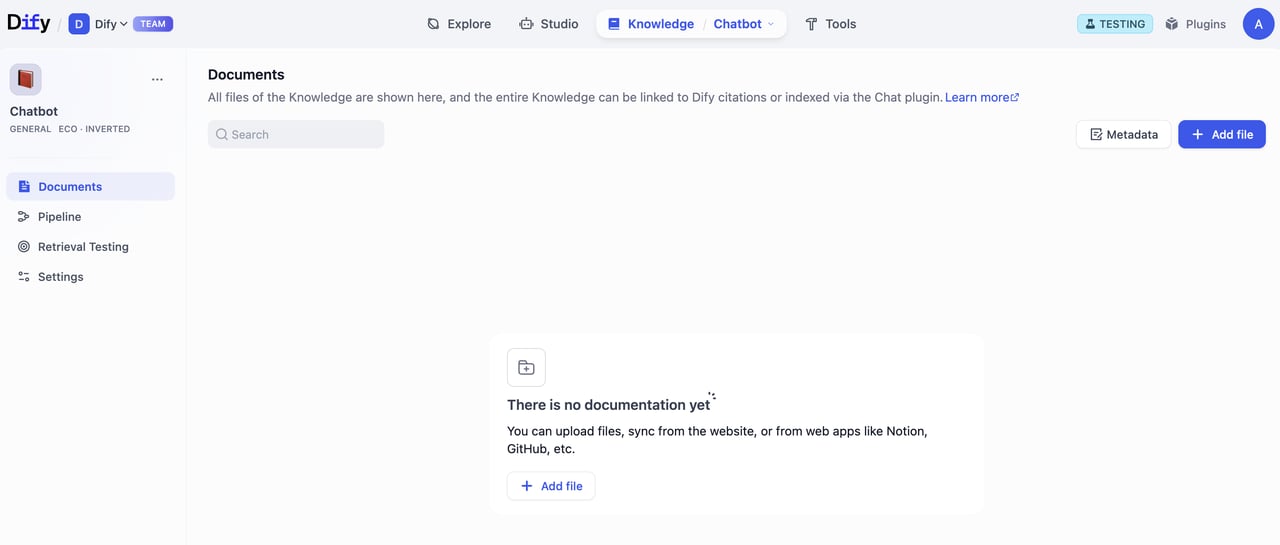
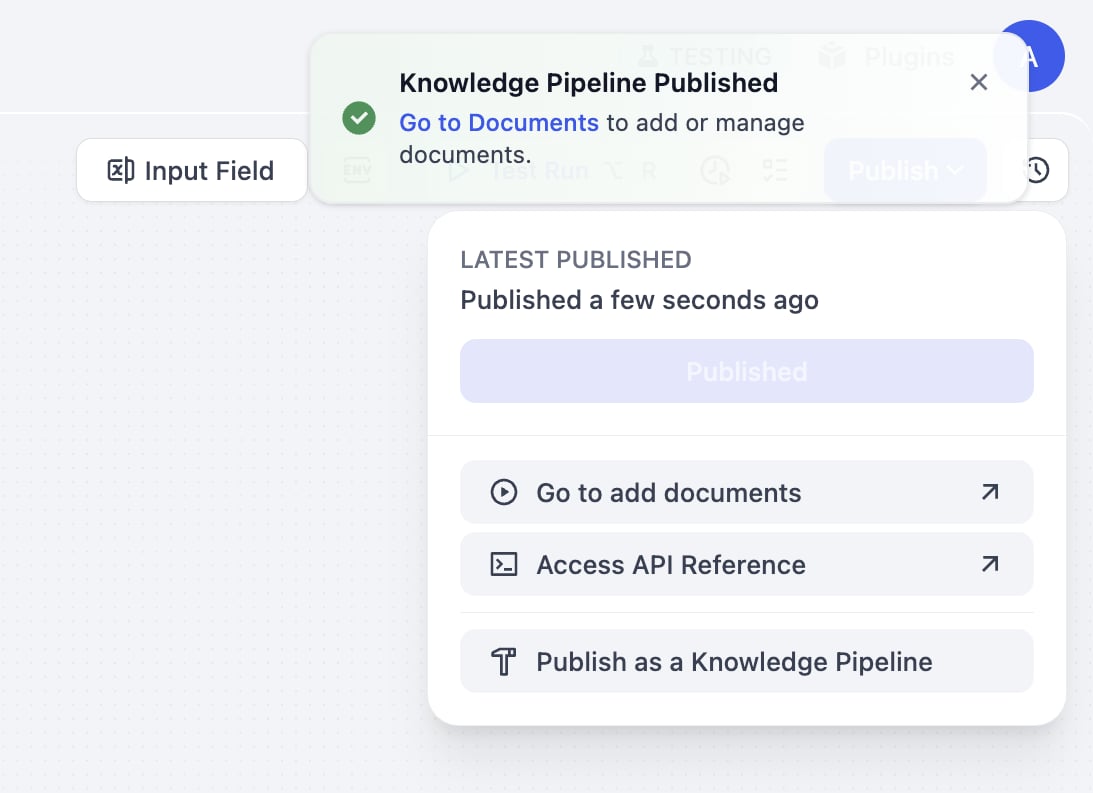
A: Click **Go to Documents** in the success notification to add or manage documents. After entering Documents page, click **Add File** to upload.

<div style={{display: 'flex', flexWrap: 'wrap', gap: '30px'}}>
  <div style={{flex: 1, minWidth: '200px'}}>
    <Frame>
      <img src="https://mintcdn.com/dify-enterprise-docs/1MakDj0gpfYoNPPL/images/use-dify/knowledge/create-knowledge-pipeline-14.png?fit=max&auto=format&n=1MakDj0gpfYoNPPL&q=85&s=40c4309c9934ba842a49feeb77226abc" alt="Option A-1" width="1093" height="793" data-path="images/use-dify/knowledge/create-knowledge-pipeline-14.png" />
    </Frame>
  </div>

  <div style={{flex: 2, minWidth: '300px'}}>
    <Frame>
      <img src="https://mintcdn.com/dify-enterprise-docs/1MakDj0gpfYoNPPL/images/use-dify/knowledge/create-knowledge-pipeline-15.png?fit=max&auto=format&n=1MakDj0gpfYoNPPL&q=85&s=efe23578e2614b90d685dbb1eb651a3c" alt="Option A-2" width="1280" height="545" data-path="images/use-dify/knowledge/create-knowledge-pipeline-15.png" />
    </Frame>
  </div>
</div>

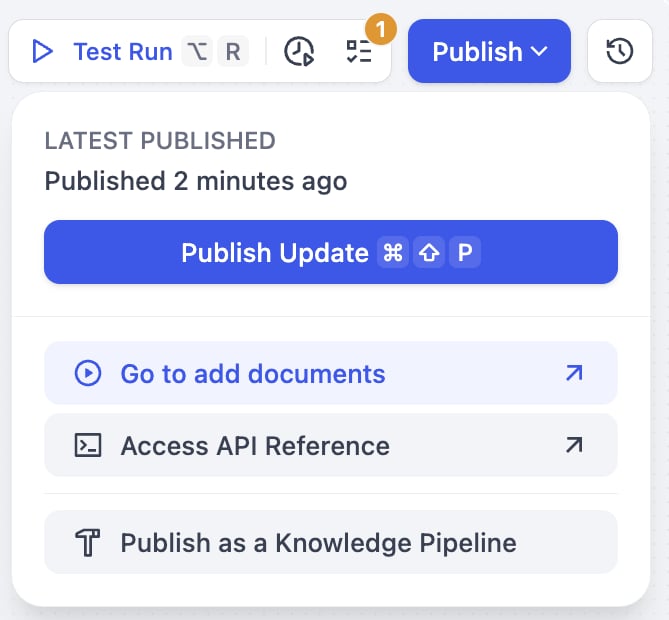
B: Click **Go to Add Documents** to add documents.

<div style={{display: 'flex', flexWrap: 'wrap', gap: '30px'}}>
  <div style={{flex: 1, minWidth: '200px'}}>
    <Frame>
      <img src="https://mintcdn.com/dify-enterprise-docs/1MakDj0gpfYoNPPL/images/use-dify/knowledge/create-knowledge-pipeline-16.png?fit=max&auto=format&n=1MakDj0gpfYoNPPL&q=85&s=1ce8c32569643eced3b220a0db517687" alt="Option B-1" width="669" height="620" data-path="images/use-dify/knowledge/create-knowledge-pipeline-16.png" />
    </Frame>
  </div>

  <div style={{flex: 2, minWidth: '300px'}}>
    <Frame>
      <img src="https://mintcdn.com/dify-enterprise-docs/1MakDj0gpfYoNPPL/images/use-dify/knowledge/create-knowledge-pipeline-17.png?fit=max&auto=format&n=1MakDj0gpfYoNPPL&q=85&s=e75a75844f40712c089101f3f6af9f0c" alt="Option B-2" width="1280" height="521" data-path="images/use-dify/knowledge/create-knowledge-pipeline-17.png" />
    </Frame>
  </div>
</div>

### Upload Process

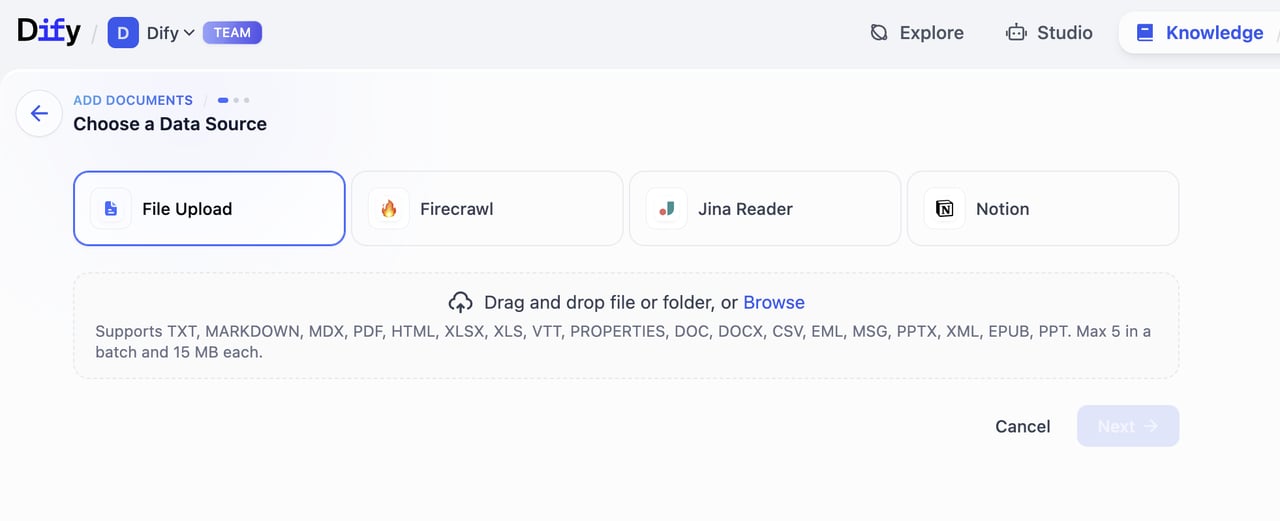
1. **Select Data Source**\
   Choose from the data source types configured in your pipeline. Dify currently supports 4 types of data sources: File Upload (pdf, docx, etc.), Online Drive (Google Drive, OneDrive, etc.), Online Doc (Notion), and Web Crawler (Jina Reader, Firecrawl).
   Please visit [Dify Marketplace](https://marketplace.dify.ai/) to install additional data sources.

2. **Fill in Processing Parameters and Preview**\
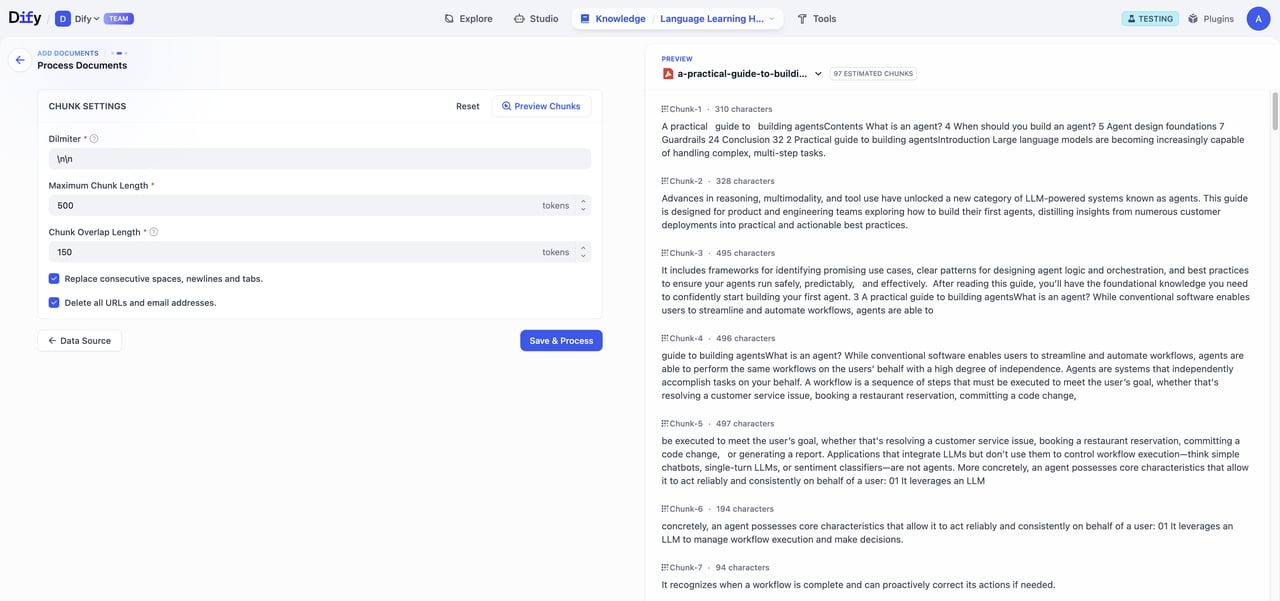
   If you configured user input fields during pipeline orchestration, users will need to fill in the required parameters and variables at this step. After completing the form, click **Preview** to see chunking results. Click **Save & Process** to complete knowledge base creation and start data processing.

   <Warning>
     Important reminder: Chunk structure remains consistent with the pipeline configuration and won't change with user input parameters.
   </Warning>

   <Frame>
     <img src="https://mintcdn.com/dify-enterprise-docs/1MakDj0gpfYoNPPL/images/use-dify/knowledge/create-knowledge-pipeline-18.png?fit=max&auto=format&n=1MakDj0gpfYoNPPL&q=85&s=b69f4786827b6c7c065a5dd03c9870b5" alt="Parameter Input" width="1280" height="601" data-path="images/use-dify/knowledge/create-knowledge-pipeline-18.png" />
   </Frame>

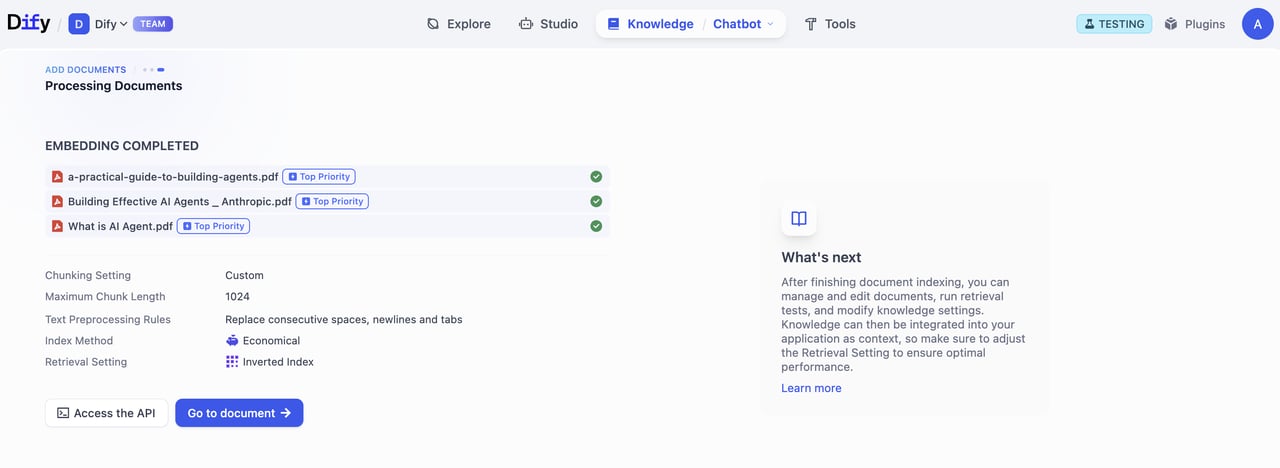
3. **Process Documents**\
   Track the progress of document processing. After embedding is completed, click **Go to Document**.
   <Frame>
     <img src="https://mintcdn.com/dify-enterprise-docs/1MakDj0gpfYoNPPL/images/use-dify/knowledge/create-knowledge-pipeline-19.png?fit=max&auto=format&n=1MakDj0gpfYoNPPL&q=85&s=44b44bfc44a48b6f93e889d2e3bb758c" alt="Processing Progress" width="1280" height="468" data-path="images/use-dify/knowledge/create-knowledge-pipeline-19.png" />
   </Frame>

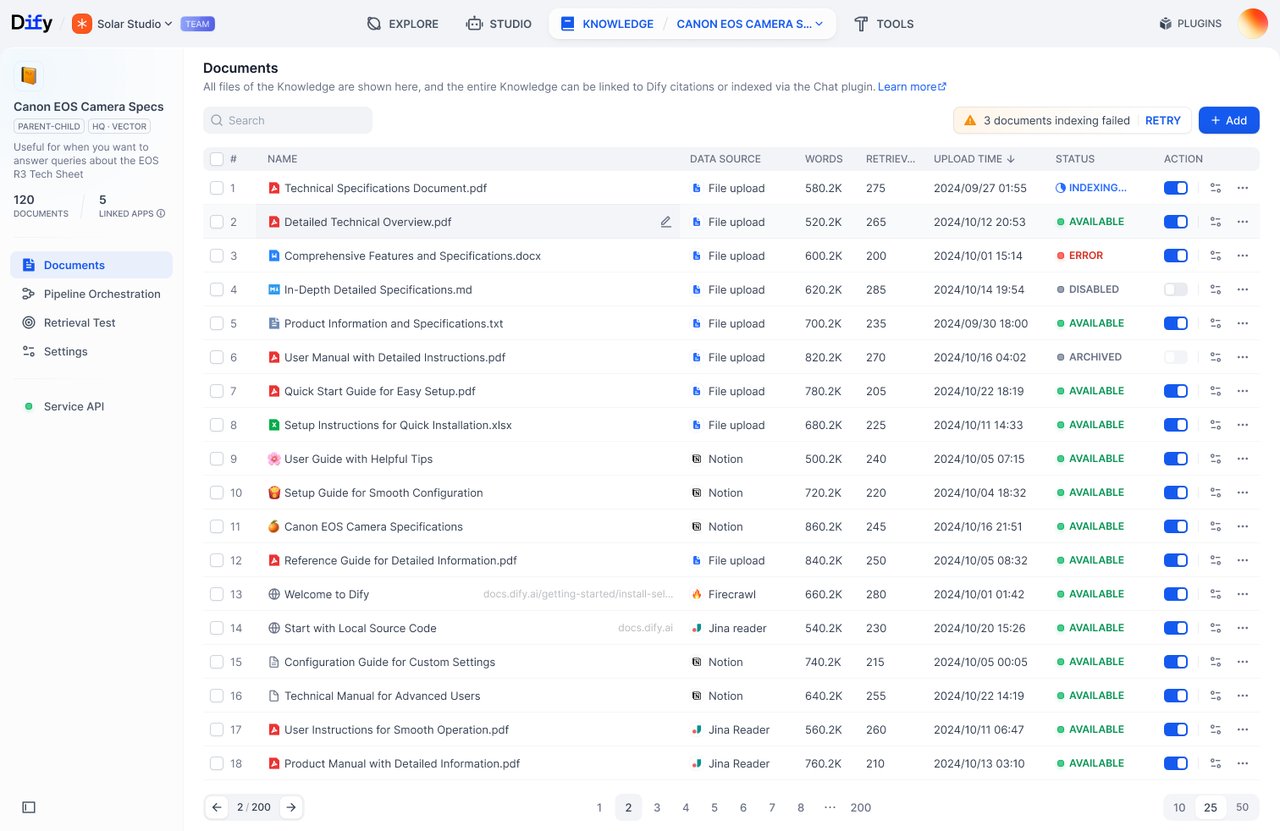
4. **Access Documents List**\
   Click **Go to Documents** to view the Documents page, where you can browse all uploaded file, processing status, etc.
   <Frame>
     <img src="https://mintcdn.com/dify-enterprise-docs/1MakDj0gpfYoNPPL/images/use-dify/knowledge/create-knowledge-pipeline-20.png?fit=max&auto=format&n=1MakDj0gpfYoNPPL&q=85&s=84633df943904e242778e4c0a3d38897" alt="Documents List" width="1280" height="831" data-path="images/use-dify/knowledge/create-knowledge-pipeline-20.png" />
   </Frame>