> ## Documentation Index
> Fetch the complete documentation index at: https://enterprise-docs.dify.ai/llms.txt
> Use this file to discover all available pages before exploring further.
# Web App External User Authentication
This authentication method is designed for Web Apps with publishing permissions set to "Authenticated External Users". External users can access Web Apps through authentication without needing to register Dify Enterprise accounts.
> External users are individuals who are not part of your Dify Enterprise system.
This authentication method enables organizations to control application access while monitoring and managing external users through third-party identity providers.
**Use Cases**
Consider a scenario where IT staff have built AI assistants for company employees, but not everyone has joined the Dify Enterprise system. However, all employees exist in a third-party identity provider. External user authentication allows these users to access applications through SSO without Dify registration.
This approach is ideal when providing AI services to customers, partners, or other external stakeholders.
## Authentication Process
User clicks on the web application link
System redirects to your configured SSO login page
User authenticates through your identity provider
Upon successful authentication, user returns to the application
User accesses the Web App and begins using the service
## Configuration Steps
### Prerequisites
Before you begin, verify that:
* Dify Enterprise is deployed and running
* You have system administrator access
* Your SSO identity provider is configured and ready
### Step 1: Configure SSO Identity Provider
1. Access the **Dify Enterprise Admin Console**
2. Go to **Identity Authentication** → **Web App External Users**
3. Click **Configure** in the "SSO Identity Provider" section
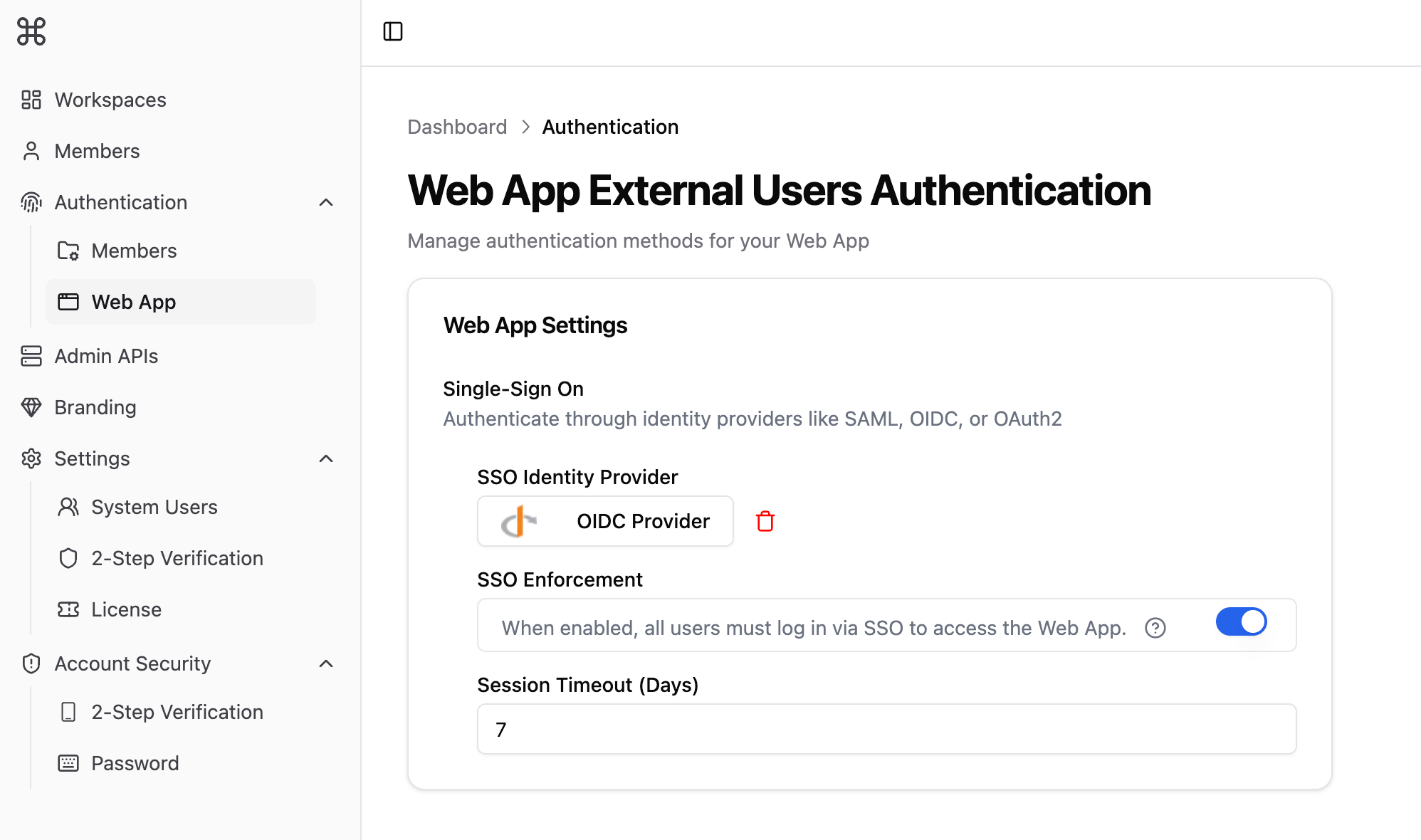
Configure based on your specific identity provider. For detailed setup instructions, see [Configure SSO Authentication](/en/3.10.x/administer/sso/introduction).
### Step 2: Enable External User Authentication
1. Once configuration is complete, locate the **Enable SSO** toggle
2. Switch it to **On**
If SSO is configured but not enabled, the **Authenticated External Users** option will be unavailable in Web App publishing permissions. Learn more about this in [Application Access Permission Management](/en/3.10.x/use/publish/webapp/web-app-settings).
### Step 3: Test Authentication Configuration
1. Set Web App permissions to **Authenticated External Users** during publishing
2. Share the Web App URL with external users
3. Verify proper redirection to the SSO login page
4. Test the complete login flow with a test account
5. Confirm successful Web App access
## Common Issues
**Possible Causes:**
* SSO configuration not enabled
* Identity provider configuration error
* Network connection issues
**Solutions:**
1. Contact your system administrator to verify SSO configuration at **System Settings** → **Identity Authentication** → **Web App External User Verification**
2. Ensure the user exists in your third-party identity provider's member list
**Possible Causes:**
* SSO configuration not enabled
* Identity provider configuration error
* Network connection issues
**Solutions:**
1. Verify SSO is enabled
2. Review identity provider configuration
3. Test network connectivity and DNS resolution
4. Review system error logs
**Possible Causes:**
* Incorrect callback address configuration
* Token verification failure
* Insufficient user permissions
**Solutions:**
1. Verify callback URL configuration in your identity provider. Find the correct URL at **Admin Console** → **Identity Authentication** → **Web App External Users**
2. Confirm the client secret is correct
3. Check user permissions in your identity provider
**Possible Causes:**
* User account disabled
* Permission group configuration issues
* Attribute mapping mismatch
**Solutions:**
1. Verify user account status in your identity provider
2. Review user's organizational structure and permission assignments
3. Update attribute mapping configuration