> ## Documentation Index
> Fetch the complete documentation index at: https://enterprise-docs.dify.ai/llms.txt
> Use this file to discover all available pages before exploring further.
# Knowledge Retrieval
> Retrieve relevant content from knowledge bases and use it as context for downstream nodes
Use the Knowledge Retrieval node to integrate existing knowledge bases into your workflows. The node searches specific knowledge for information relevant to queries and outputs results as contextual content for use in downstream nodes (e.g., LLMs).
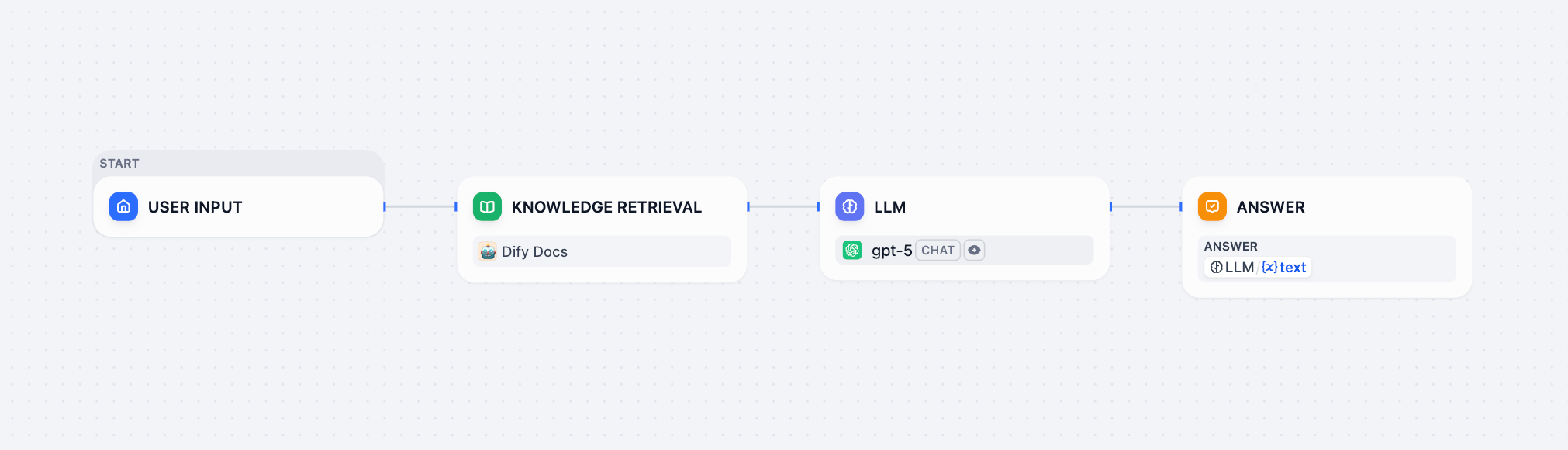
Below is an example of using the Knowledge Retrieval node in a Chatflow:
1. The **Start** node collects the user query.
2. The **Knowledge Retrieval** node searches the selected knowledge base(s) for content related to the user query and outputs the retrieval results.
3. The **LLM** node generates a response based on both the user query and the retrieved knowledge.
4. The **Answer** node returns the LLM's response to the user.
 Before using a Knowledge Retrieval node, ensure that you have at least one available knowledge base. To learn about creating knowledge bases, see [Knowledge](/en/3.1.x/use/knowledge/readme#create-knowledge).
## Configure the Node
To make the Knowledge Retrieval node work properly, you need to specify:
* *What* it should search for (the query)
* *Where* it should search (the knowledge base)
* *How* to process the retrieval results (the node-level retrieval settings)
You can also use document metadata to enable filter-based searches and further improve retrieval precision.
### Specify the Query
Provide the query content that the node should search for in the selected knowledge base(s).
* **Query Variable**: Select a text variable. For example, use `sys.query` to reference user input in Chatflows, or a custom text-type variable defined in the Start node in Workflows.
### Select Knowledge to Search
Add one or more existing knowledge bases for the node to search for content relevant to the query.
When multiple knowledge bases are added, knowledge is first retrieved from all of them simultaneously, then combined and processed according to the [node-level retrieval settings](#configure-node-level-retrieval-settings).
You can click the **Edit** icon next to any added knowledge base to modify its [settings](/en/3.1.x/use/knowledge/manage-knowledge/introduction).
### Configure Node-Level Retrieval Settings
To fine-tune how the node processes retrieval results after they are fetched from the knowledge base(s), click **Retrieval Setting**.
Retrieval settings exist at two layers: the knowledge base level and the knowledge retrieval node level.
Think of them as two consecutive filters: the knowledge base settings determine the initial pool of results, and the node settings further rerank the results or narrow down the pool.
* **Rerank Settings**
* **Weighted Score**
The relative weight between semantic similarity and keyword matching during reranking. Higher semantic weight favors meaning relevance, while higher keyword weight favors exact matches.
Weighted Score is available only when all added knowledge bases are indexed with **High Quality** mode.
* **Rerank Model**
The rerank model to re-score and reorder all the results based on their relevance to the query.
* **Top K**
The maximum number of top results to return after reranking.
When a rerank model is selected, this value will be automatically adjusted based on the model's maximum input capacity (how much text the model can process at once).
* **Score Threshold**
The minimum similarity score for returned results. Results scoring below this threshold are excluded. Use higher thresholds for stricter relevance or lower thresholds to include broader matches.
### Enable Metadata Filtering
By default, retrieval searches across the entire knowledge base. To restrict retrieval to specific documents, enable manual or automatic metadata filtering.
This improves retrieval precision, especially when your knowledge base is large or contains content for different contexts.
For creating and managing document metadata, see [Metadata](/en/3.1.x/use/knowledge/metadata).
## Output
The Knowledge Retrieval node outputs the retrieval results as a variable named `result`, which is an array of retrieved document chunks containing their content, metadata, title, and other attributes.
## Use with LLM Nodes
To use the retrieval results as context in an LLM node:
1. In **Context**, select the Knowledge Retrieval node's `result` variable.
2. In the system instruction, reference the `Context` variable.
In chatflows, citations are shown alongside responses that reference knowledge by default. You can turn this off by disabling **[Citation and Attributions](/en/3.1.x/use/build/additional-features#citations-and-attributions)** in **Features** at the top right corner of the canvas.
Before using a Knowledge Retrieval node, ensure that you have at least one available knowledge base. To learn about creating knowledge bases, see [Knowledge](/en/3.1.x/use/knowledge/readme#create-knowledge).
## Configure the Node
To make the Knowledge Retrieval node work properly, you need to specify:
* *What* it should search for (the query)
* *Where* it should search (the knowledge base)
* *How* to process the retrieval results (the node-level retrieval settings)
You can also use document metadata to enable filter-based searches and further improve retrieval precision.
### Specify the Query
Provide the query content that the node should search for in the selected knowledge base(s).
* **Query Variable**: Select a text variable. For example, use `sys.query` to reference user input in Chatflows, or a custom text-type variable defined in the Start node in Workflows.
### Select Knowledge to Search
Add one or more existing knowledge bases for the node to search for content relevant to the query.
When multiple knowledge bases are added, knowledge is first retrieved from all of them simultaneously, then combined and processed according to the [node-level retrieval settings](#configure-node-level-retrieval-settings).
You can click the **Edit** icon next to any added knowledge base to modify its [settings](/en/3.1.x/use/knowledge/manage-knowledge/introduction).
### Configure Node-Level Retrieval Settings
To fine-tune how the node processes retrieval results after they are fetched from the knowledge base(s), click **Retrieval Setting**.
Retrieval settings exist at two layers: the knowledge base level and the knowledge retrieval node level.
Think of them as two consecutive filters: the knowledge base settings determine the initial pool of results, and the node settings further rerank the results or narrow down the pool.
* **Rerank Settings**
* **Weighted Score**
The relative weight between semantic similarity and keyword matching during reranking. Higher semantic weight favors meaning relevance, while higher keyword weight favors exact matches.
Weighted Score is available only when all added knowledge bases are indexed with **High Quality** mode.
* **Rerank Model**
The rerank model to re-score and reorder all the results based on their relevance to the query.
* **Top K**
The maximum number of top results to return after reranking.
When a rerank model is selected, this value will be automatically adjusted based on the model's maximum input capacity (how much text the model can process at once).
* **Score Threshold**
The minimum similarity score for returned results. Results scoring below this threshold are excluded. Use higher thresholds for stricter relevance or lower thresholds to include broader matches.
### Enable Metadata Filtering
By default, retrieval searches across the entire knowledge base. To restrict retrieval to specific documents, enable manual or automatic metadata filtering.
This improves retrieval precision, especially when your knowledge base is large or contains content for different contexts.
For creating and managing document metadata, see [Metadata](/en/3.1.x/use/knowledge/metadata).
## Output
The Knowledge Retrieval node outputs the retrieval results as a variable named `result`, which is an array of retrieved document chunks containing their content, metadata, title, and other attributes.
## Use with LLM Nodes
To use the retrieval results as context in an LLM node:
1. In **Context**, select the Knowledge Retrieval node's `result` variable.
2. In the system instruction, reference the `Context` variable.
In chatflows, citations are shown alongside responses that reference knowledge by default. You can turn this off by disabling **[Citation and Attributions](/en/3.1.x/use/build/additional-features#citations-and-attributions)** in **Features** at the top right corner of the canvas.