> ## Documentation Index
> Fetch the complete documentation index at: https://enterprise-docs.dify.ai/llms.txt
> Use this file to discover all available pages before exploring further.
# Version Control
This article explains how to manage versions in Dify's Chatflow and Workflow.
## Overview
**Version Control Panel** allows you to track changes, publish updates, and restore previous versions of your applications.
## Key Concepts
* **Current Draft**: Your working version where you make changes.
 * **Published Version**: Any version released to production.
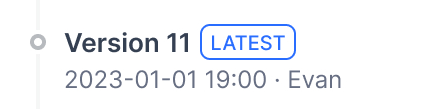
* **Latest Version**: The current production version.
* **Published Version**: Any version released to production.
* **Latest Version**: The current production version.
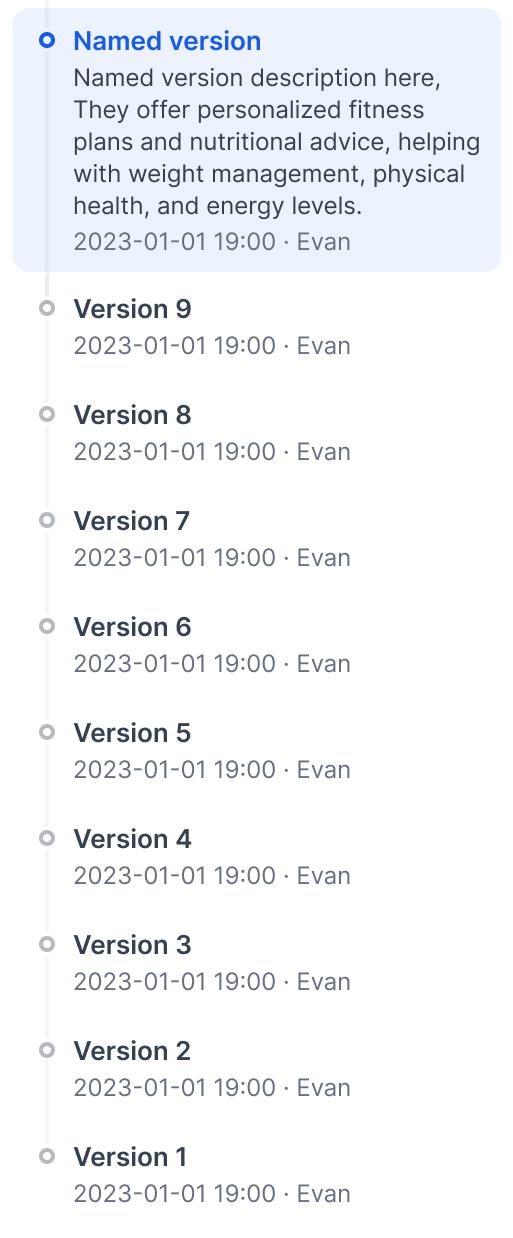
 * **Previous Version**: Any older published version.
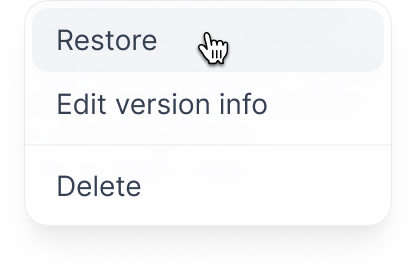
 * **Restore**: Return to any earlier version of your application.
 ## Features
* **View all versions**: Access and review details of all published versions.
* **Find specific versions**: Use filters to find a specific version.
* **Publish new versions**: Release new application versions with custom names and release notes.
* **Edit published versions**: Edit the title and release notes of a published version.
* **Delete previous versions**: Remove outdated versions to keep the list organized.
* **Restore published versions**: Load a published version into drafts for modifications.
## How to View All Versions
To view all versions:
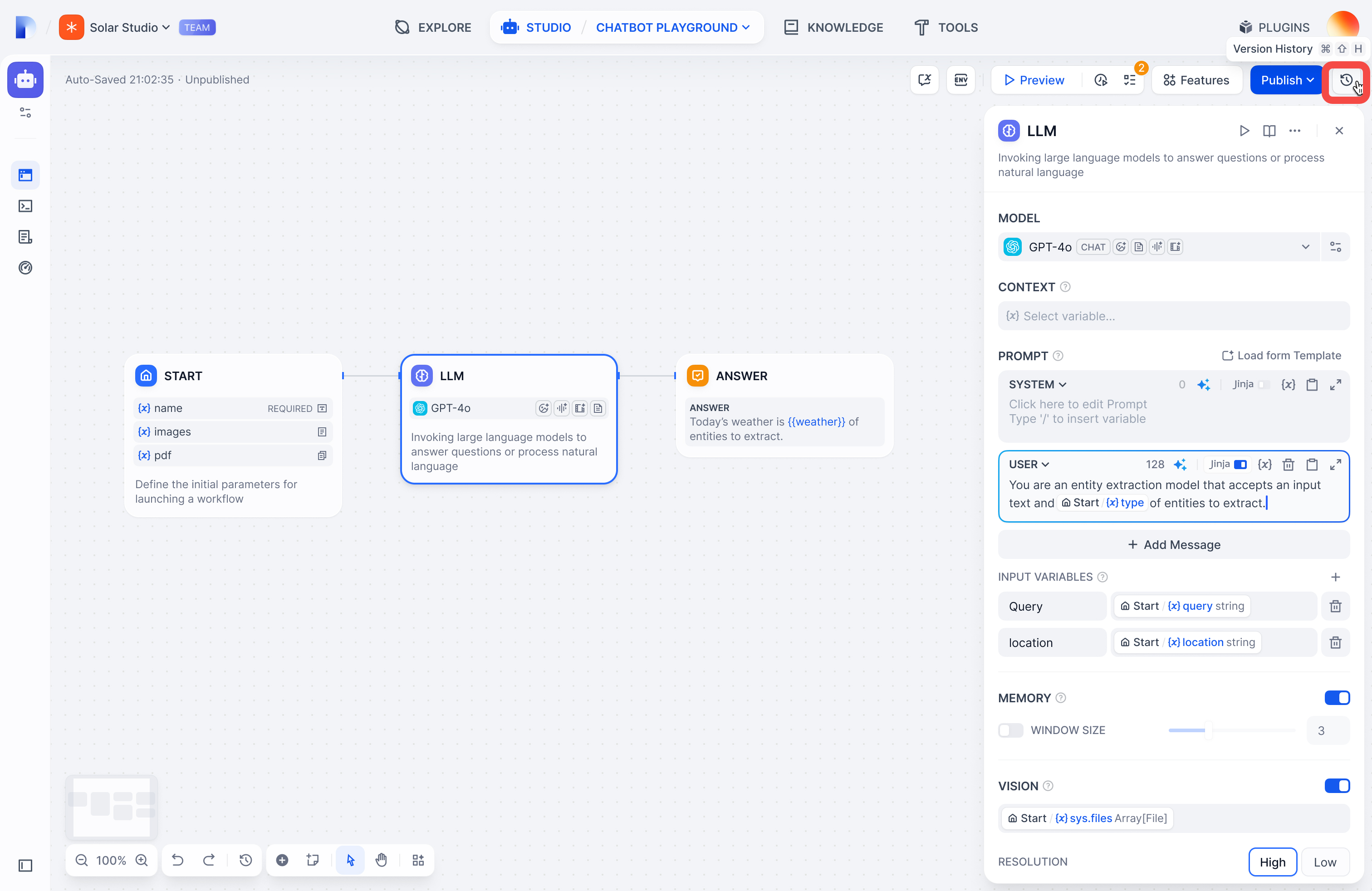
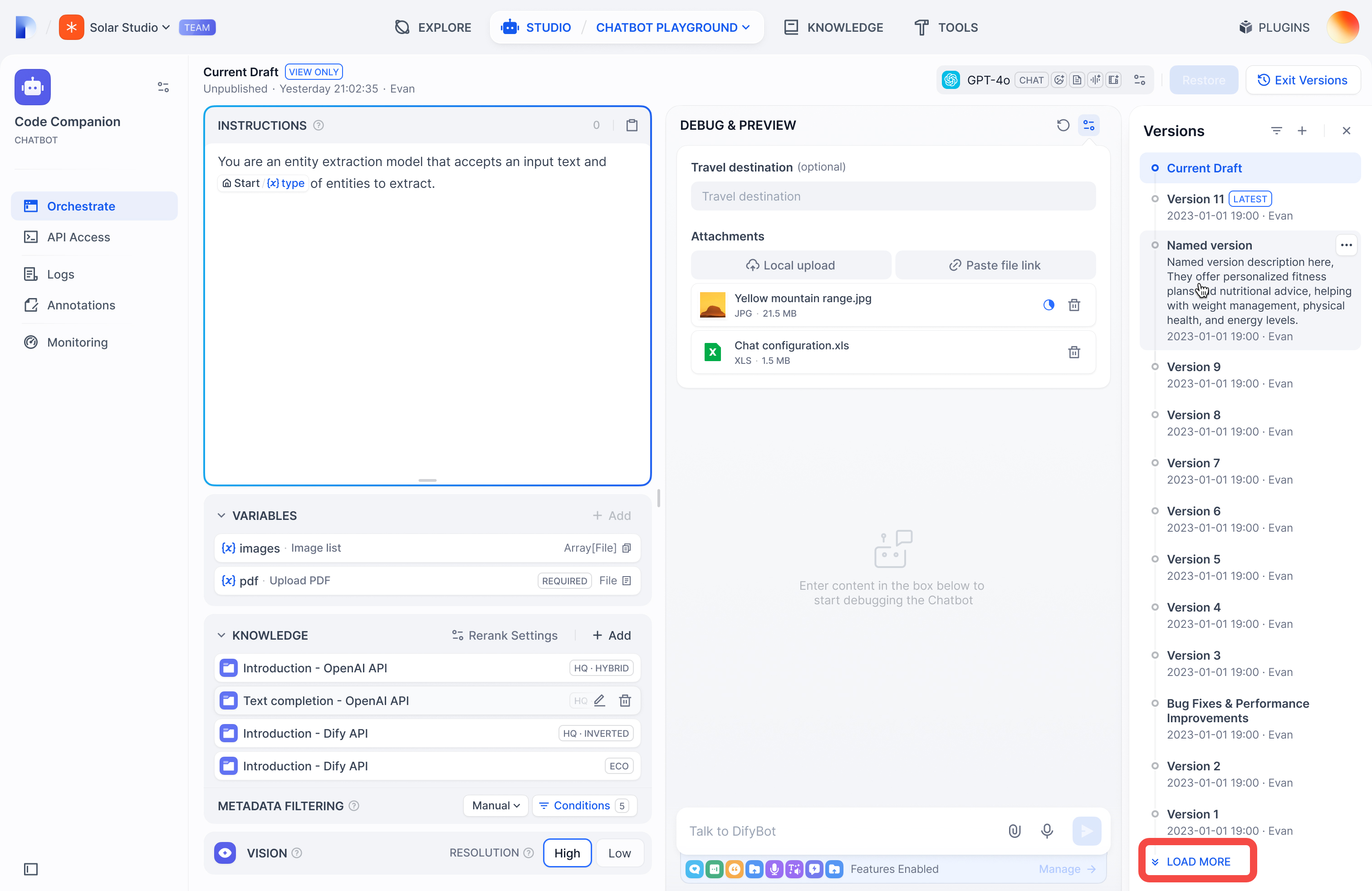
1. Click the history icon to enter the Version Control Panel.
2. View versions in chronological order with titles, release notes, publish dates, and publishers.
3. *(Optional)* Click **Load More** to view more historical versions.
## How to Find a Specific Version
**To find versions you published**:
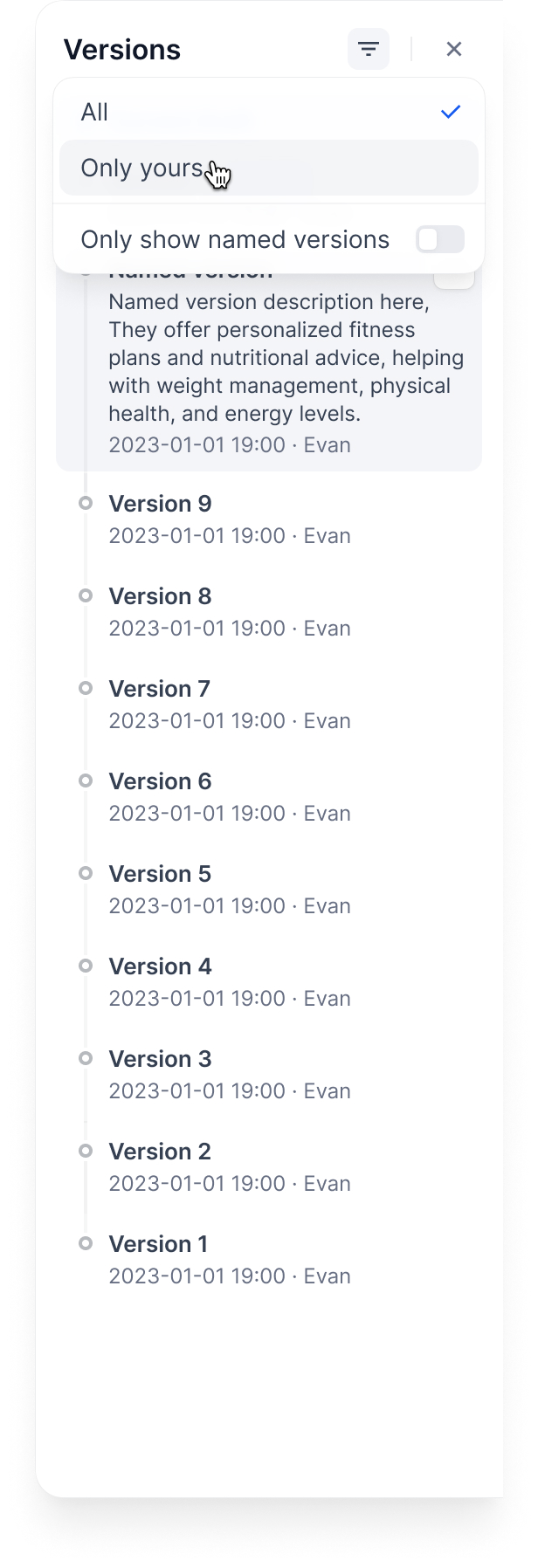
1. Click the filter icon to open the filter dialog.
2. Choose between:
* **All**: Shows versions published by you and other users
* **Only yours**: Shows only versions you published
## Features
* **View all versions**: Access and review details of all published versions.
* **Find specific versions**: Use filters to find a specific version.
* **Publish new versions**: Release new application versions with custom names and release notes.
* **Edit published versions**: Edit the title and release notes of a published version.
* **Delete previous versions**: Remove outdated versions to keep the list organized.
* **Restore published versions**: Load a published version into drafts for modifications.
## How to View All Versions
To view all versions:
1. Click the history icon to enter the Version Control Panel.

2. View versions in chronological order with titles, release notes, publish dates, and publishers.
3. *(Optional)* Click **Load More** to view more historical versions.

## How to Find a Specific Version
**To find versions you published**:
1. Click the filter icon to open the filter dialog.
2. Choose between:
* **All**: Shows versions published by you and other users
* **Only yours**: Shows only versions you published
 **To find named versions**:
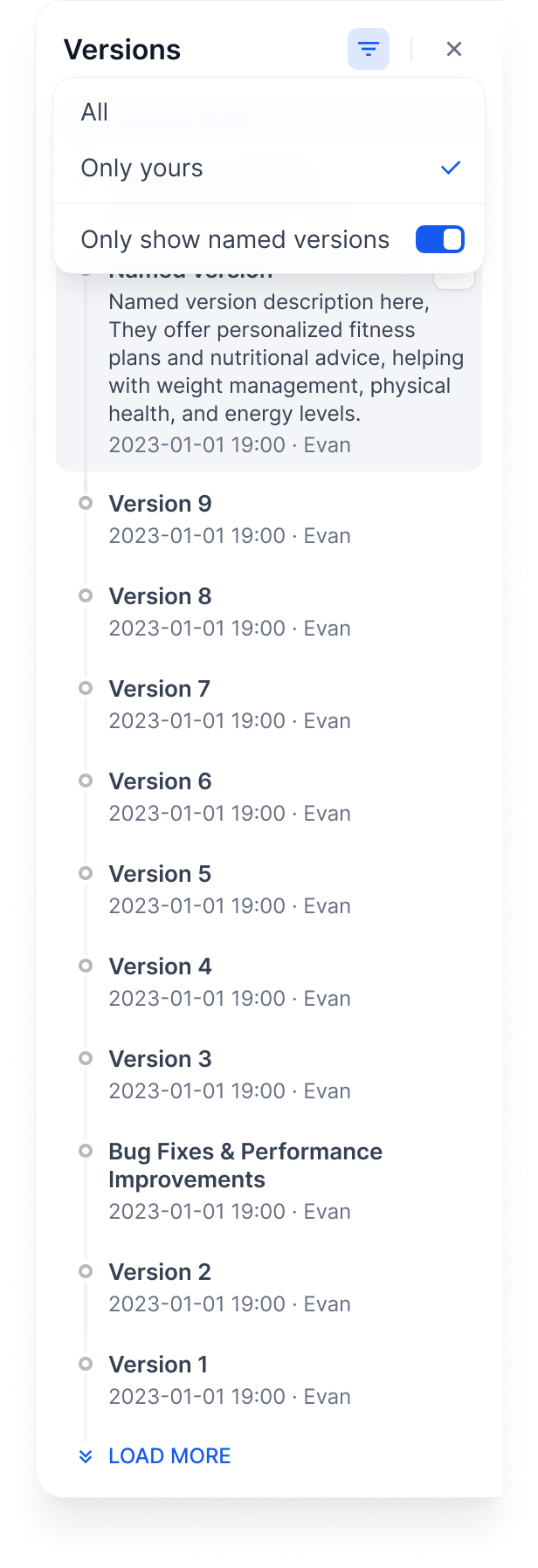
Toggle **Only show named versions** to display only the versions with custom names.
**To find named versions**:
Toggle **Only show named versions** to display only the versions with custom names.
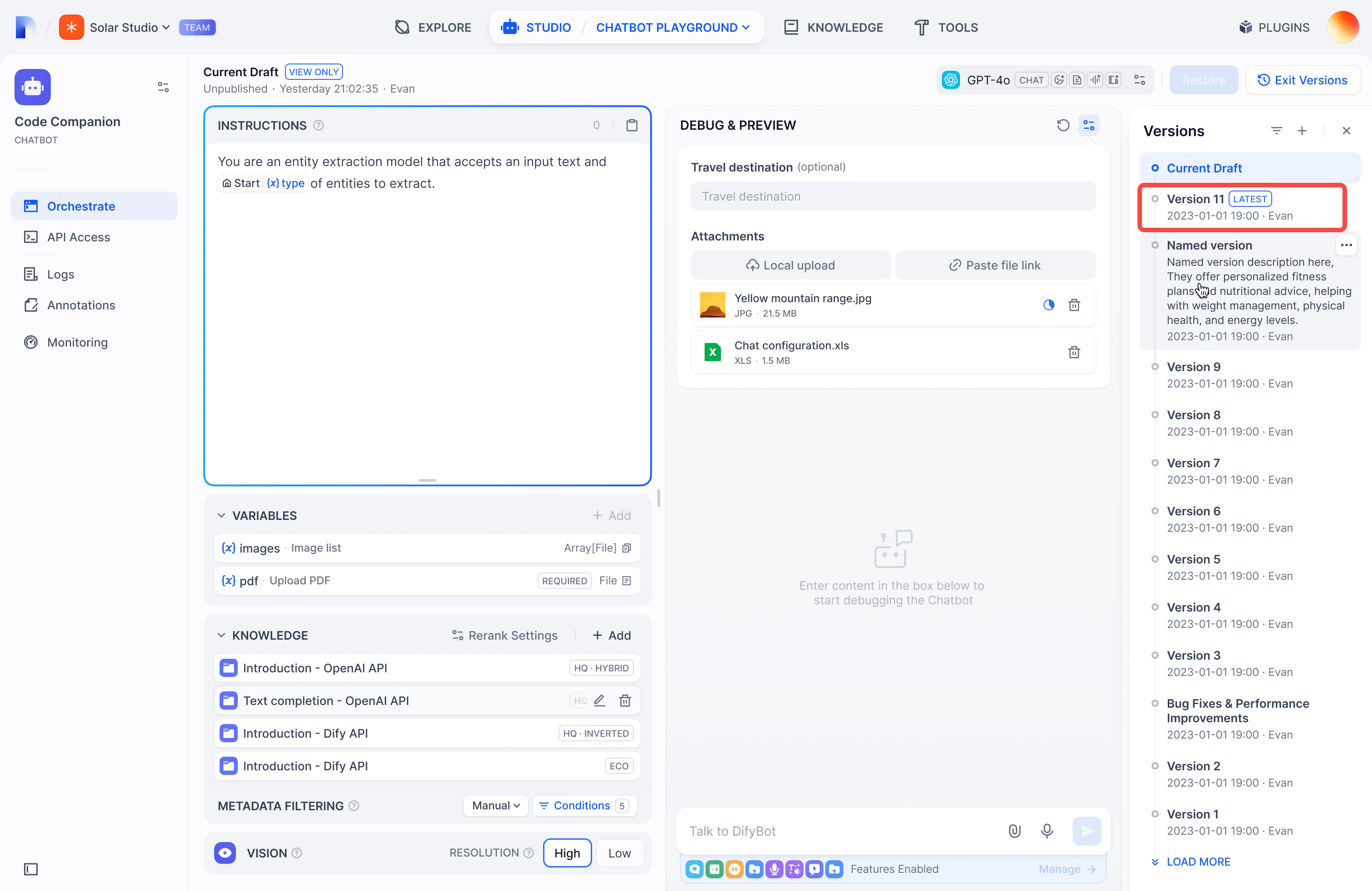
 ## How to Publish a New Version
To publish a new version:
1. Click **Publish > Publish Update** to release the current version.
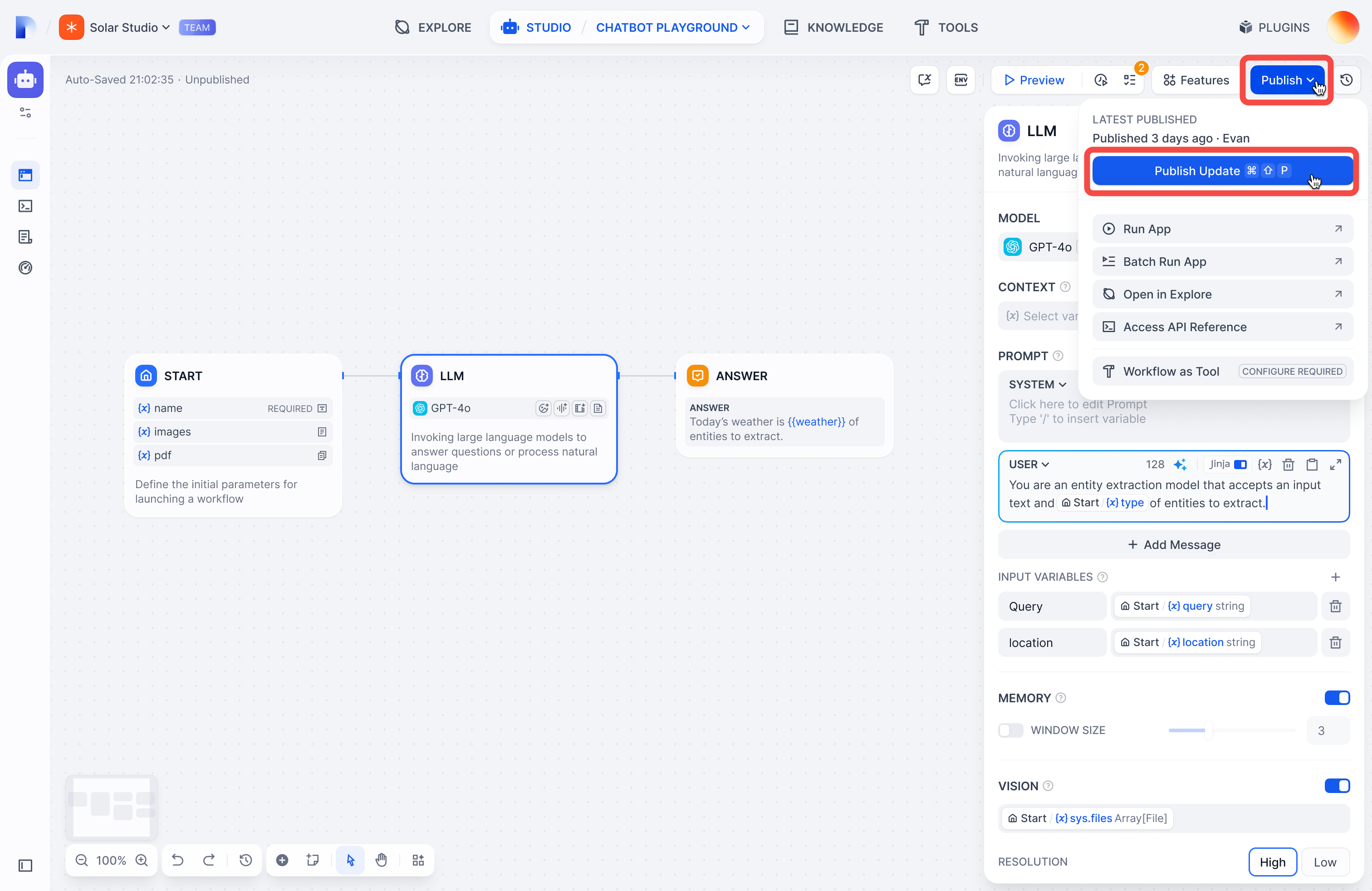
2. The newly published version will be marked as `Latest` in the panel.
## How to Edit a Published Version
To edit a published version:
1. In the Version Control Panel, find the version you want to edit.
2. Click its action menu icon.
3. Choose either:
* **Name this version** for versions with default names.
## How to Publish a New Version
To publish a new version:
1. Click **Publish > Publish Update** to release the current version.

2. The newly published version will be marked as `Latest` in the panel.

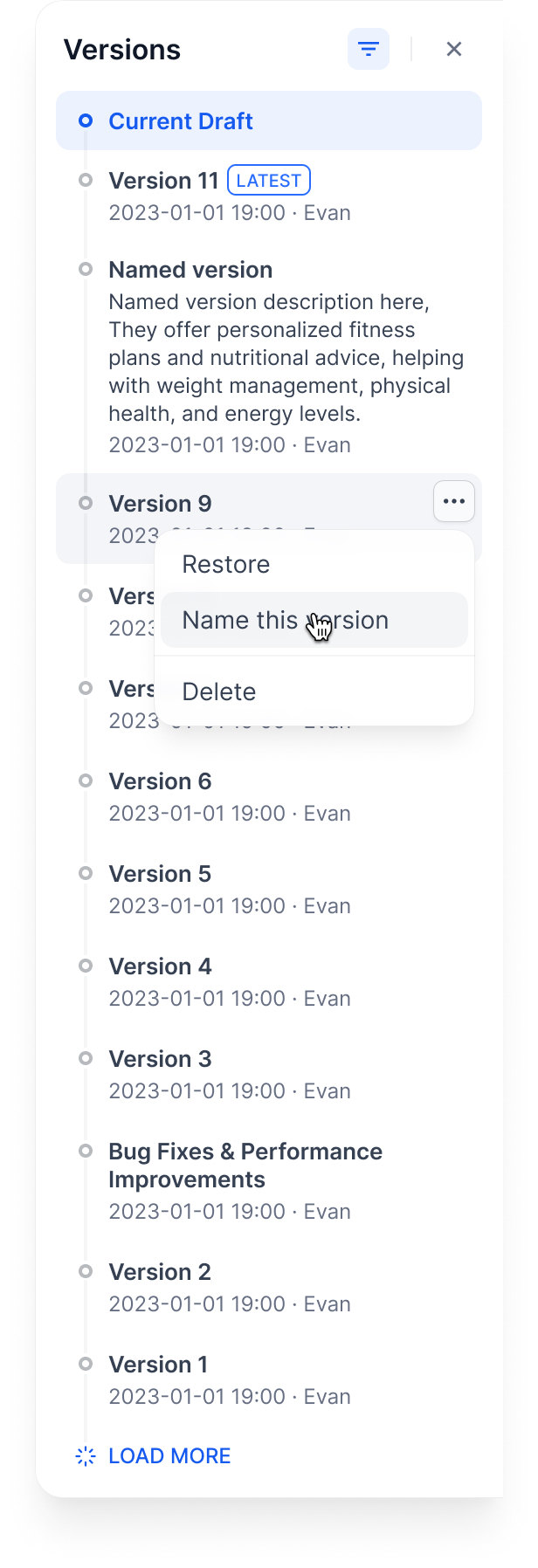
## How to Edit a Published Version
To edit a published version:
1. In the Version Control Panel, find the version you want to edit.
2. Click its action menu icon.
3. Choose either:
* **Name this version** for versions with default names.
 * **Edit version info** for versions with custom names.
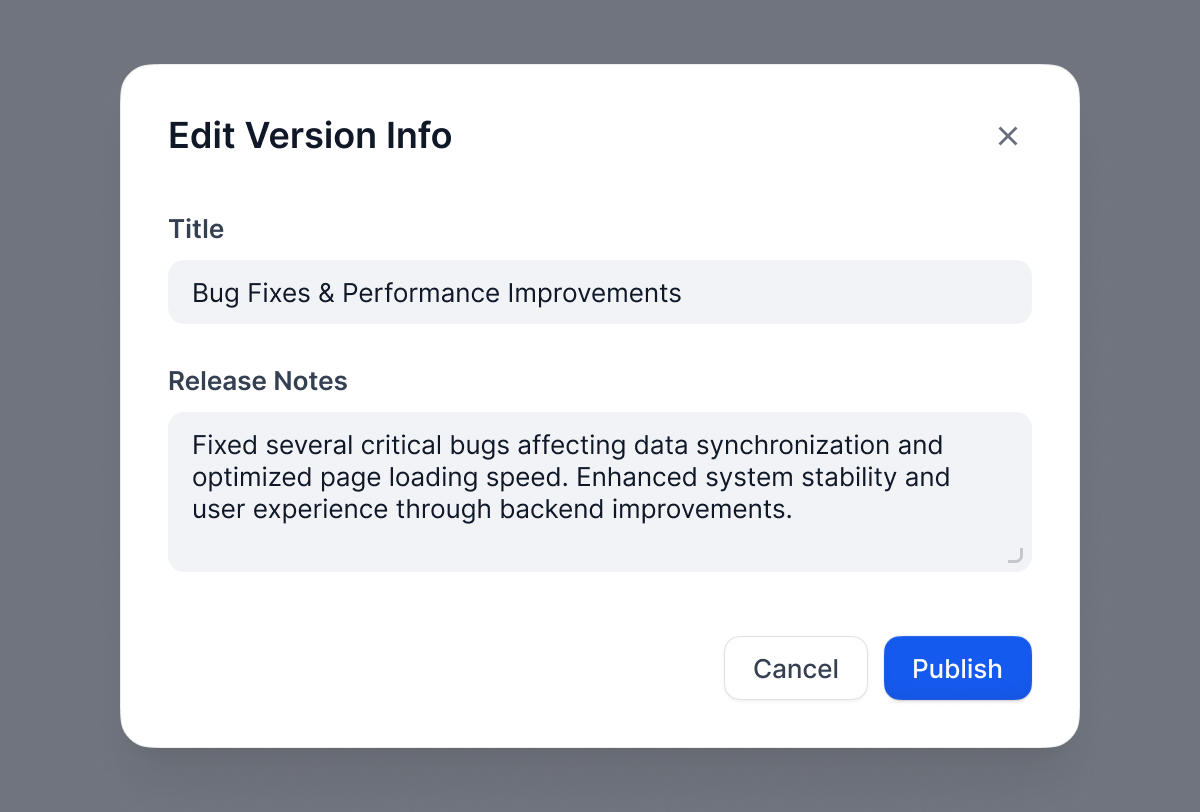
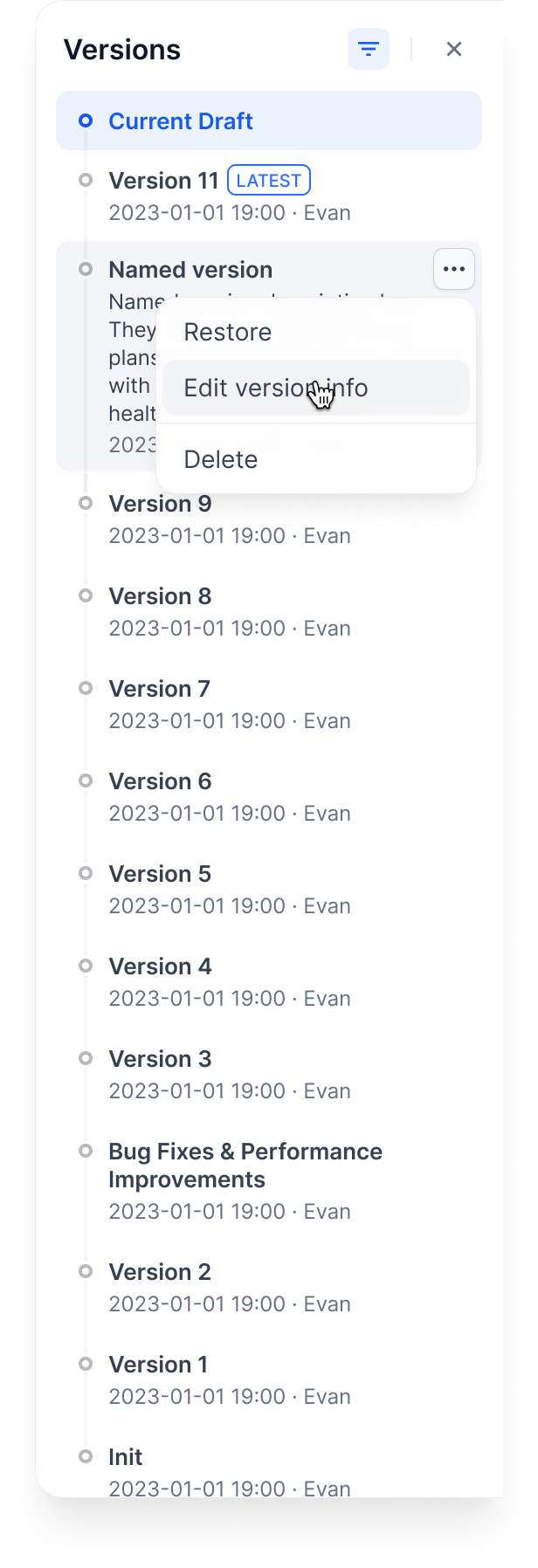 4. Confirm **Publish**.
## How to Delete a Previous Version
To delete a Previous version:
1. Find the published version you want to delete.
2. Click the action menu icon and select **Delete**.
4. Confirm **Publish**.

## How to Delete a Previous Version
To delete a Previous version:
1. Find the published version you want to delete.
2. Click the action menu icon and select **Delete**.
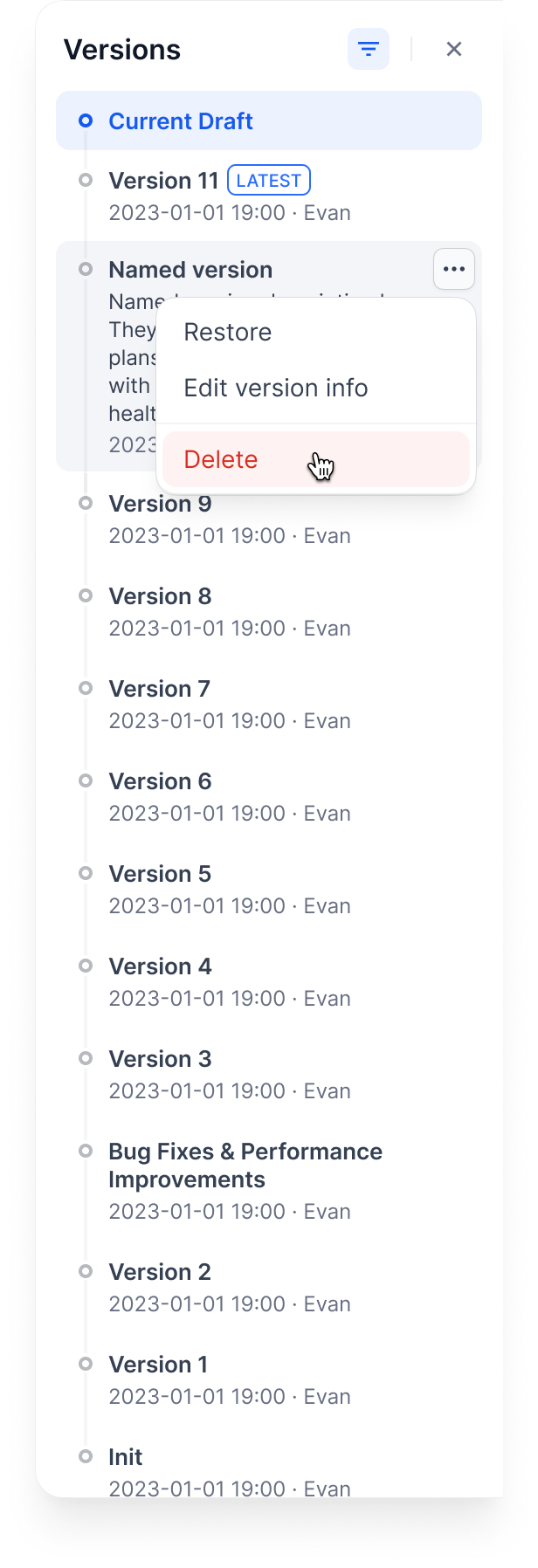 3. Confirm **Delete**.
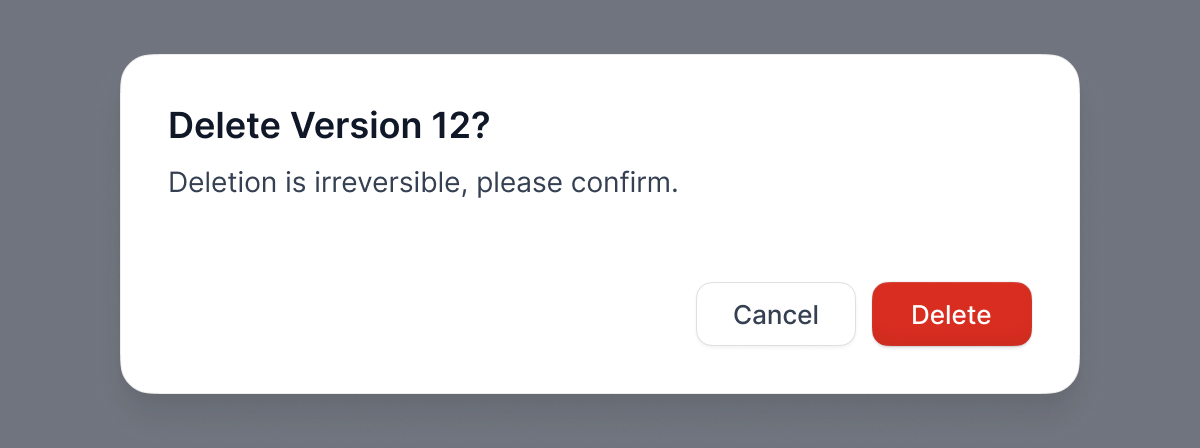
* The **Current Draft** cannot be deleted
* The **Latest Version** (marked as "Latest") cannot be deleted
## How to Restore a Published Version
To restore a published version:
1. Find the published version you want to restore.
2. Click its action menu icon and select **Restore**.
3. Confirm **Delete**.

* The **Current Draft** cannot be deleted
* The **Latest Version** (marked as "Latest") cannot be deleted
## How to Restore a Published Version
To restore a published version:
1. Find the published version you want to restore.
2. Click its action menu icon and select **Restore**.
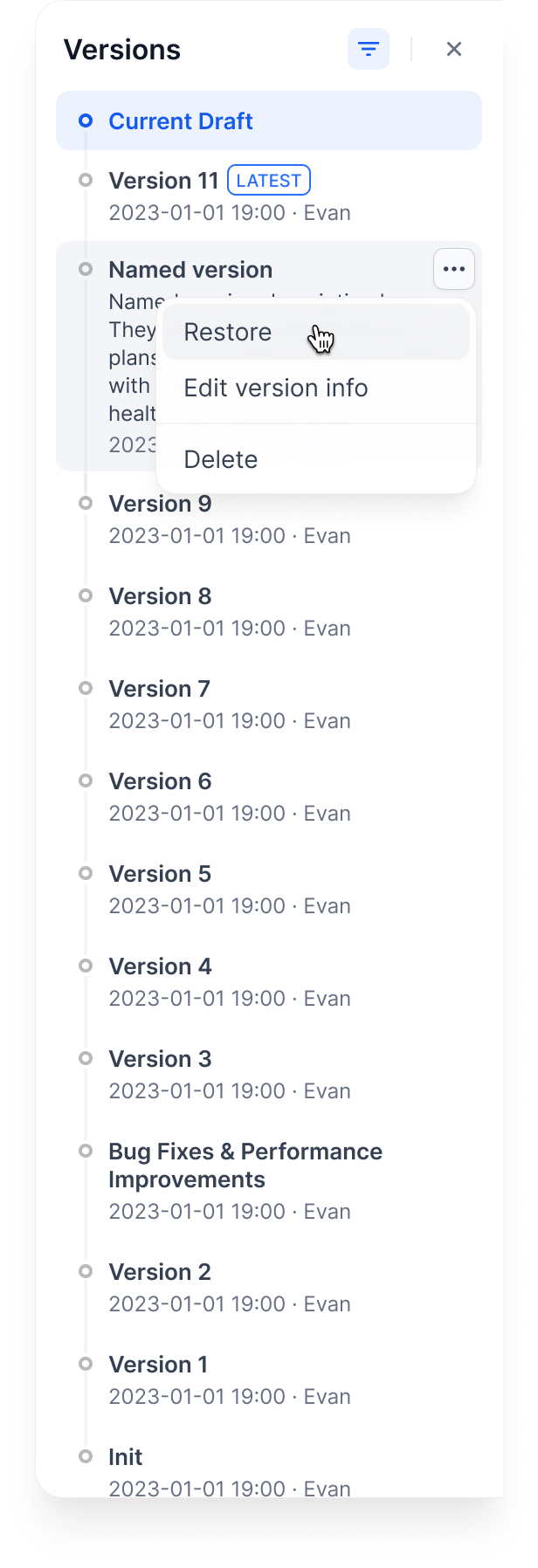 3. Confirm **Restore**. The system will load the selected version into your current draft.
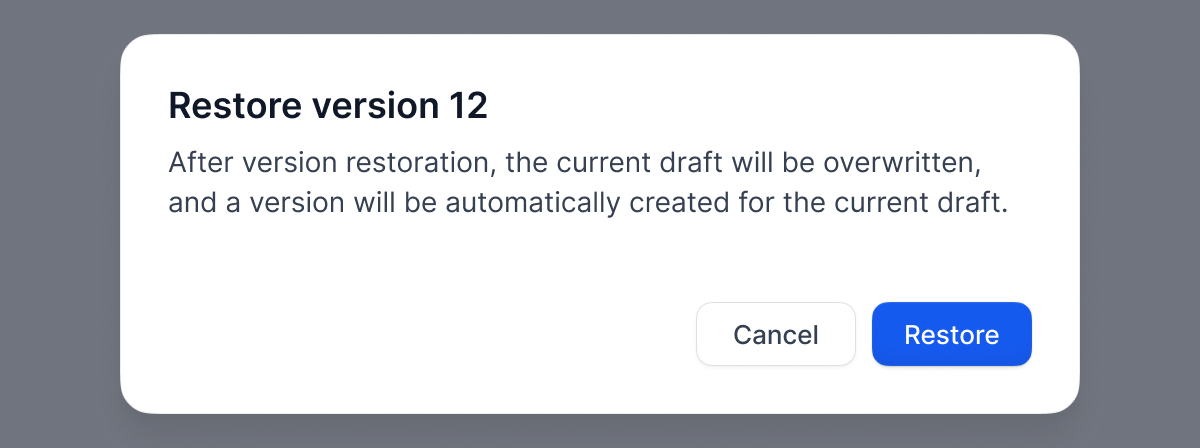
## Version Control Workflow
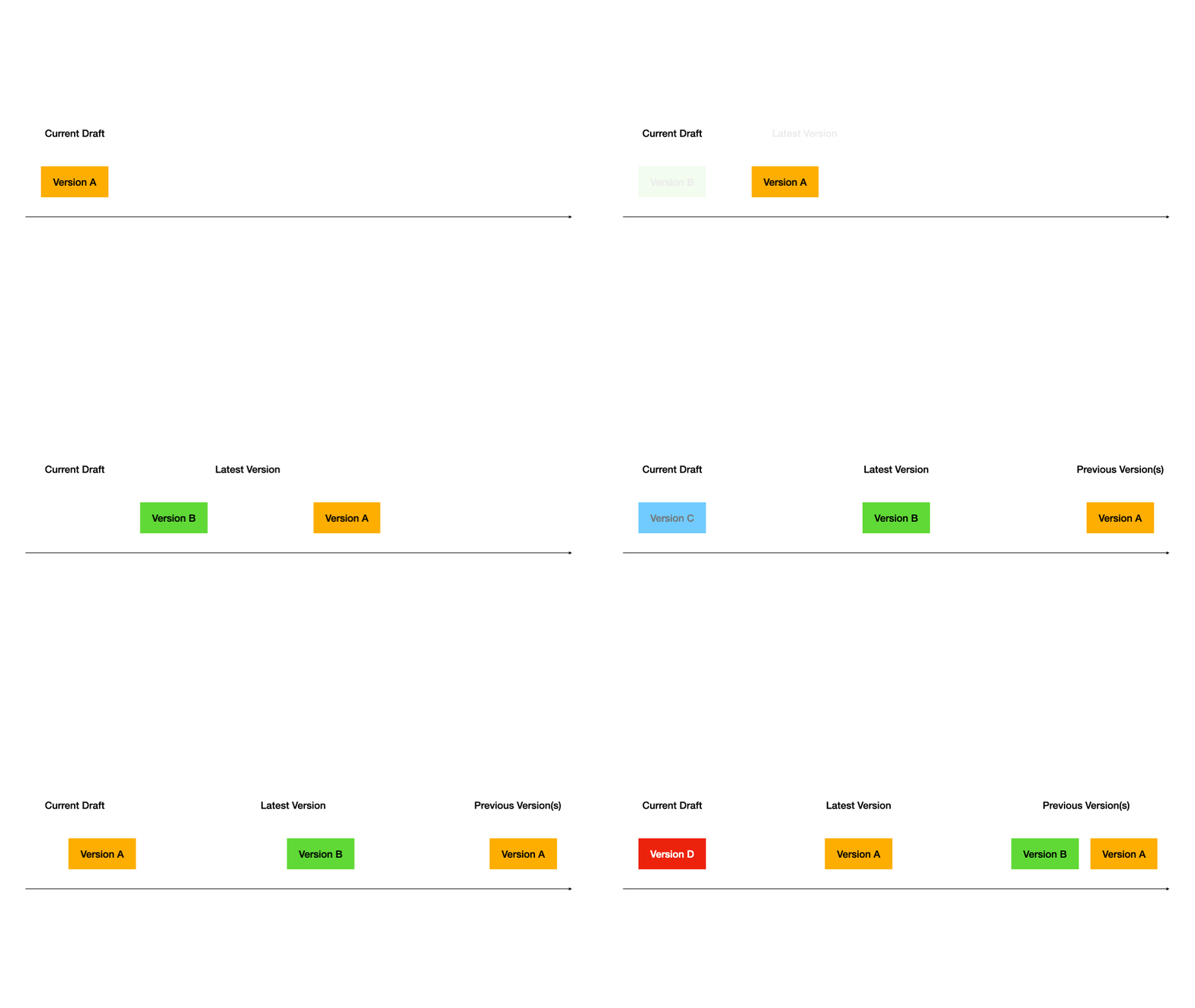
Here is how versions work through a typical workflow:
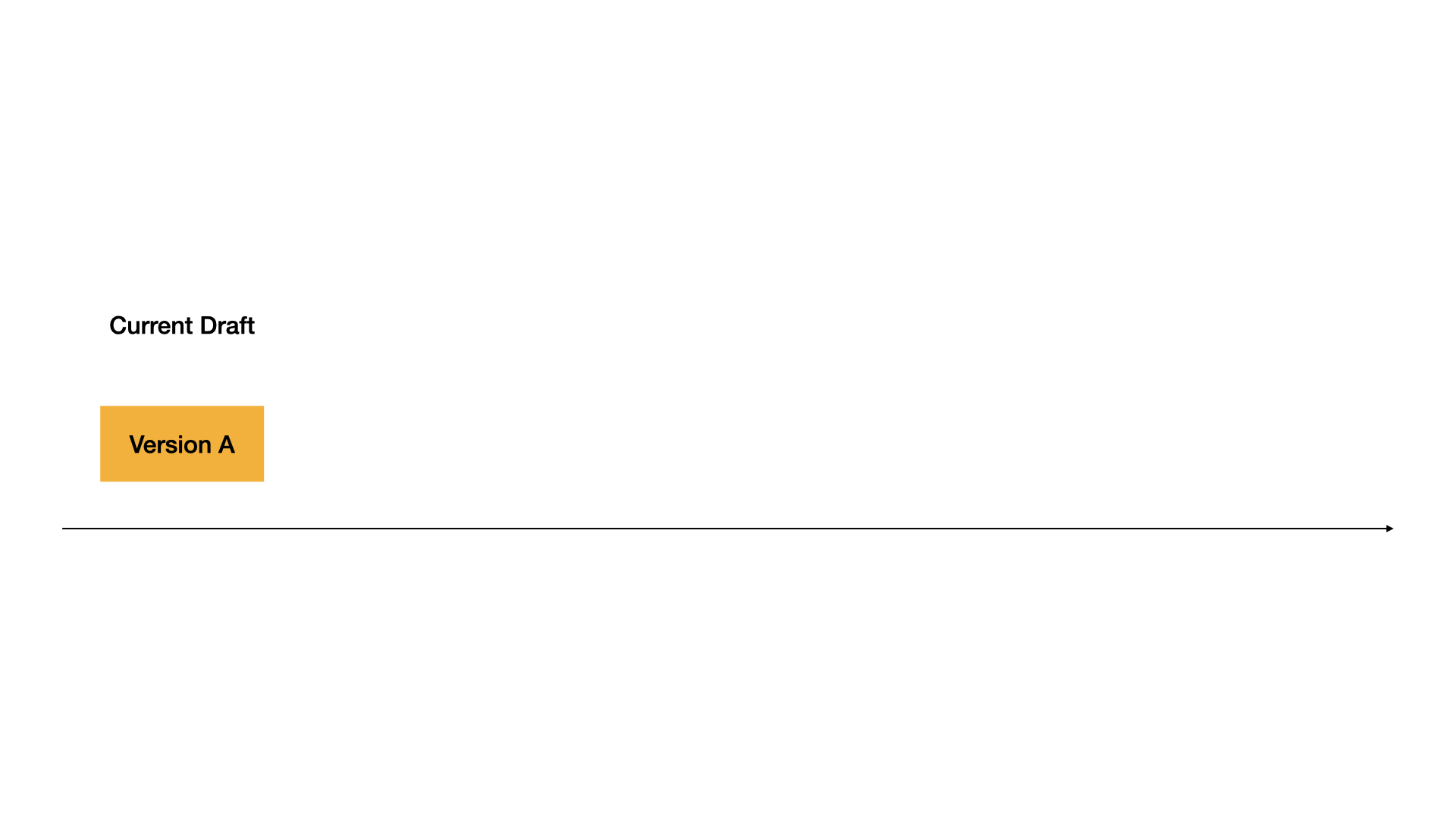
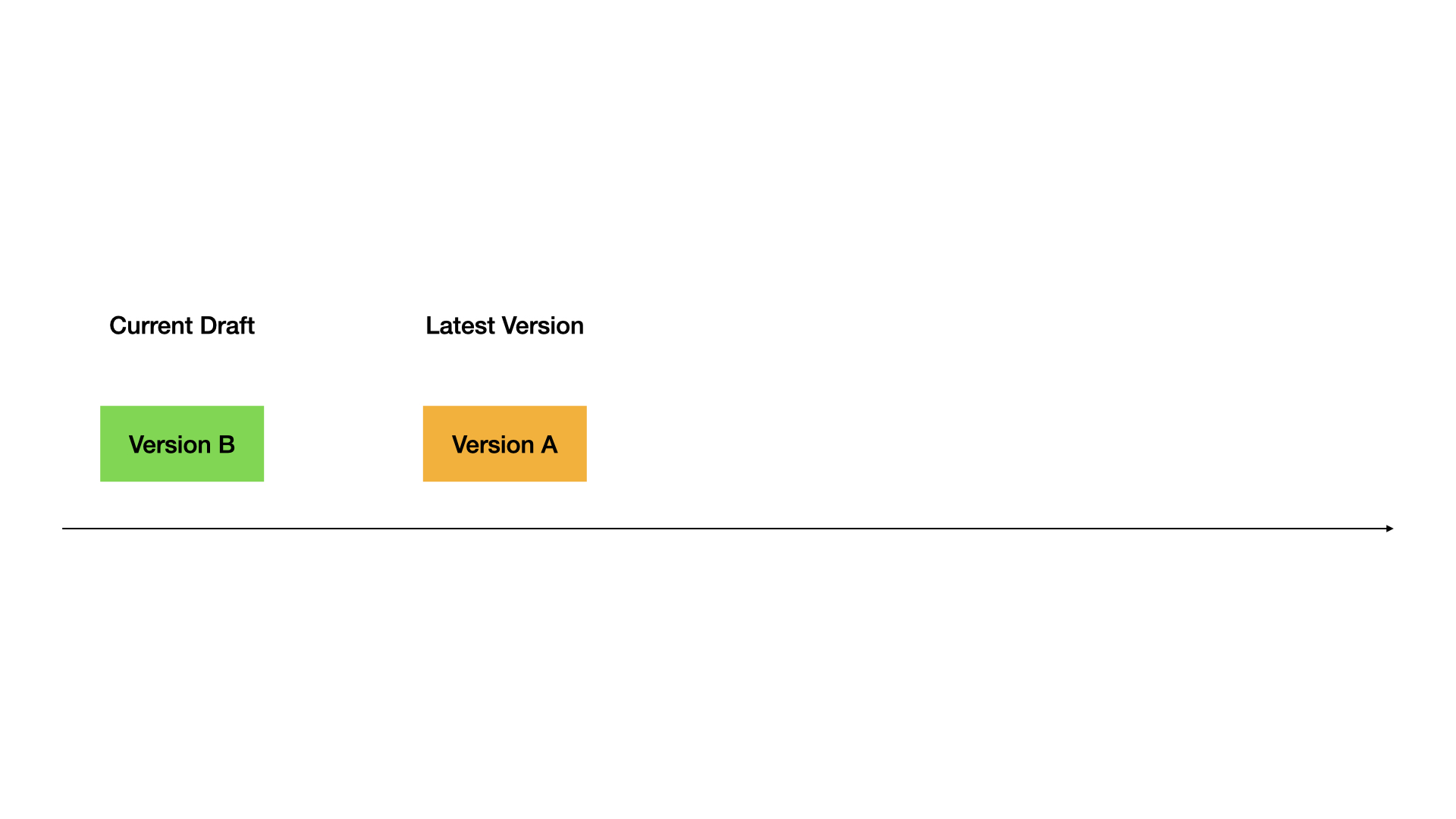
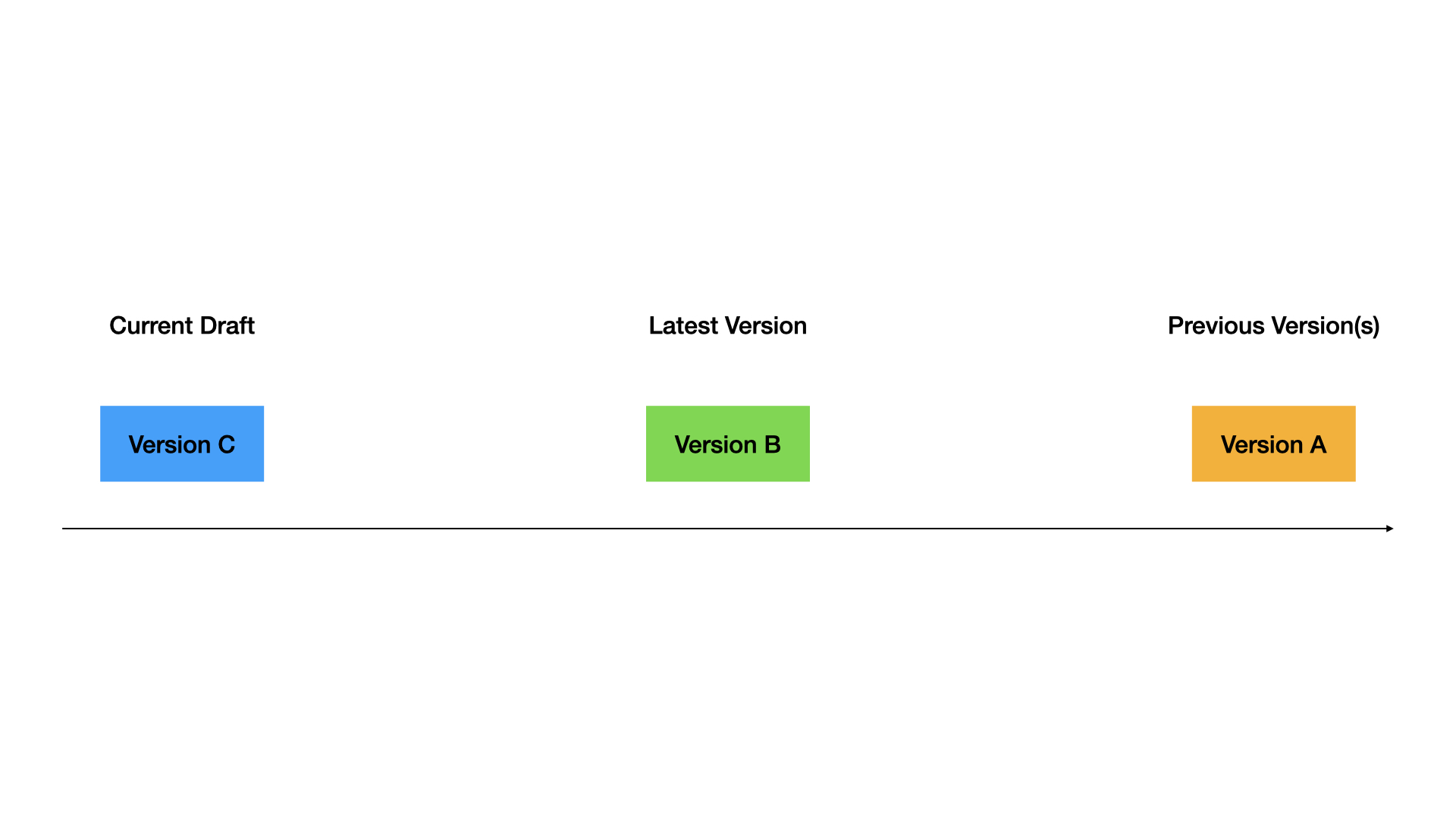
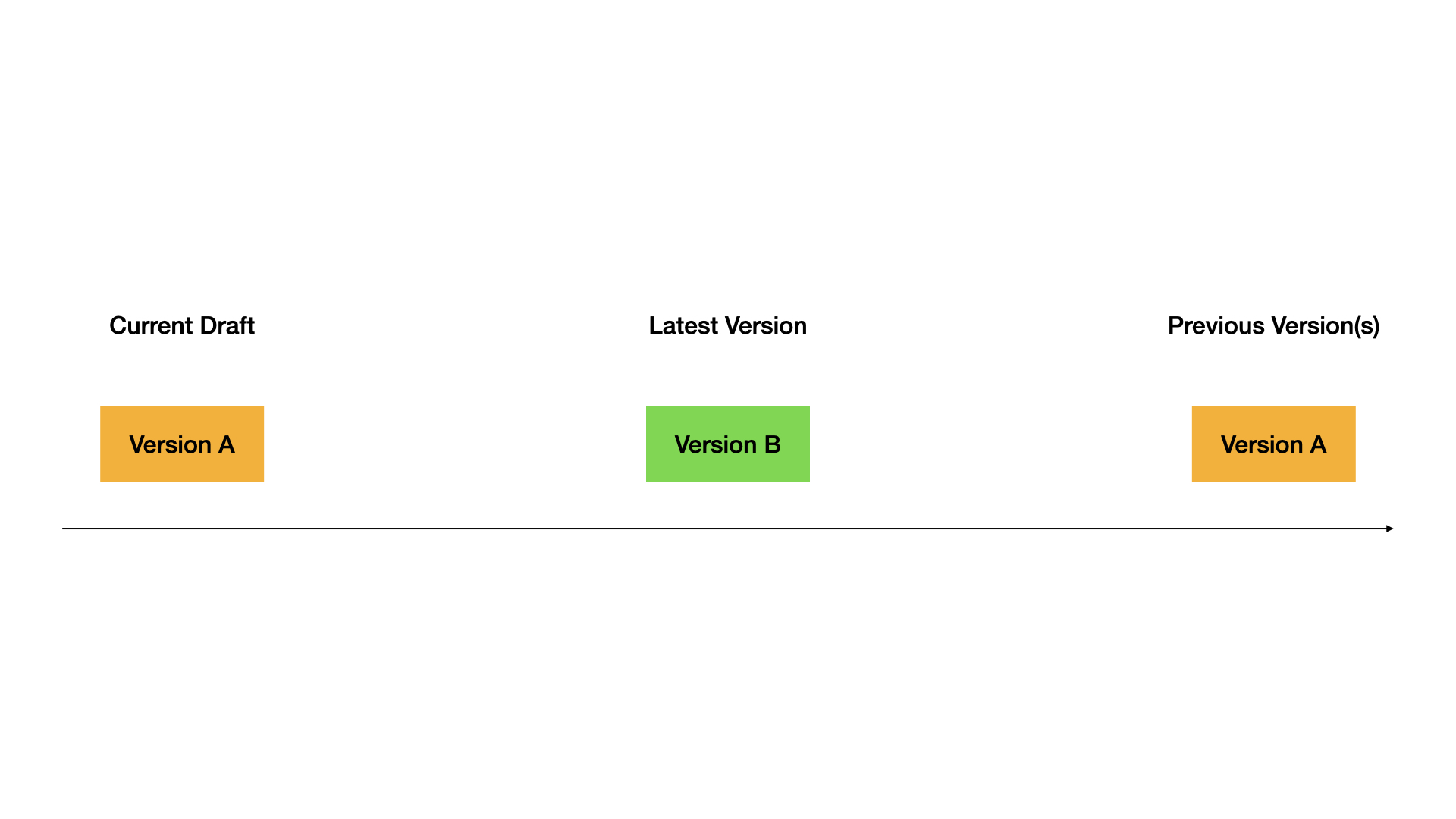
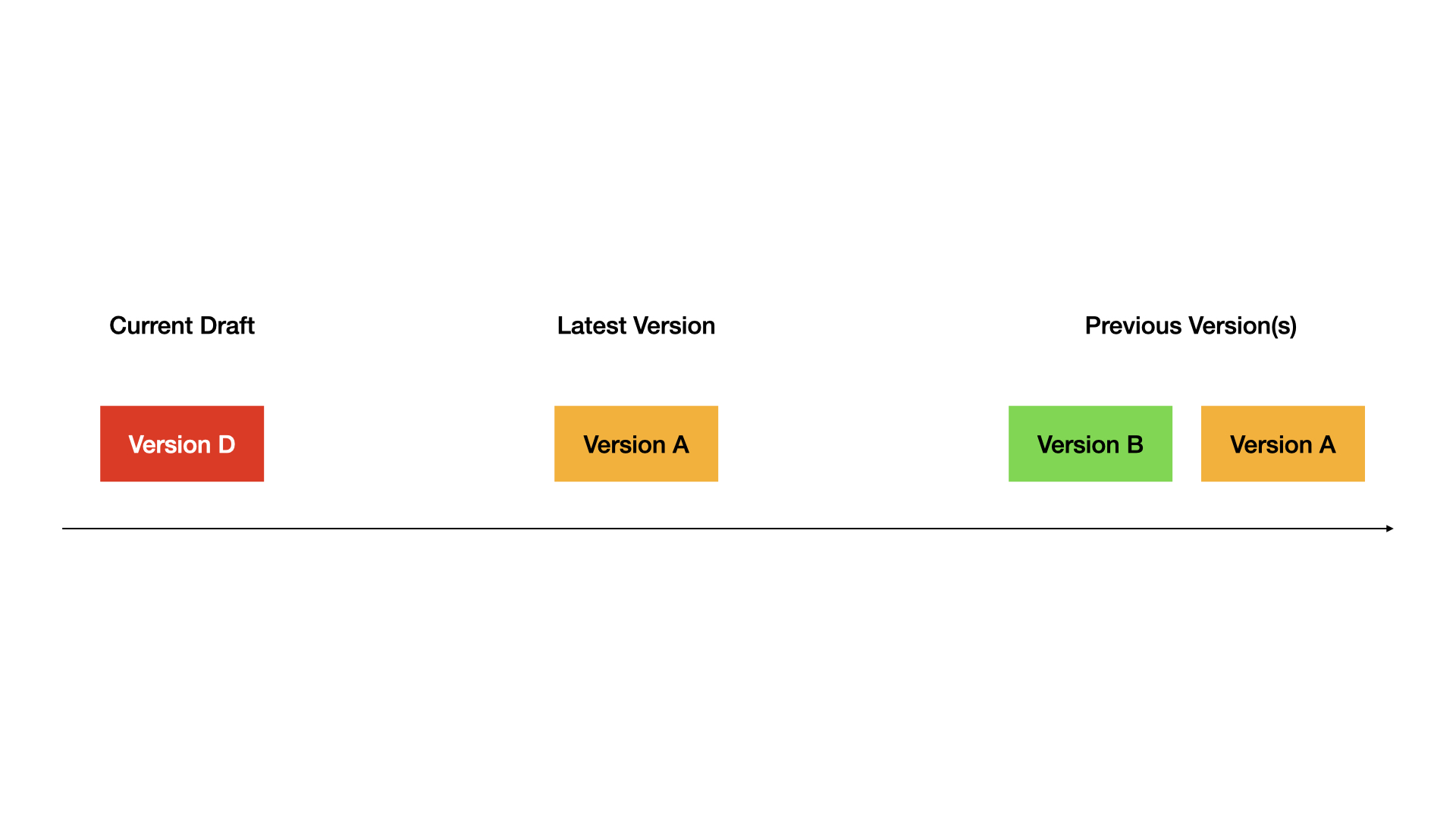
> Note: Matching colors indicate identical version content.
### Phase 1: Initial Draft
* System creates a **Draft** (Version A).
### Phase 2: First Release
* Version A is published, becoming the **Latest Version**.
* System creates a new **Draft** (Version B).
### Phase 3: Second Release
* Version B is published, becoming the **Latest Version**.
* Version A becomes a **Previous Version**.
* System creates a new **Draft** (Version C).
### Phase 4: Restore
* Version A is restored to **Draft**, replacing Version C.
* Version B remains the **Latest Version**.
### Phase 5: Publish a Restored Version
* Restored Version A is published, becoming the **Latest Version**.
* Previous Versions A and B become **Previous Versions**.
* System creates a new **Draft** (Version D).
### Complete Workflow Demo
## FAQ
* **What are the different version types?**
| Type | Description | Access | Deletion | Restoration |
| ----------------- | ------------------------------------------ | ------------------------------ | ---------------------- | --------------- |
| Current Draft | Current work in progress | Requires publishing to go live | Not accessible online | Not deletable |
| Latest Version | Current live version | Requires new draft for updates | Live and accessible | Can be restored |
| Previous Version | Previous published versions | Can restore to draft | Stored in history only | Can be restored |
| Published Version | Includes both latest and previous versions | / | / | / |
* **What happens to my current draft when restoring a previous version?**
When restoring a previous version, that version's content becomes your new draft. Your current draft will be lost, so please review changes carefully before proceeding.
* **Which apps support version control?**
Version control is currently available for **Chatflow** and **Workflow** applications only. It is not yet supported for **Chatbot**, **Text Generator**, or **Agents**.
Help improve our documentation by contributing directly
Found an error or have suggestions? Let us know
3. Confirm **Restore**. The system will load the selected version into your current draft.

## Version Control Workflow
Here is how versions work through a typical workflow:
> Note: Matching colors indicate identical version content.
### Phase 1: Initial Draft
* System creates a **Draft** (Version A).

### Phase 2: First Release
* Version A is published, becoming the **Latest Version**.
* System creates a new **Draft** (Version B).

### Phase 3: Second Release
* Version B is published, becoming the **Latest Version**.
* Version A becomes a **Previous Version**.
* System creates a new **Draft** (Version C).

### Phase 4: Restore
* Version A is restored to **Draft**, replacing Version C.
* Version B remains the **Latest Version**.

### Phase 5: Publish a Restored Version
* Restored Version A is published, becoming the **Latest Version**.
* Previous Versions A and B become **Previous Versions**.
* System creates a new **Draft** (Version D).

### Complete Workflow Demo

## FAQ
* **What are the different version types?**
| Type | Description | Access | Deletion | Restoration |
| ----------------- | ------------------------------------------ | ------------------------------ | ---------------------- | --------------- |
| Current Draft | Current work in progress | Requires publishing to go live | Not accessible online | Not deletable |
| Latest Version | Current live version | Requires new draft for updates | Live and accessible | Can be restored |
| Previous Version | Previous published versions | Can restore to draft | Stored in history only | Can be restored |
| Published Version | Includes both latest and previous versions | / | / | / |
* **What happens to my current draft when restoring a previous version?**
When restoring a previous version, that version's content becomes your new draft. Your current draft will be lost, so please review changes carefully before proceeding.
* **Which apps support version control?**
Version control is currently available for **Chatflow** and **Workflow** applications only. It is not yet supported for **Chatbot**, **Text Generator**, or **Agents**.
Help improve our documentation by contributing directly
Found an error or have suggestions? Let us know