> ## Documentation Index
> Fetch the complete documentation index at: https://enterprise-docs.dify.ai/llms.txt
> Use this file to discover all available pages before exploring further.
# Member Management
System administrators can view and manage all organization members from the Members page, including their groups, permissions in each workspace, member status, creation date, and last active date.
## Managing Members
### Manual Management
#### Add New Members to Your Team
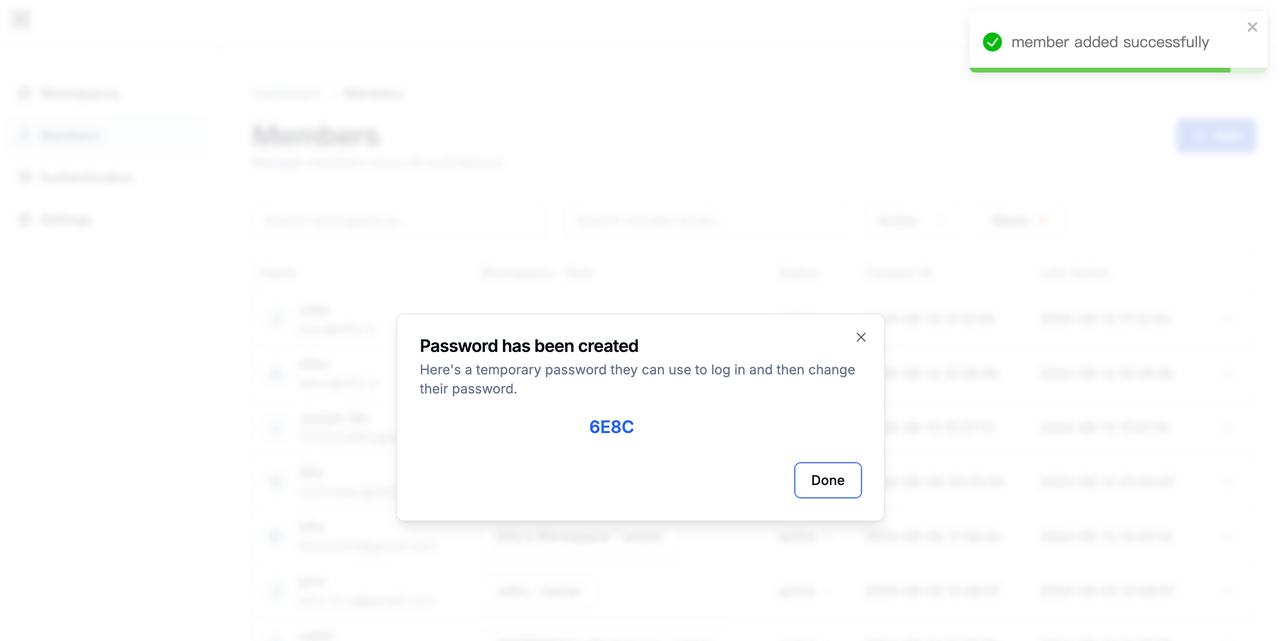
If your team doesn't use SSO authentication, members can log in with username and password. Click the **Add** button in the top right corner, then enter the username and email. The system displays the default login password when adding a member for the first time. To add administrators to your team, see [System Administrator Settings](/en/2.8.x/administer/systems/users#).
#### Add New Members to Workspaces
To add members to a specific workspace, check out [Workspace Management](/en/2.8.x/administer/workspace-management).
#### Disable Members
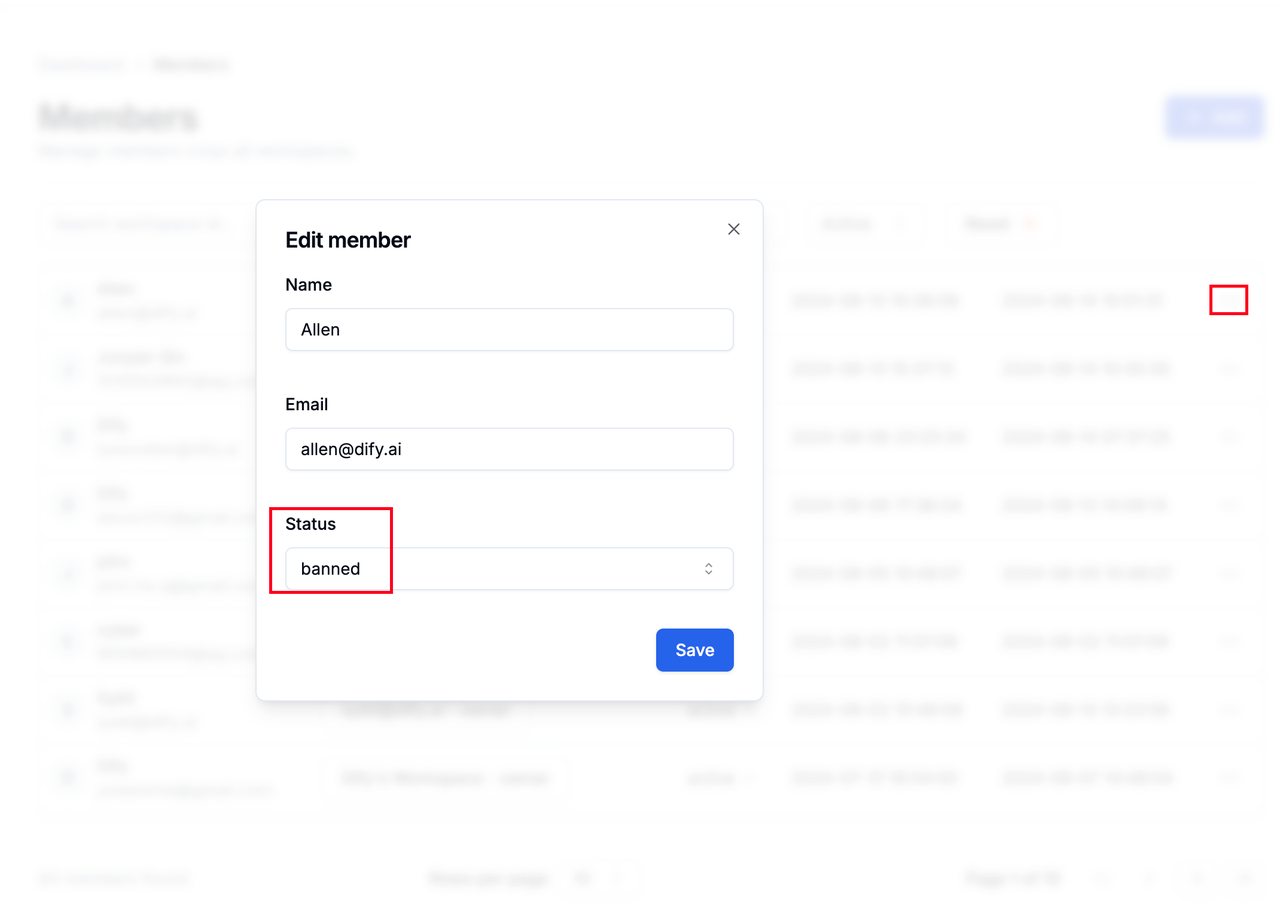
Disabling members is better than deleting them—it preserves their data while denying access. Click the menu button next to a member and switch their **Status** to "banned" to disable them.
#### Reset Member Passwords
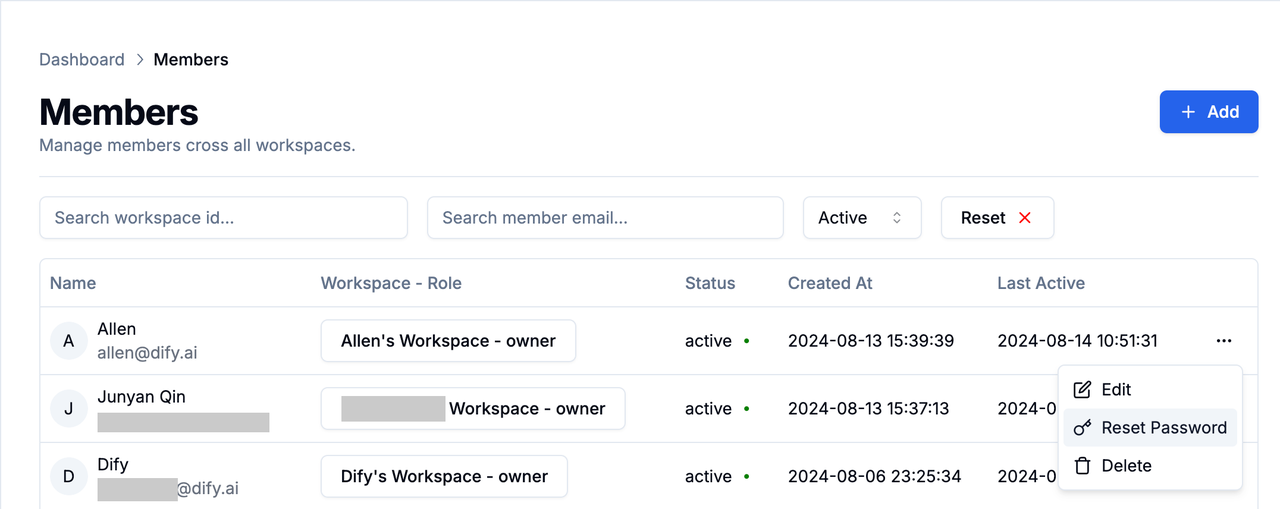
When members forget their passwords, system administrators need to send password reset emails manually. Click the menu button next to a member and select **Reset Password**.
#### Delete Members
⚠️ Warning: Deleting a member removes all their applications and usage data. Be careful with this action.
Click the menu button next to a member and select **Delete** to remove them.
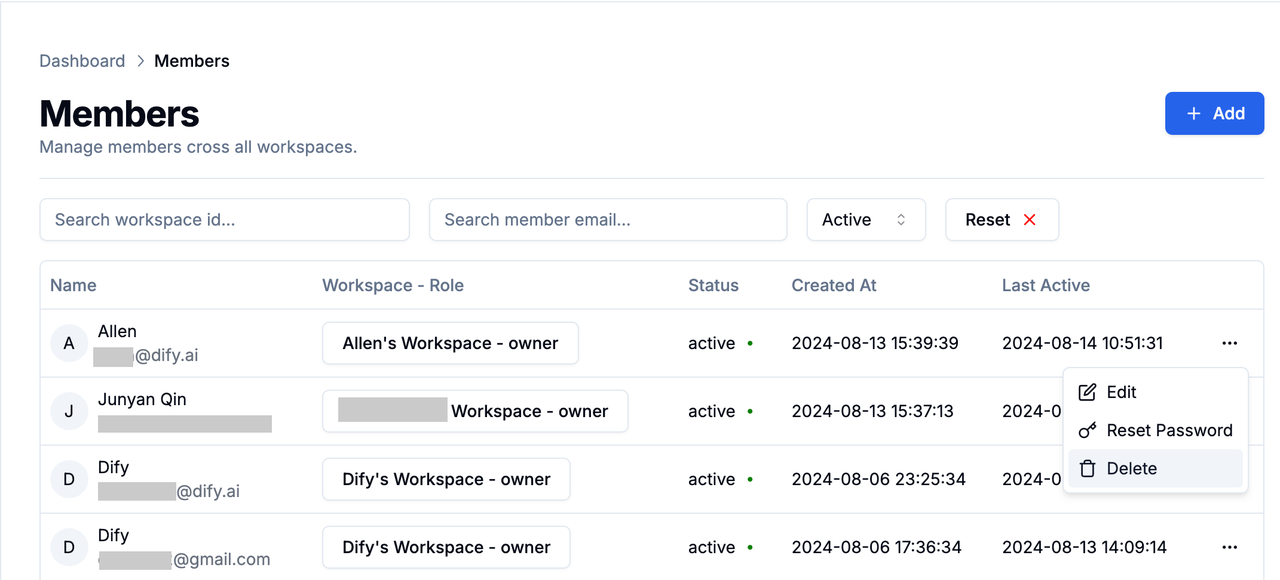
Note: Once added to a workspace, members can't be removed from it. Clicking Delete on the Members page removes them from the entire team.
#### Search for Members
Administrators can search for users by workspace ID or email address, and filter by user status.

### Automatic Management
Automatic member sync requires Dify Enterprise Edition version ≥v2.7.0.
Dify Enterprise Edition supports automatic synchronization of your existing department and personnel structure through the [SCIM](https://scim.cloud/) (System for Cross-domain Identity Management) standard, making it easier to manage large-scale organizations.
Automatically sync organization members through the SCIM standard.
## Permission Management
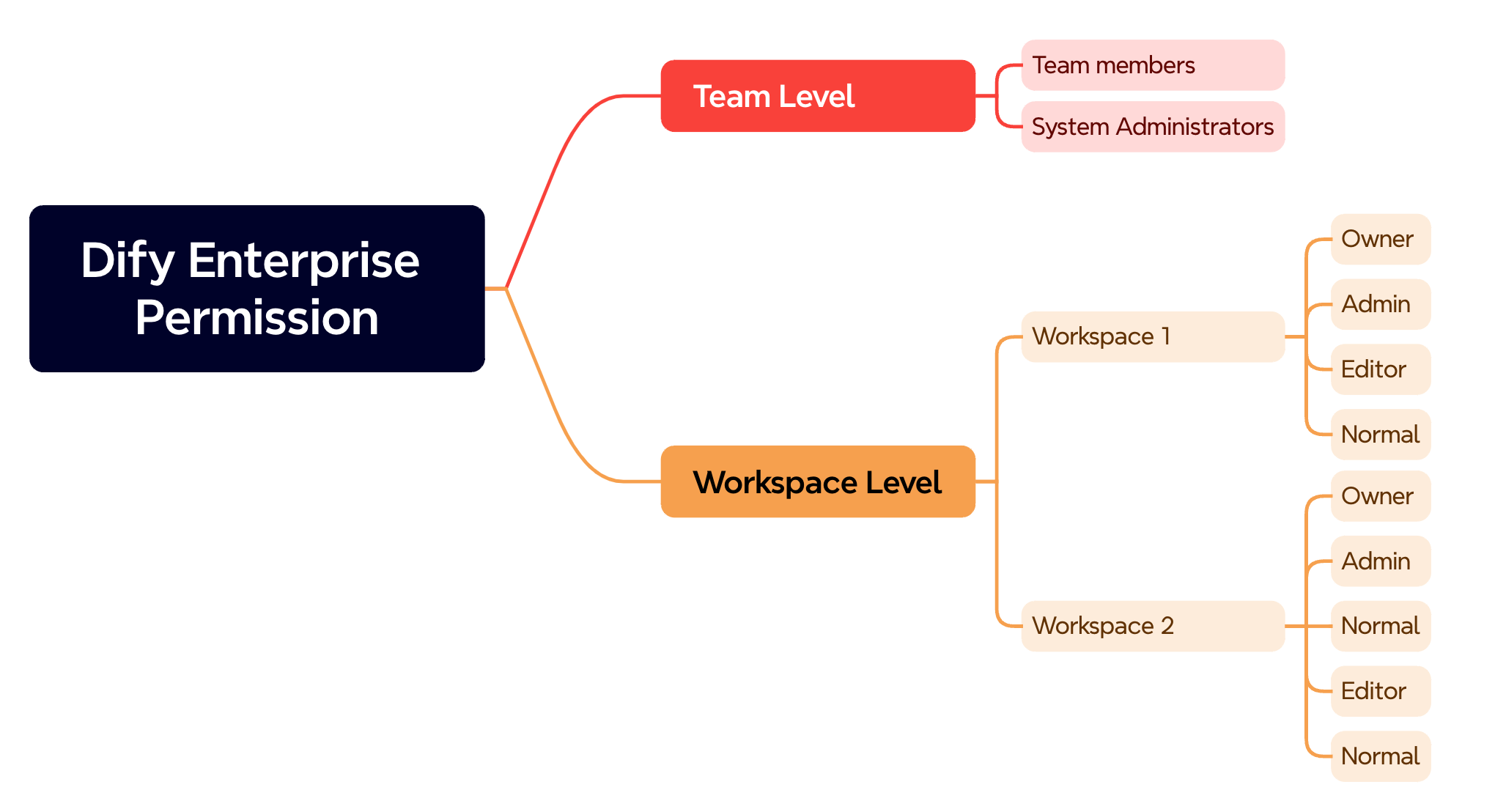
Each member has permissions at both the team level and workspace level. Team administrators can add regular members, invite new system administrators, and assign workspace permissions to members.
### Team-Level Permissions
* **Team Members**
Users added from the Members page have regular member permissions by default.

These members can:
* Log in and use Dify Enterprise Edition
* **System Administrators**
Users added from the Settings page have system administrator permissions by default. For more about system administrator operations, see [System Settings](/en/2.8.x/administer/systems/users).

These members can:
* Access the enterprise management dashboard
* Add, delete, or disable team members
* Add members to workspaces and assign permissions
### Workspace-Level Permissions
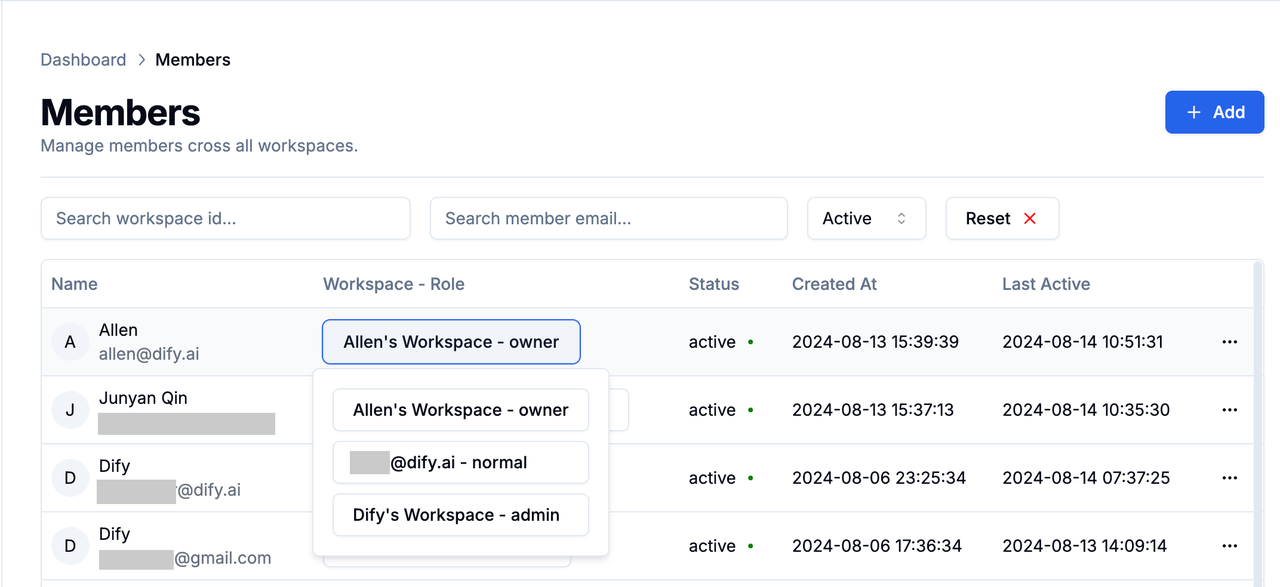
Workspaces have five permission groups: Owner, Admin, Editor, Normal.
* **Owner**
The workspace creator. Each workspace has only one Owner who can create and edit all applications in the workspace. They can access settings to add model providers, create API extensions, and more.
* **Admin**
Workspace administrators. Each workspace can have multiple admins who can create and edit all applications in the workspace. They can access settings to add model providers, create API extensions, and more.
* **Editor**
Members who can create and edit applications in the workspace. They cannot access settings to add model providers or manage workspace members.
* **Normal**
Regular workspace members. Each workspace can have multiple normal members who can only use applications within the workspace, not edit or modify them. They cannot access settings to add model providers or create API extensions.
## Group Management
This feature requires Dify Enterprise Edition version ≥v2.6.0.
In Dify Enterprise Edition, **group management** controls member access to different resources within your organization. By organizing members into different groups, you can effectively control which users access which Web Apps, preventing resource misuse or potential data leaks while ensuring information security.
### Manual Sync Groups
#### Create Groups
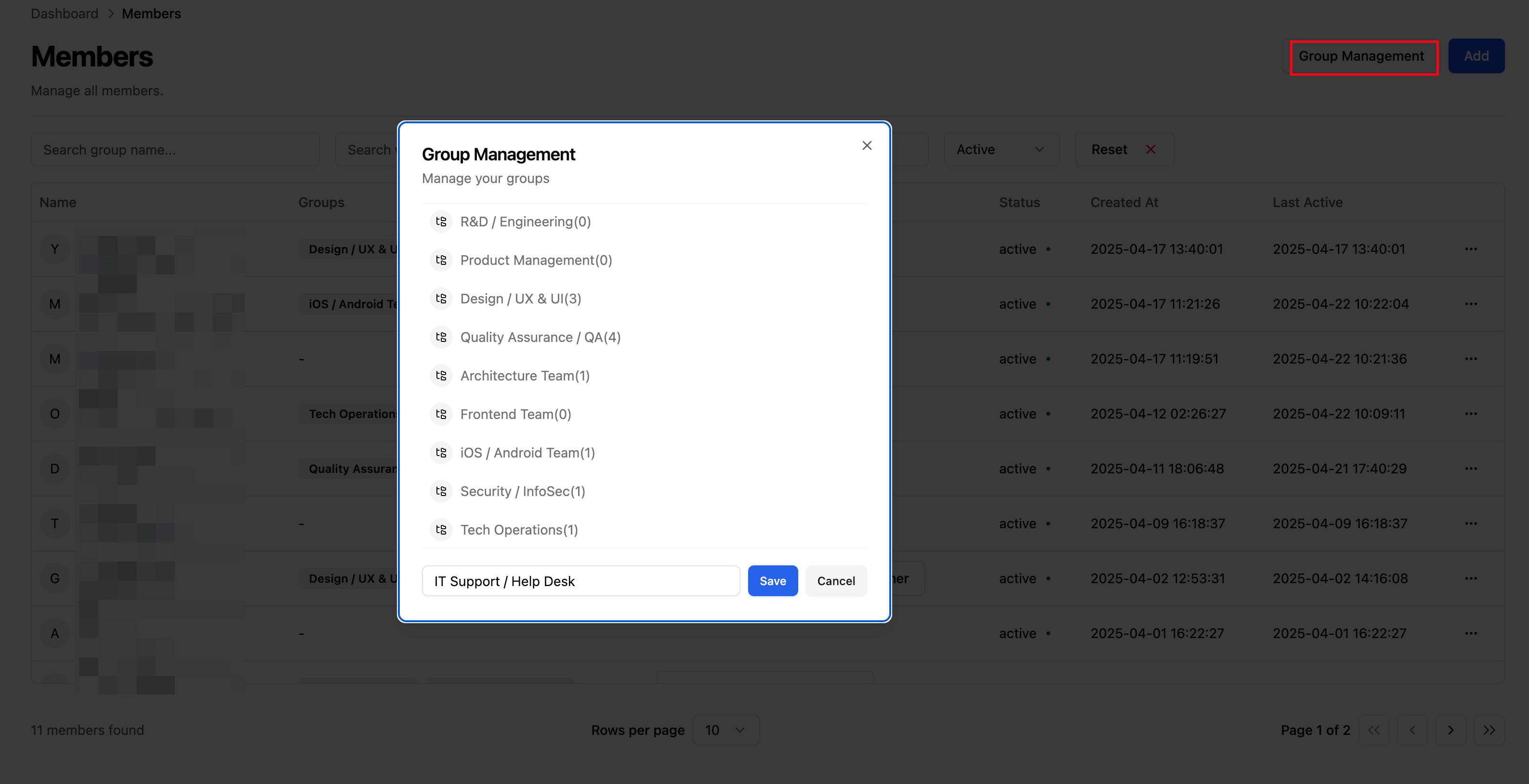
Click **Group Management** in the top right corner of the Members page, enter a group name to create it. Group names must be unique.
#### Edit Groups
Groups support renaming and reordering by dragging. Click the **Edit** button next to a group name to rename it. Names cannot duplicate existing groups.
#### Assign Users to Groups
Click the **menu** button next to a member → **Edit Groups**, then select the groups they should join. Each user can belong to multiple groups.
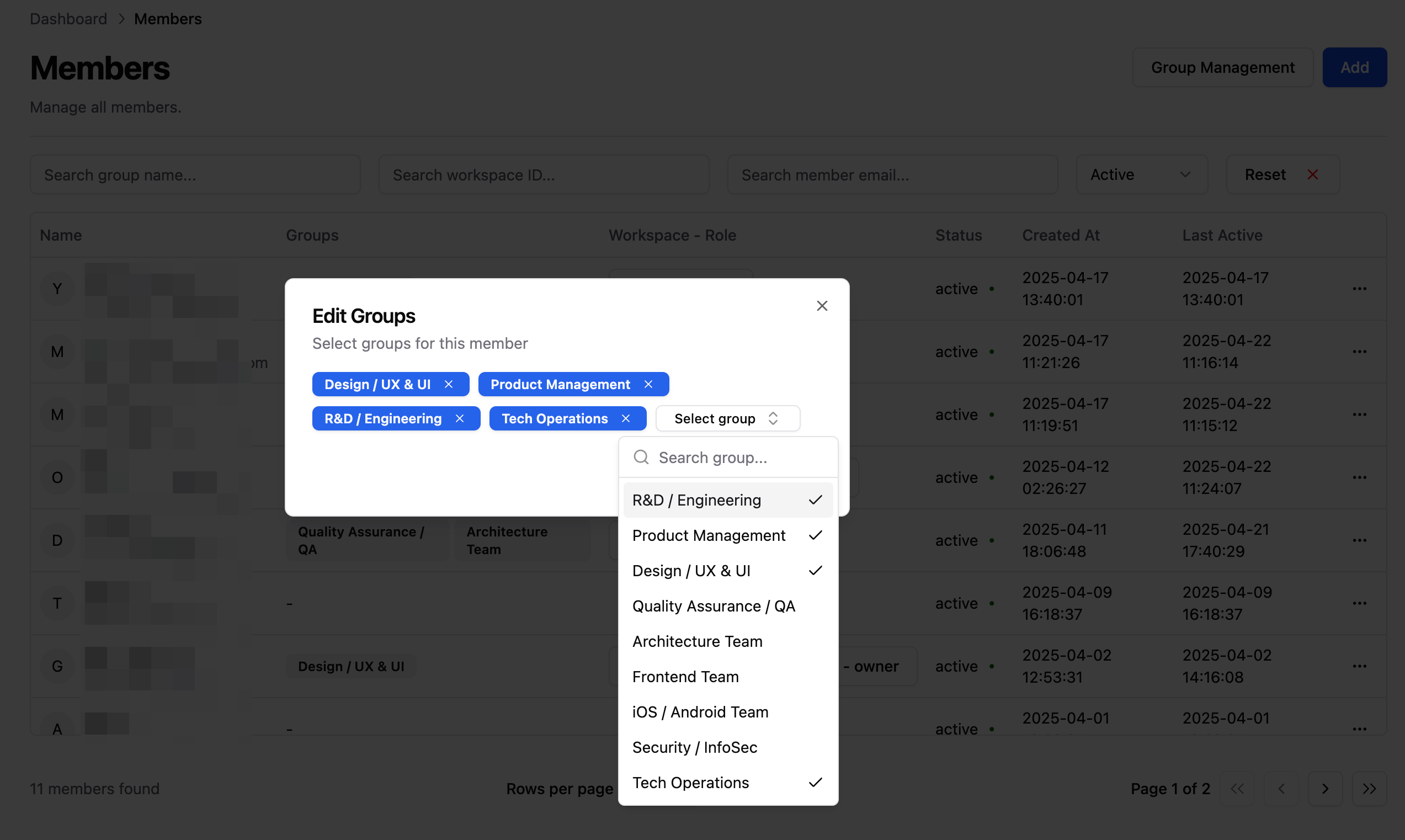
After assigning users to groups, see [Application Publishing: Access Permission Management](/zh-cn/user-guide/application-publishing/permission-management) to learn how to control Web App access permissions.
### Automatic Sync Group
Automatic department synchronization requires Dify Enterprise Edition version ≥v2.6.0.
Through the SCIM standard, Dify Enterprise Edition supports automatic synchronization of existing user groups from your IdP. For detailed configuration instructions, see:
Automatically sync user groups through Azure.
Automatically sync user groups through Okta.