> ## Documentation Index
> Fetch the complete documentation index at: https://enterprise-docs.dify.ai/llms.txt
> Use this file to discover all available pages before exploring further.
# Authentication Methods
## User Authentication Methods
Workspace refers to the platform for creating Workspaces and AI applications, offering the following three user authentication methods:
1. Email + Password
2. Email + Verification Code
3. Single Sign-On (SSO)
Enterprise Admin refers to the platform for managing all workspaces and users within Dify Enterprise Edition. Users with permission to access this platform are collectively referred to as "System Administrators", with the following authentication methods:
1. Email + Password
2. Two-Step Verification (global activation recommended)
To enable Two-Step Verification (2FA) in Enterprise Edition, please upgrade to version v2.5.0 or higher.
System administrators can flexibly set authentication methods for workspaces and the enterprise admin dashboard based on business requirements, to uniformly manage authentication methods for enterprise members.
### 1.1 Email and Password
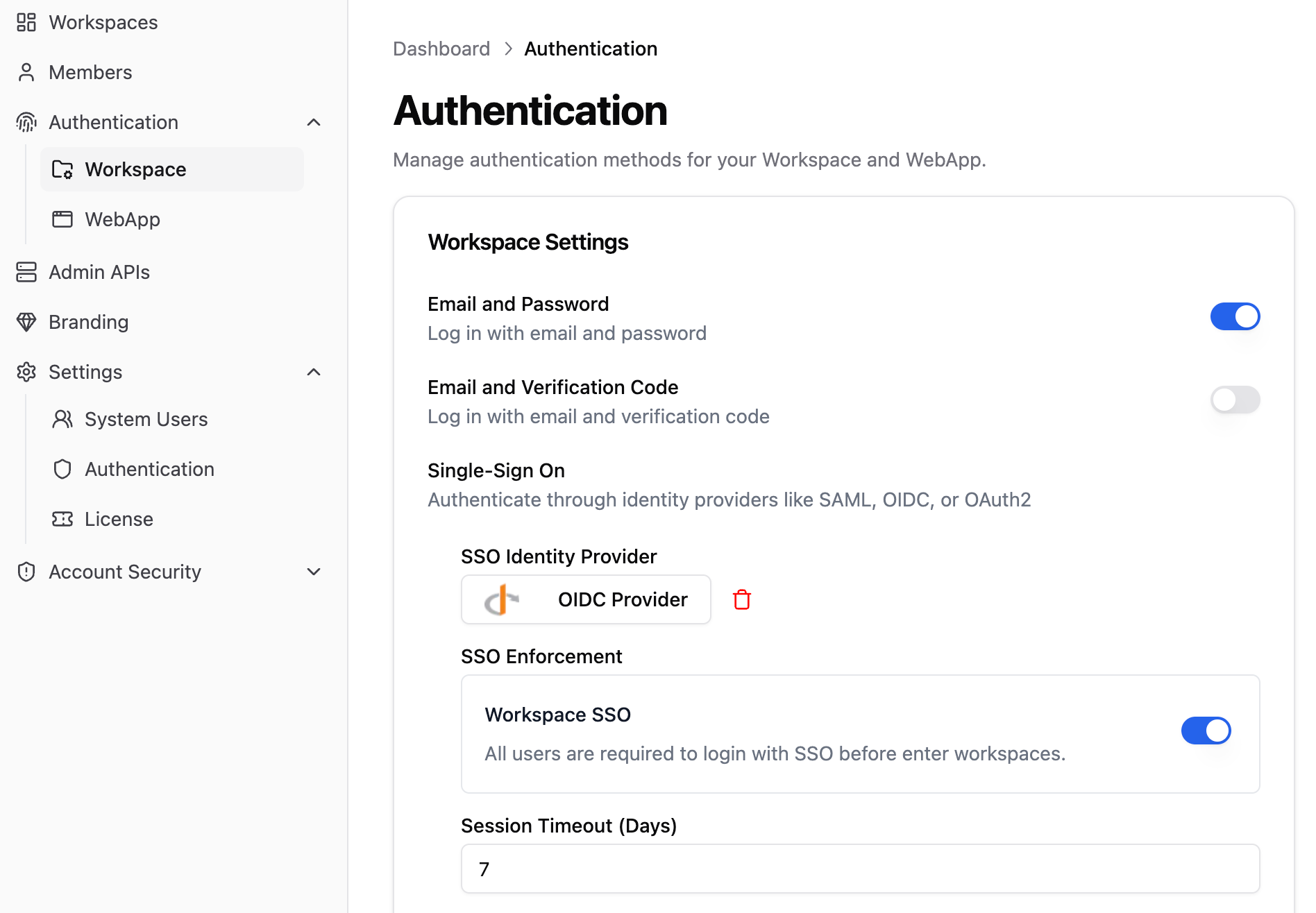
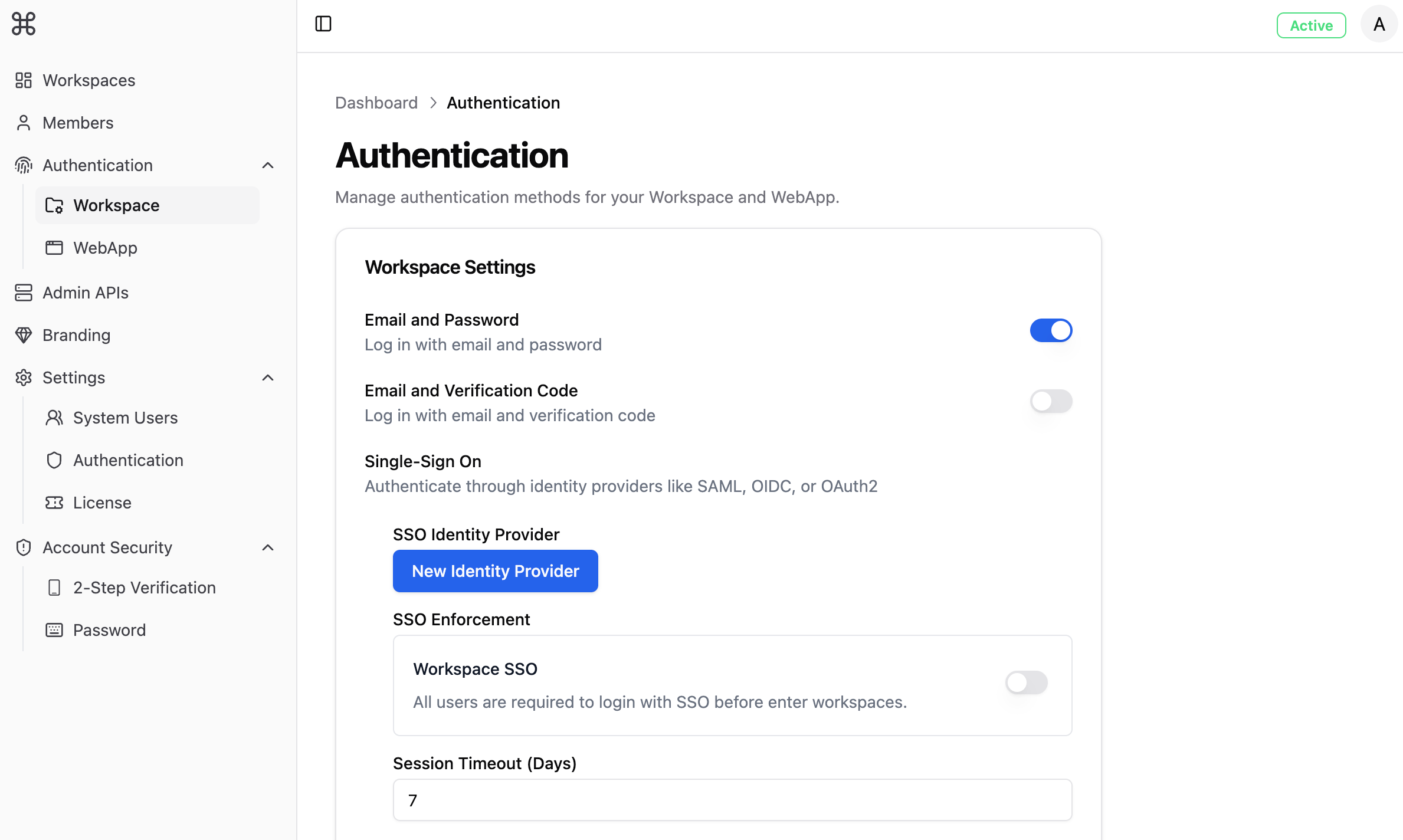
Click the toggle button on the right side of "Email and Password" in the "Authentication" -> "Workspace" page. Once enabled, enterprise members can use "Email and Password" to log in to the Dify Enterprise platform workspace.
### 1.2 Email and Verification Code
**Enable Authentication**
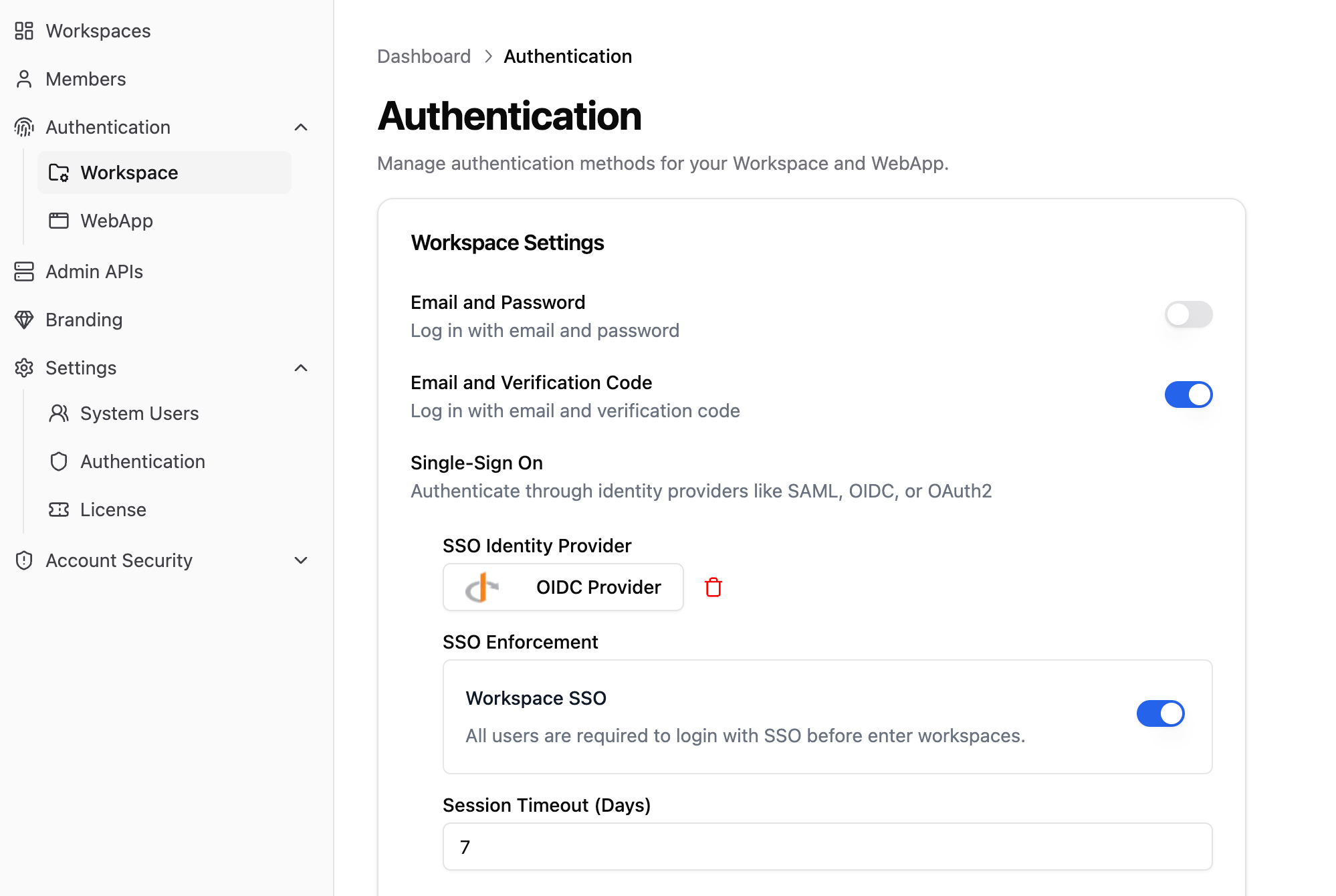
Click the toggle button on the right side of "Email and Verification Code" in the "Authentication" -> "Workspace" page. Once enabled, organization members can use "Email and Verification Code" to log in to the Dify Enterprise platform workspace.
### 1.3 Single Sign-On (SSO)
**Enable Authentication**
For detailed instructions, please refer to [Enterprise SSO](/en/2.6.x/administer/sso/introduction)
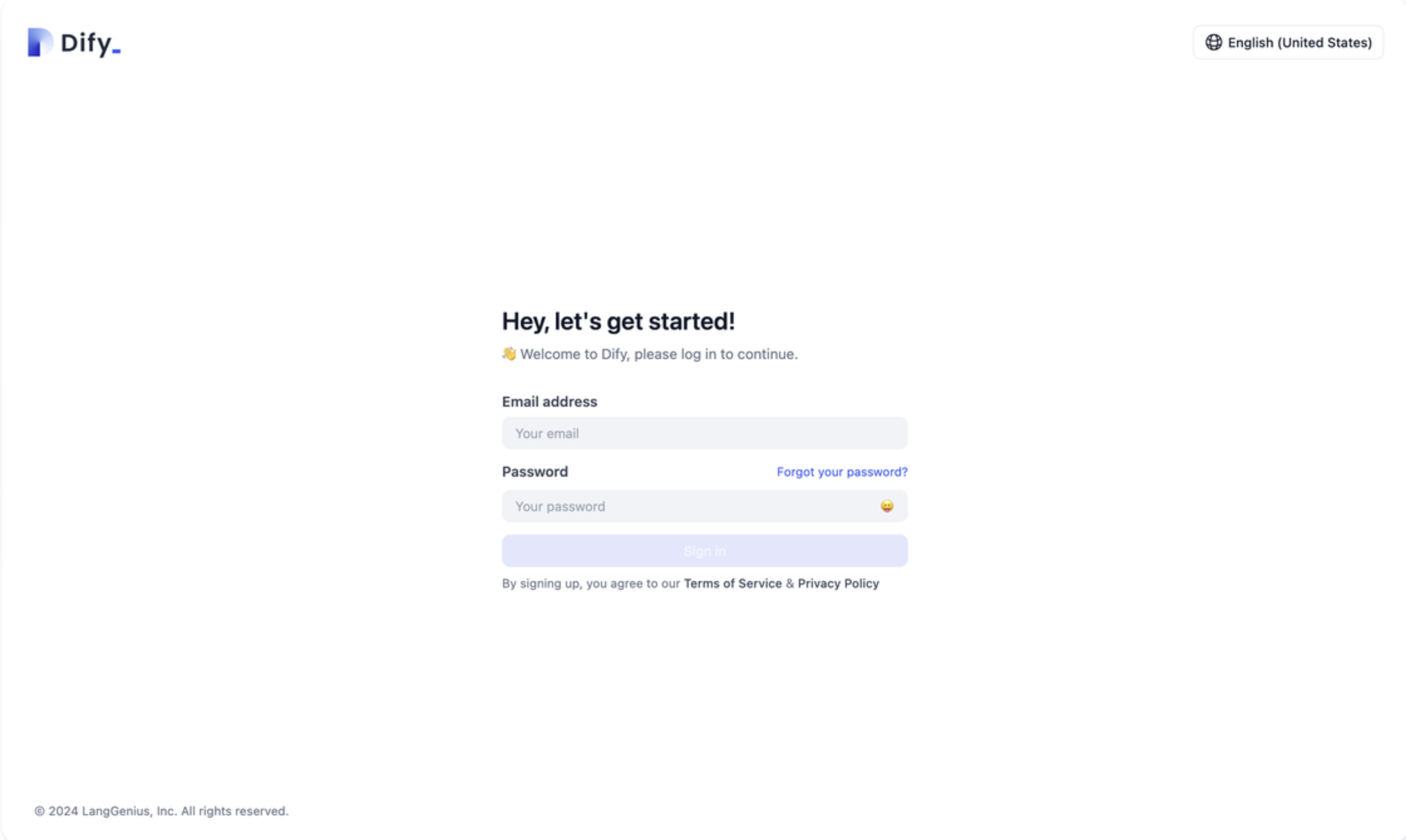
⚠️ If the system administrator has not enabled any of the above authentication methods, the login page will display an `Authentication method not configured` error message, and organization members will not be able to log in.
### 1.4 Two-Step Verification
> Two-Step Verification is for system administrator users.
Two-Step Verification is an additional login verification mechanism that requires users to obtain a real-time verification code from a third-party TOTP App after completing basic verification (such as entering an email or password). For detailed information, please refer to Two-Step Verification.
## Enterprise User Account Creation Methods
Dify Enterprise Edition provides the following flexible user account creation methods, designed to reduce user management burden and improve the efficiency of organization member account access.
### 2.1 Allow Users to Self-Register Accounts
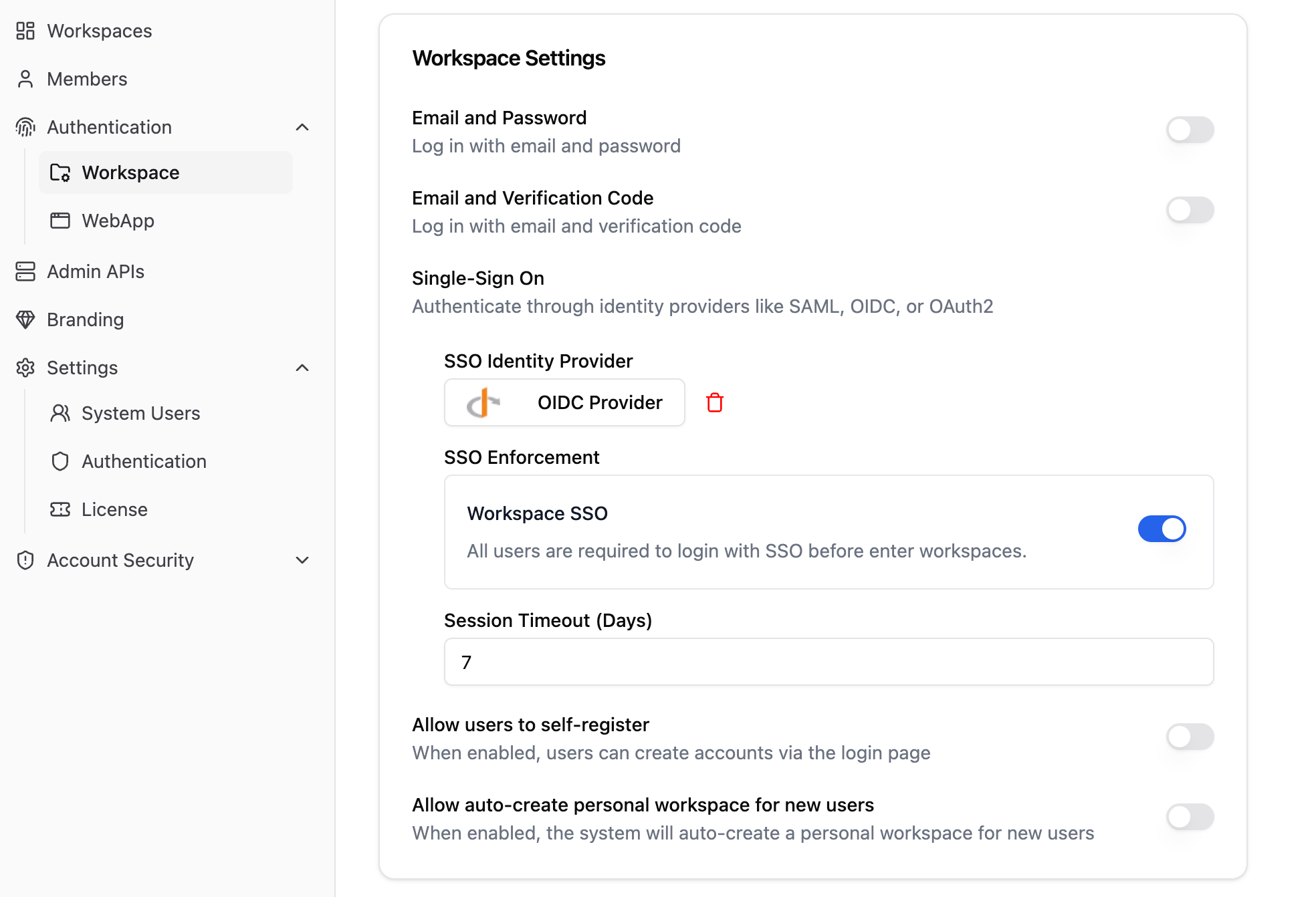
Click the toggle button on the right side of "Allow users to self-register accounts" in the "Authentication" -> "Workspace" page to allow users to create their own accounts after logging into the Enterprise Edition.
### 2.2 Allow System to Automatically Create Personal Spaces for New Users
Click the toggle button on the right side of "Allow system to automatically create personal spaces" in the "Authentication Methods -> Workspace Settings" page. After users create accounts and log into the Enterprise Edition, the system will automatically create personal spaces for them.
In this mode, users need to be invited by system administrators to join the enterprise before they can use the Dify Enterprise platform; meanwhile, the system will automatically create personal spaces for those users.
### 2.3 Flexible Configuration Combinations
* **Both Enabled**: Organization members are allowed to self-register accounts. After registration, the system automatically creates personal spaces for them, and members can immediately start using the Dify Enterprise platform without waiting for administrator invitations.
* **Only "System Automatically Create Personal Spaces" Enabled**: Even with "System Automatically Create Personal Spaces" enabled, organization members still need system administrator invitations to register and activate their accounts; they cannot self-register and log in to the Dify Enterprise platform.
## WebApp Configuration
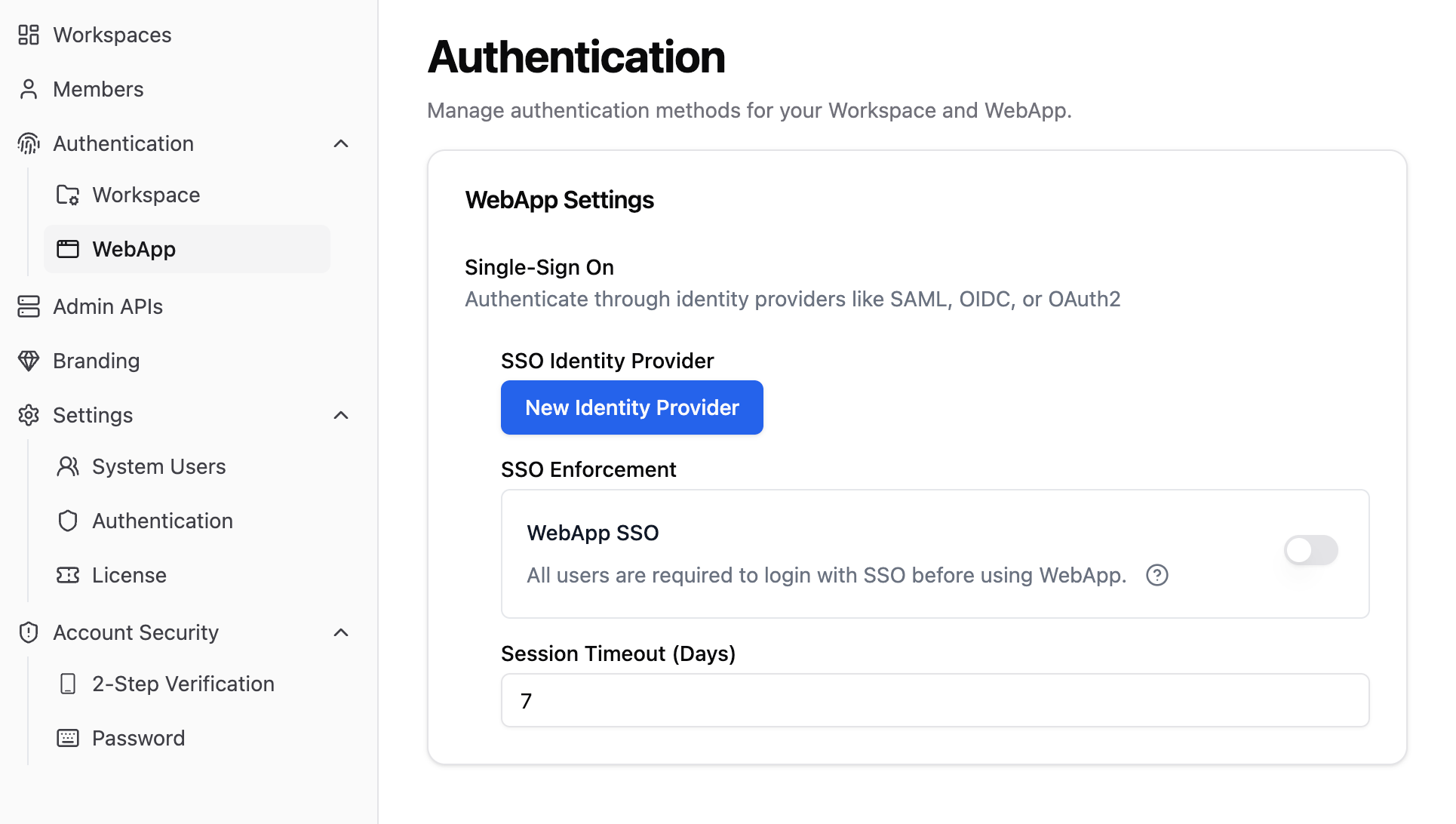
WebApp only supports access control through [SSO](/en/2.6.x/administer/sso/introduction). Click the "Authentication Methods" -> "WebApp" page and configure the SSO settings.
## Frequently Asked Questions
Q: How can organization members reset their passwords?
A: Organization members can reset their passwords through three methods:
1. Contact an administrator to reset the password in the enterprise management backend.
2. Organization members can choose "Forgot Password" when logging into the Dify Enterprise platform.
3. Organization members can reset their passwords in the account settings of the Dify Enterprise platform.